
|
How do I do A/B Split Testing in ClickMagick?
The idea behind “split testing” is pretty simple …
Rather than show a single page — which may or may not do well — you show different visitors different pages and watch the results of each page, looking for the page that produces the best results.
At any given time, your best-performing page is known as your “control” page. To split test, you would just make a copy of it, make a single change you think might improve it, then send some portion of your traffic to this “variation” page.
Any time a variation wins the test, it becomes your new control page, and you can repeat the process.
By constantly split testing and improving your essential pages – things like your landing pages, opt-in pages, and sales pages – you can continually increase your conversions. And generating more revenue from the traffic you’re already getting can make a massive difference to your bottom line.
Setting up a split test for your landing page, or any other page in the middle of your funnel, is simple to do …
When A/B split testing, you have a “Control Page,” which is your current best-performing page, and a “Variation Page,” which is the test page you’re comparing to the control page in hopes that it will perform better.
To set up a split test, you need to add the appropriate tracking code to both your control page and the variation page.
To generate the tracking code for either page, go to your Project Dashboard, click on the Tools menu, then choose “Website Code.”
From there, use the Custom Website Code builder and select Split Testing under Advanced Options …
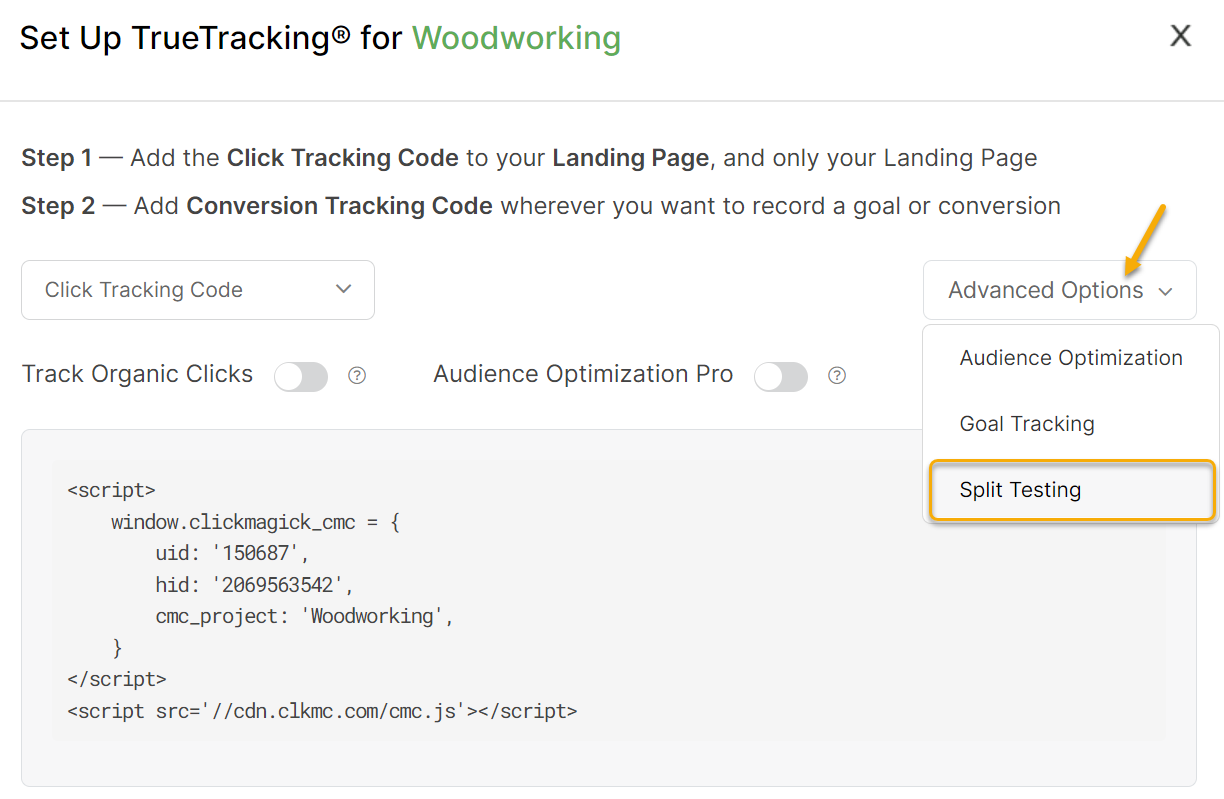
From here, choose whether you’re generating a tracking code for the Control Page or the Variation Page.
Next, enter a unique Ref value so ClickMagick can tell the difference between the Control Page and the Variation page.
Using “control” and “variation” is a simple approach, but if you expect to run multiple split tests over time, you’ll probably want to use unique Ref values for each test so you can quickly tell them apart.
For example, you could include a unique string like the date and use Ref values like c-120922 and v-120922.
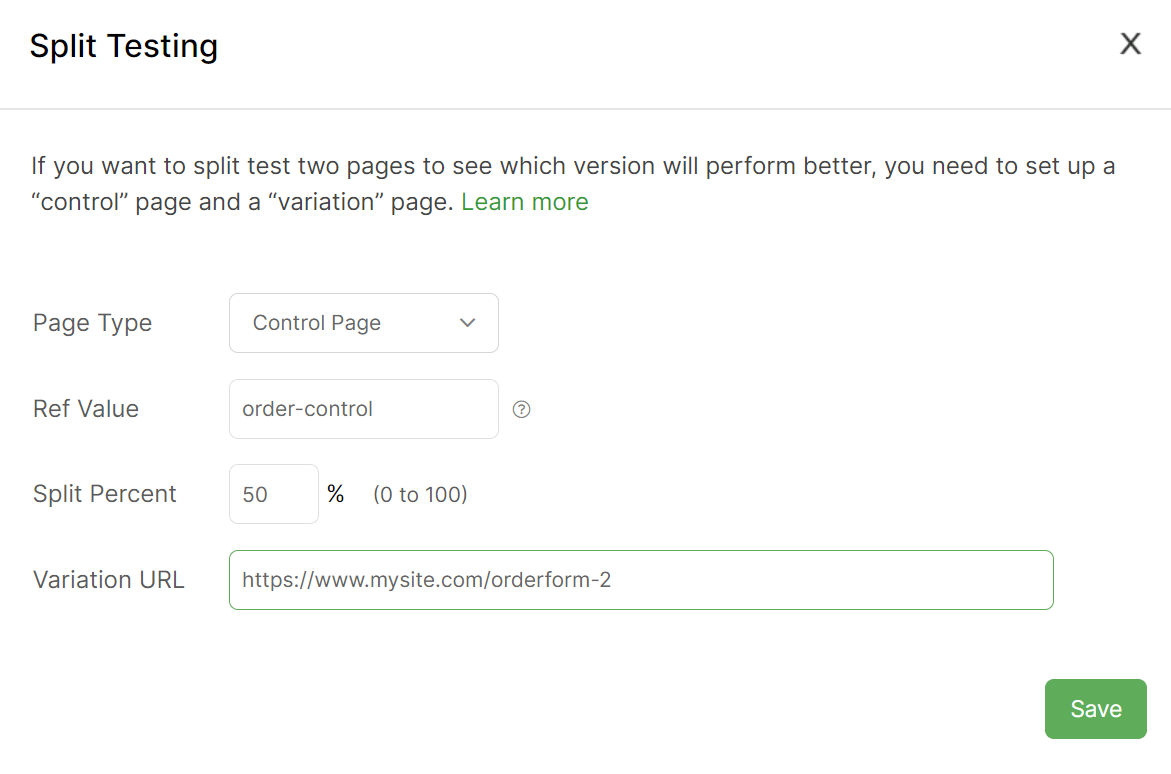
If you’re generating code for the Control Page, you’ll also need to enter the URL for the Variation Page and what percentage of the incoming clicks should be sent to the Variation Page.
If the Variation Page is quite different from the Control Page and you have no idea how it will perform, you may want to send a smaller percentage of traffic e.g. 20%, so you don’t waste a lot of money if it performs poorly.
On the other hand, if the Variation Page is only a slight modification of the Control Page, you can split your traffic equally 50/50 and see meaningful results faster.
And that’s all there is to set up a split test …
Just make sure you add the code to all of the pages involved in your split tests.
Tip: If you’re doing a lot of split testing, you may want to use Google Tag Manager to manage your tracking codes. That way, you can easily modify the tracking code for all your pages as necessary in your browser rather than constantly modifying the actual code on your pages.
Note: When split testing, it’s imperative that you add all of your tracking codes to the “head” of your web pages. If you don’t, visitors will see a momentary “page flash” if and when they are redirected to your variation pages.
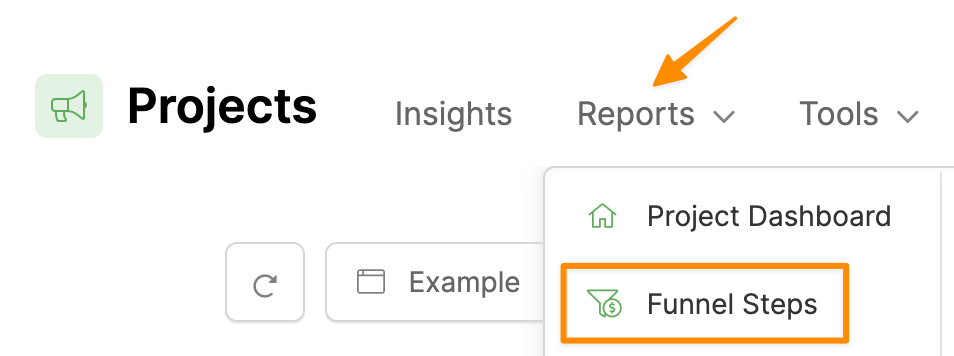
You can see the results of your split tests at any time using the Funnel Steps report:
You’ll want to put the Steps Report into full-screen “comparison mode” by clicking here …
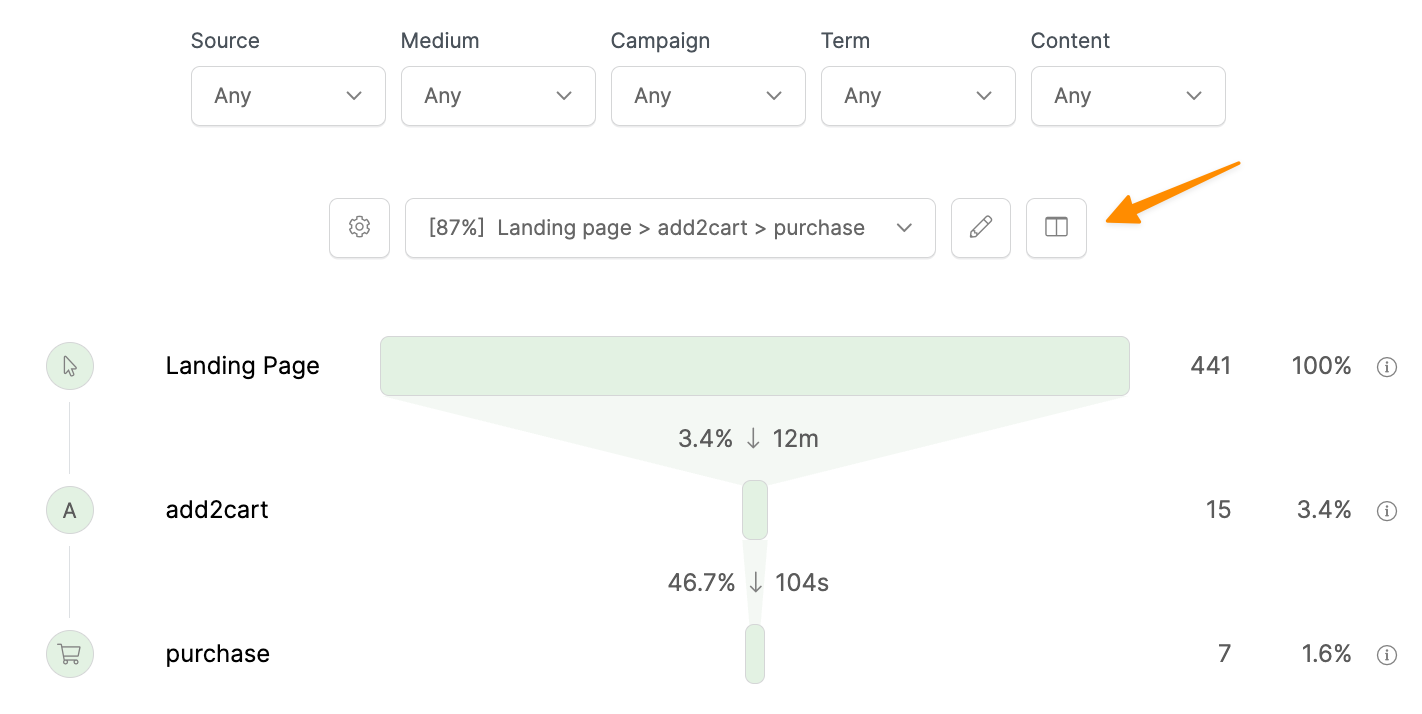
Then simply select the two paths that you want to compare. You can compare the results for any date range, and even for specific traffic sources, by modifying the filters at the top of the report as necessary.
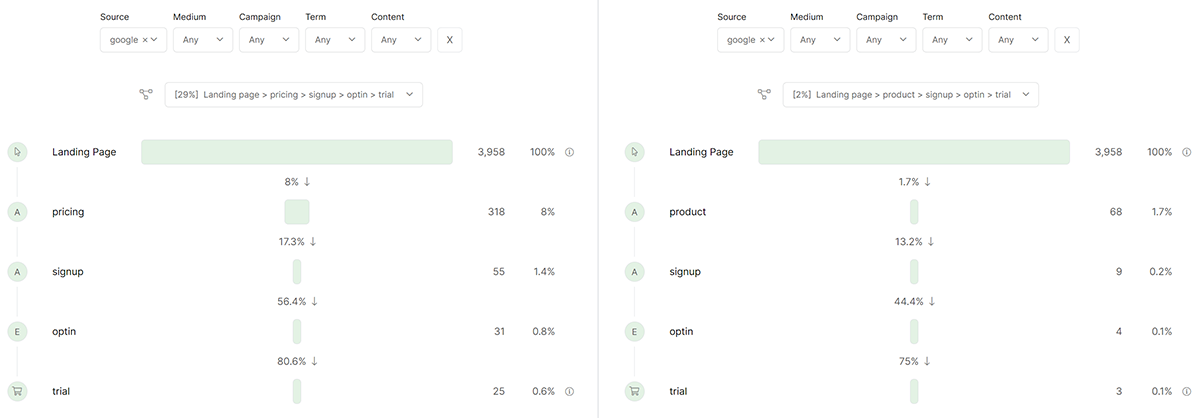
Split testing isn’t yet fully automated, so you’ll need to manually analyze the results on your own.
When you can consider the results to be “accurate” will really depend on your business, but if we were you, we’d wait until we had about an average week’s worth of conversions before trying to analyze the results.
For example, if you normally generate an average of 100 sales a week, wait until at least one of the pages you’re split testing has at least 100 sales before analyzing your results and concluding the test.
Here are a few more FAQs about Split Testing:
What are some best practices when split testing?
What should I know if I want to split test a landing page?
Why do I keep seeing the same page when I test my split test?
Article 1056 Last updated: 11/11/2025 10:44:45 AM
https://www.clickmagick.com/kb/?article=1056