
|
How do I send conversion data to RevContent?
You can send your conversion data to your native ad platform by setting up a webhook. This will just takes a few steps, and will allow you to send your conversion data back to the network so that you can optimize your marketing.
Select the ad network you are working with to learn more.
RevContent allows you to track conversions using server-to-server webhooks. Here’s how to set it up:
Step 1 – Use the URL Builder Tool to set up your UTM powered URL.
Then set it as the URL to send traffic to
You can use RevContent’s tracking tokens in your UTM powered URL shown below:
{adv_targets} |
identifies the Topic where click came from |
{boost_id} |
numerical identifier of the campaign clicked on |
{content_id} |
numerical identifier of the content clicked on |
{city} |
city of the user clicking on the content |
{state} |
state of the user clicking on the content |
{country} |
country of the user clicking on the content |
{widget_id} |
numerical identifier of the widget the click occurred on |
| Others | Click here for RevContent's full set of parameters |
Step 2 – Generate a test click
After you create your UTM powered url, you’ll need to generate a test click.
Without it, you won’t be able to select the correct
utm_source and utm_campaign in step 5 when setting up your Webhook.Be aware that dynamic tokens won’t work for the test click.
Fill the source, medium and campaigns fields and then click on Generate Test Click.
You can use the parameters you see in the image below:
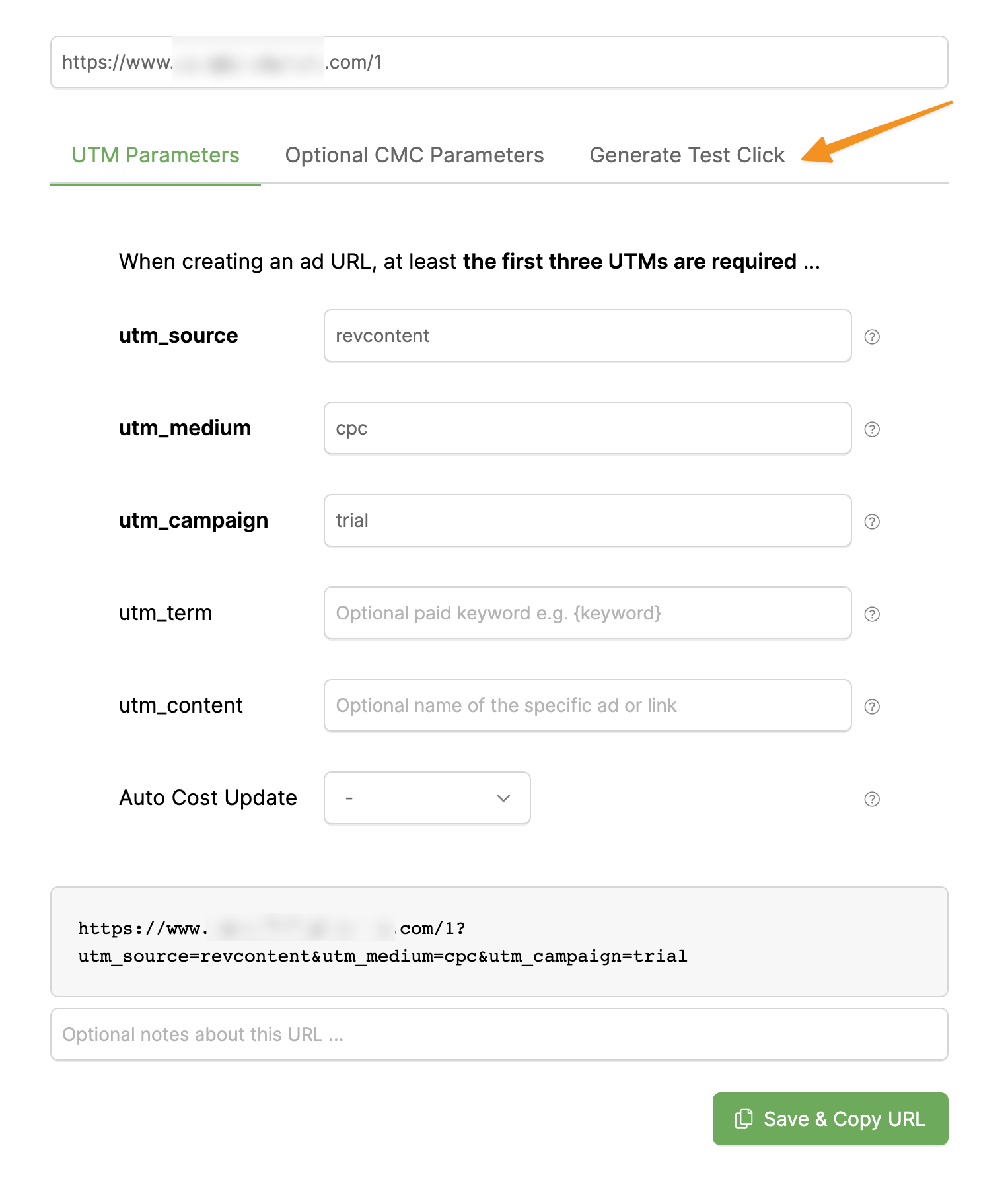
Click on Generate Test Click again.
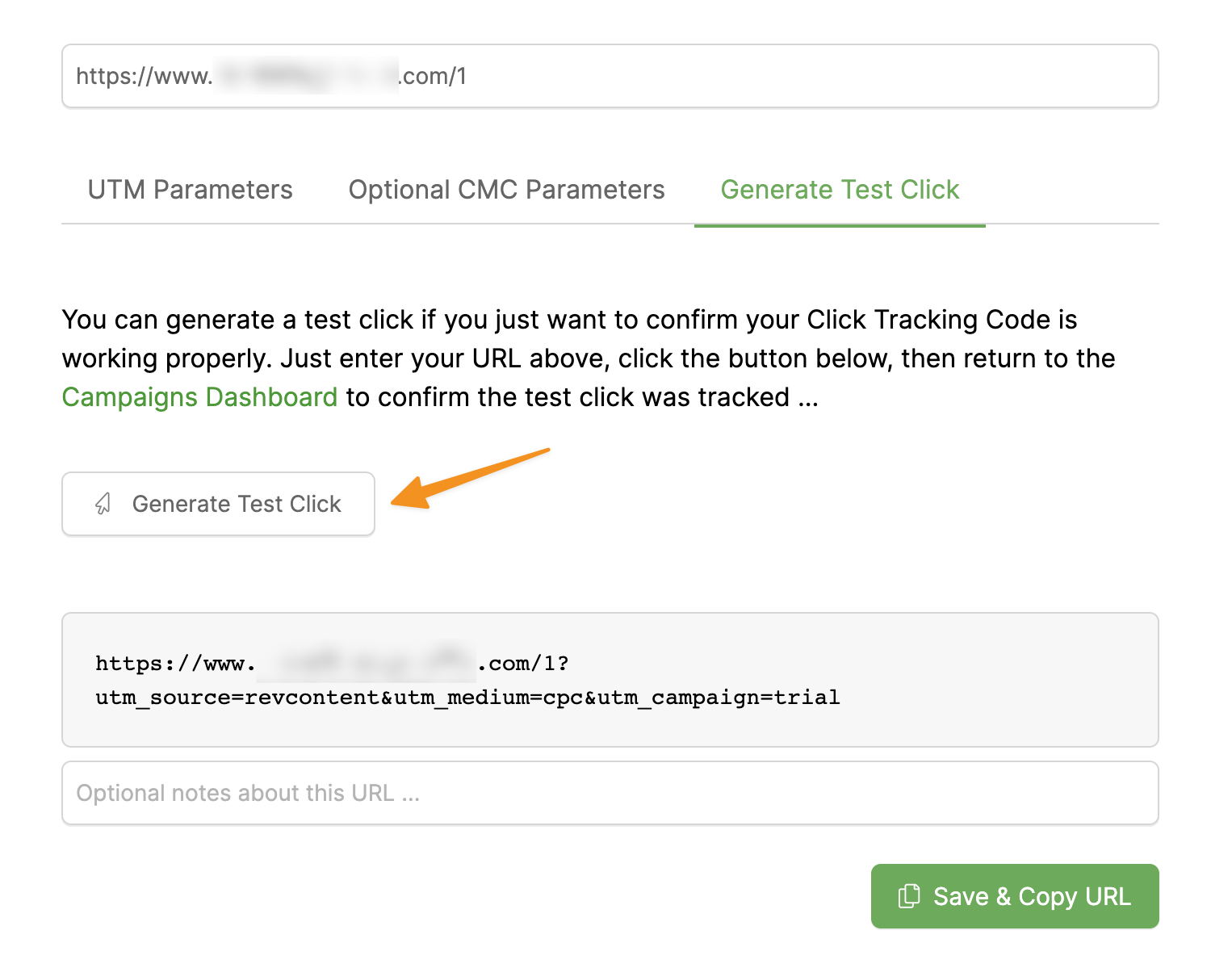
That’s it. Move to the next step.
Step 3 – Build your tracking code
In your RevContent account, you’ll want to navigate to the Campaigns Settings.
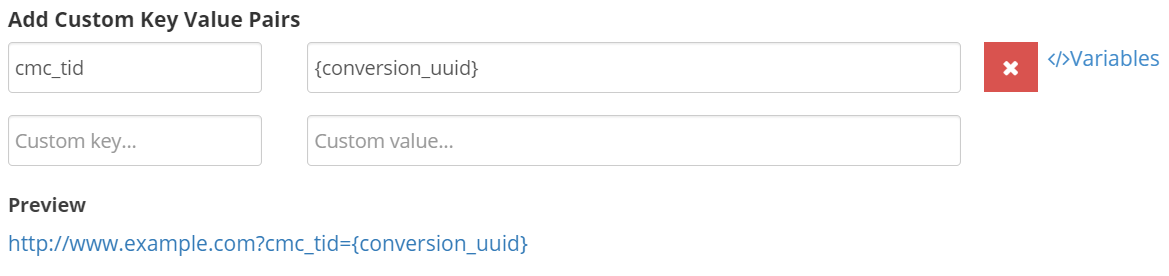
Scroll down until you see “UTM Tracking” then click on the Gear Icon and add Custom Key Value Pairs.

Custom Key:
cmc_tidCustom Value:
{conversion_uuid}Then click the button to build your tracking code.
To create your webhook you’ll need three parameters. Your API access key, a uuid, and an amount.
To get your API Access Key, head to your account settings and scroll down the page until you see Widget API Key:

Save this key.
Step 4 – Set up your Webhook
Open the Webhooks tool by clicking on “Webhooks” in your Projects Tools menu.
Click “Add Endpoint" to create a new webhook.
Choose the project that you're working on, update the
utm_source and utm_campaign values from the drop-down menu, then set the Conversion Type to Sales.The URL that you will use for the endpoint is below, but in order for it to work you need to replace
<your_api_key> with the API key you saved in the previous step.https://trends.revcontent.com/api/v1/conversion.php?api_key=<your_api_key>&uuid=[cmc_tid]&amount=[cmc_amt]Paste your updated URL into the Endpoint URL box.
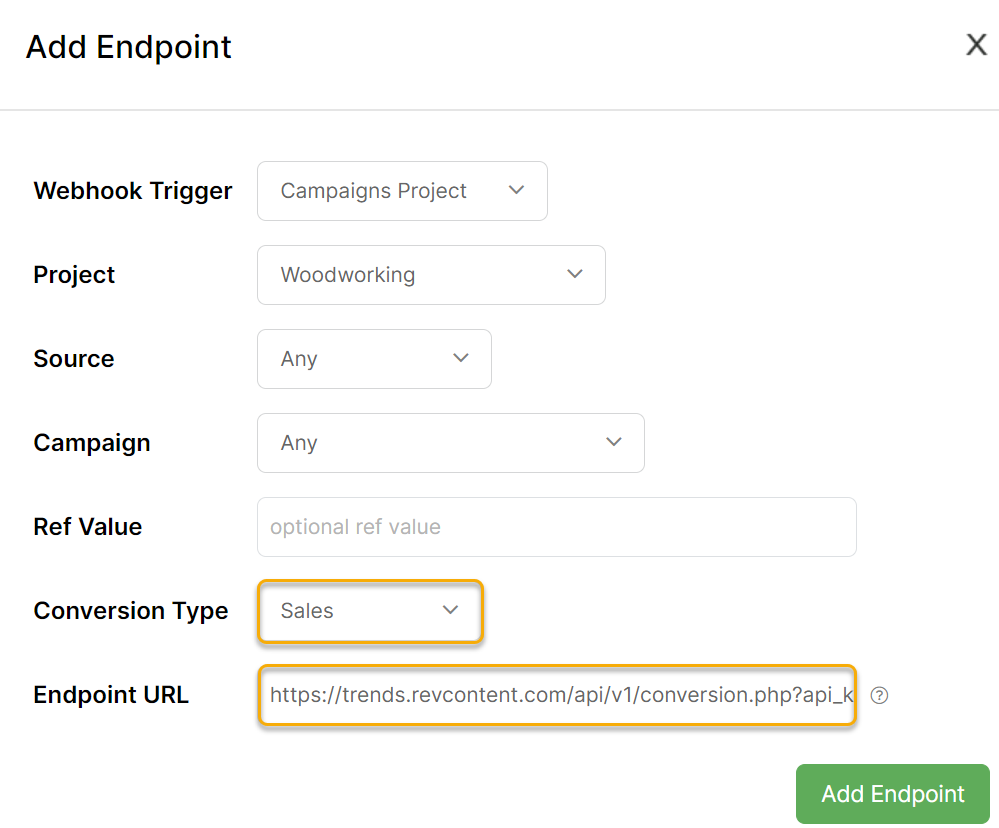
Step 5 – Click on Add Endpoint.
Taboola supports webhooks, so you have the ability to send conversion data back to Taboola.
Here’s how to set it up:
Step 1 – Use the URL Builder Tool to set up your UTM powered URL.
Then set it as the URL to send traffic to.
You can use Taboolas tracking tokens in your UTM powered URL shown below:
{thumbnail} |
The image or the video URL |
{title} |
The headline for your item |
{platform} |
The user platform on which your item was presented. This returns. "Desktop," "Mobile," or "Tablet" |
{campaign_id} |
A unique Taboola campaign ID. This campaign ID can be found on the "Campaign Management" page in Backstage |
{campaign_name} |
The campaign name, as defined in the "Campaign Management" page in Backstage |
{campaign_item_id} |
A unique Taboola ID, as defined in the "Top Campaign Content" report in Backstage |
{cpc} |
The real-time cost-per-click bid of each click |
| Others |
Click here for Taboola's full set of parameters |
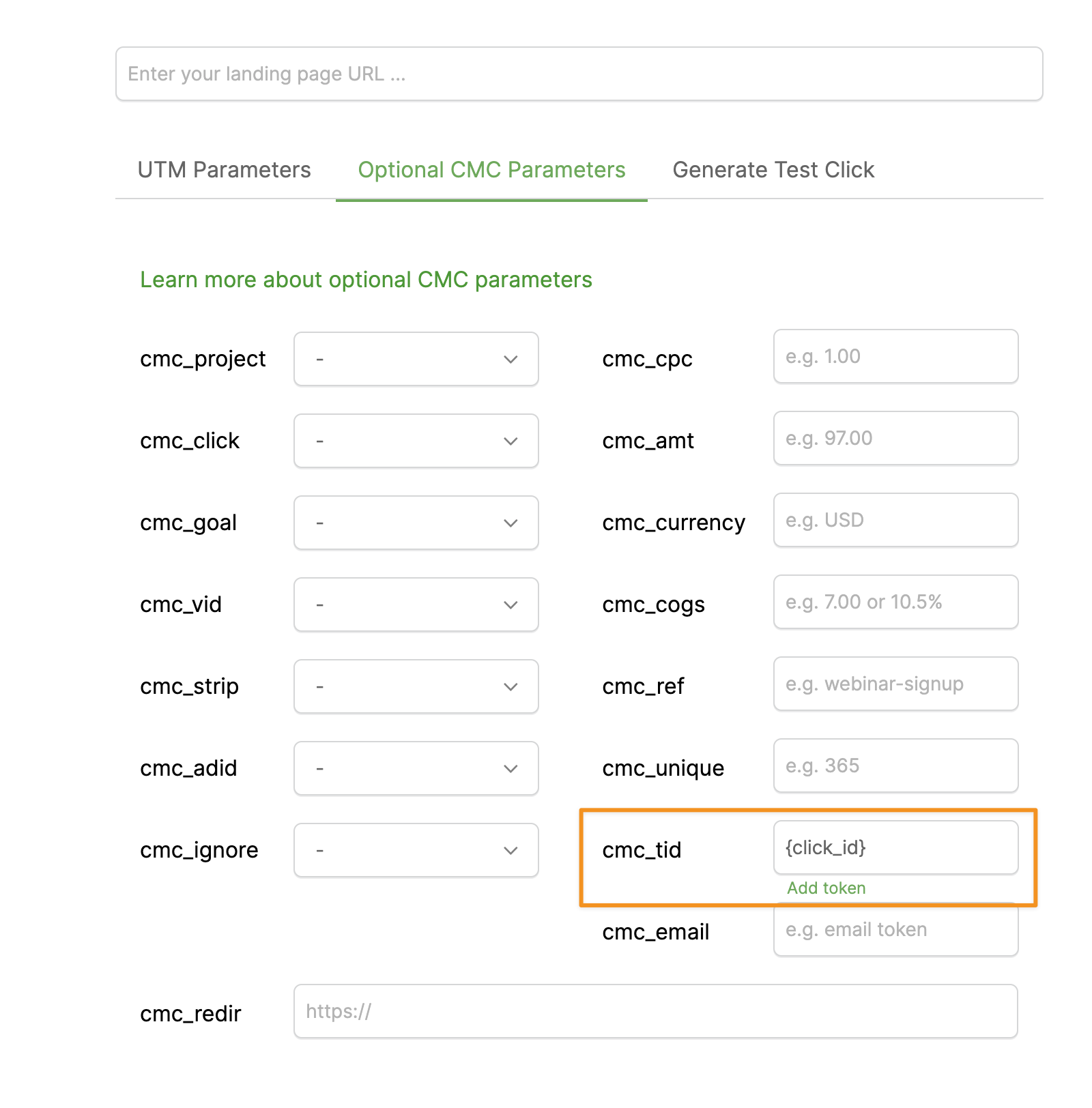
You also need to choose Taboola’s click ID token in the Optional CMC Parameters, under the cmc_tid field.
Step 2 – Generate a test click
After you create your UTM powered url, you’ll need to generate a test click.
Without it, you won’t be able to select the correct
utm_source and utm_campaign in step 5 when setting up your Webhook.Be aware that dynamic tokens won’t work for the test click.
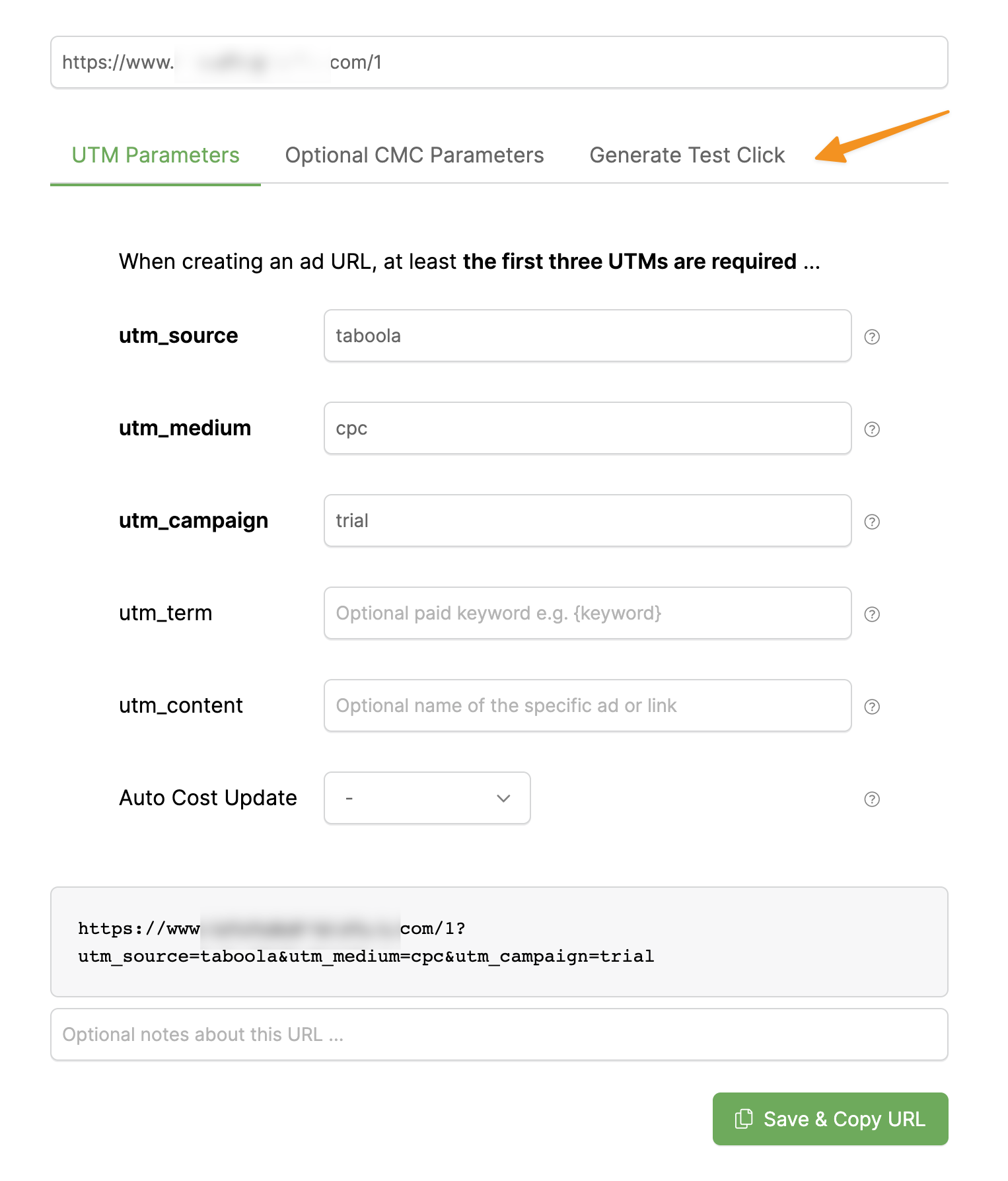
Fill the source, medium and campaigns fields and then click on Generate Test Click.
You can use the parameters you see in the image below:
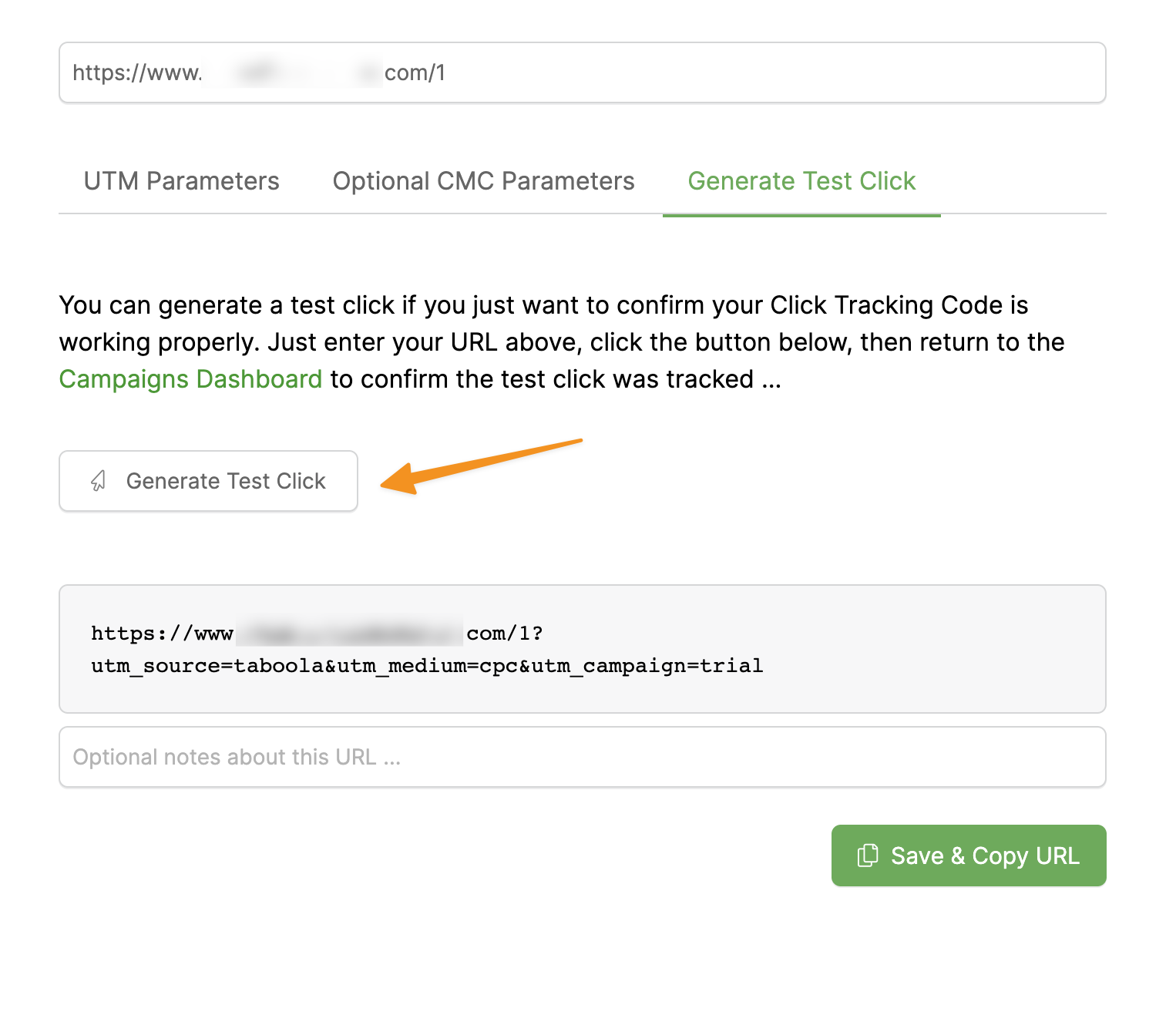
Click on Generate Test Click again.
That’s it. Move to the next step.
Step 3 – Create a new conversion in Taboola
In your Taboola account, you’ll want to go to the Tracking tab and create a new conversion.
For type select Event:
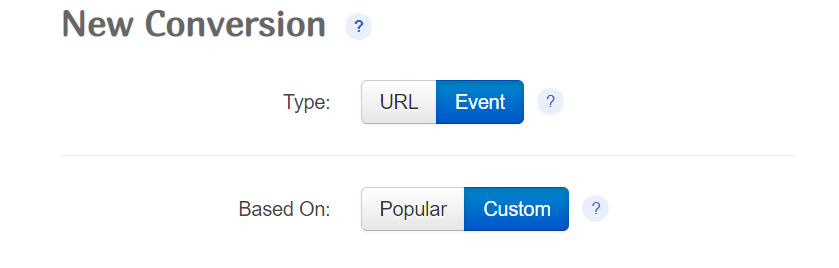
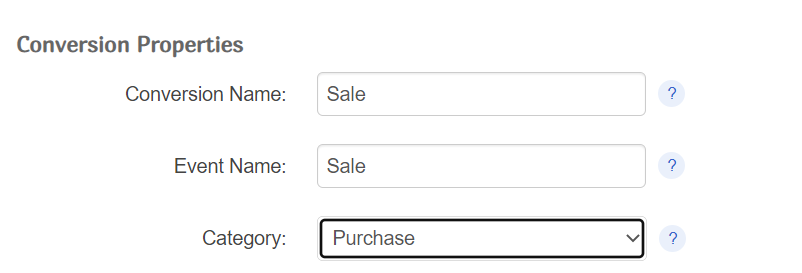
Give your conversion a name such as Action, Engagement or Sale and select the Category that best describes your conversion.
Step 4 – Set up your Webhook
Open the Webhooks tool by clicking on “Webhooks” in your Projects Tools menu.
Click “Add Endpoint" to create a new webhook.
Choose the project that you're working on, update the utm_source and utm_campaign values from the drop-down menu, then set the Conversion Type to Sales.
Set the Endpoint URL to:
For Actions:
https://trc.taboola.com/actions-handler/log/3/s2s-action?click-id=[cmc_tid]&name=your_conversion_nameFor Engagements:
https://trc.taboola.com/actions-handler/log/3/s2s-action?click-id=[cmc_tid]&name=your_conversion_nameFor Sales:
https://trc.taboola.com/actions-handler/log/3/s2s-action?click-id=[cmc_tid]&name=your_conversion_name&revenue=[cmc_amt]Be sure to replace
your_conversion_name with the name of the conversion you created in Taboola.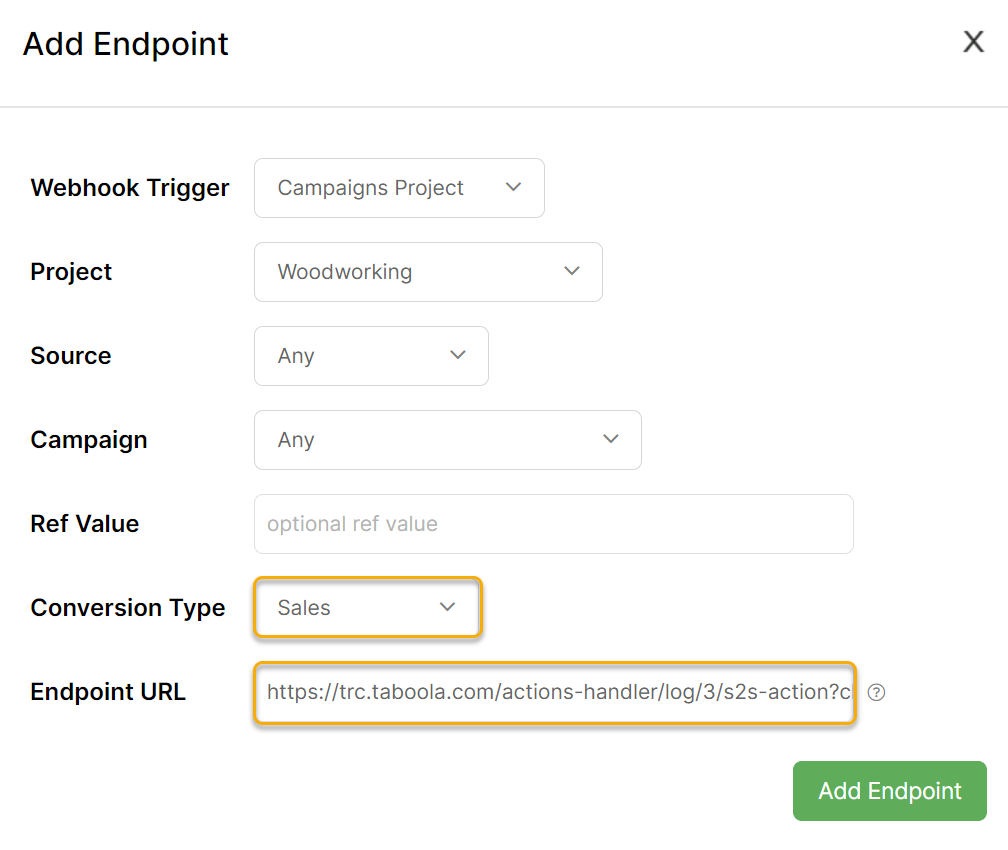
Step 5 – Click on Add Endpoint.
To set up a webhook between MGID and ClickMagick, you first need to set up MGID so that it can receive a ClickMagick webhook, and then you need to set up the actual webhook within ClickMagick.
First, let’s set up the MGID part. It takes just a few steps once you’ve already set up your campaign. If you haven’t already set up an MGID campaign, do that first and make that sure it works.
Now let’s add ClickMagick tracking to your campaign:
Step 1 – Enable MGIDs conversion tracking
Open your campaign settings by clicking on the “gear”
 icon to the right of your campaign in the campaign list.
Next, scroll down to the “Conversion Sensors” section. For reference, the next 3 steps are numbered in this screenshot:
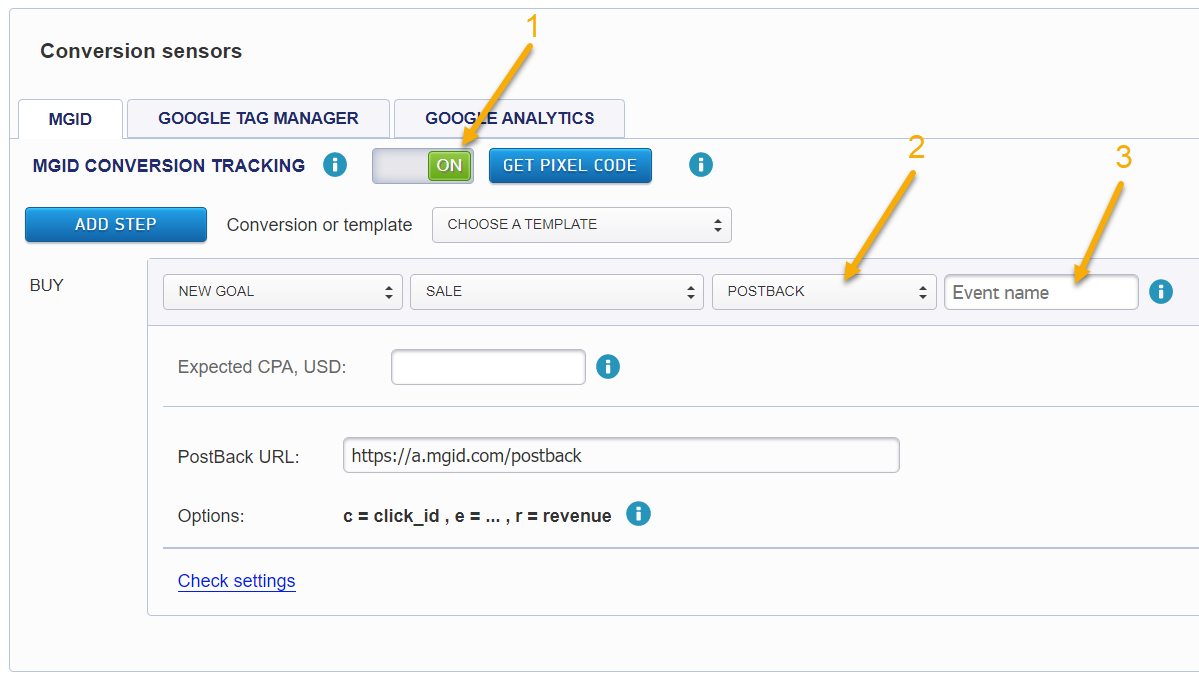
Step 2 – Make sure that “MGID CONVERSION TRACKING” is set to ON.
Step 3 – Select “POSTBACK” as the “Goal Type”
If you are asked to set a value. Enter this:
click_id={click_id}Click “OK”.
Step 4 – Enter something unique in the box where it says “Event name”.
It needs to relate to this campaign in some way. For example, if you’re selling golf clubs, you might use “golfclubs”. If that’s not unique enough, add some random numbers on the end such as “golfclubs82573”. Use only letters and numbers and be extra careful to not use any spaces in this name.
Write down or copy exactly what you just entered in the “Event name” field. You will need this in just a minute when you set up your webhook in ClickMagick.
Step 5 – Double-check all your settings and click the Save button.
That’s it for MGID!
Now let’s set up the webhook in ClickMagick:
Step 1 – Use the URL Builder Tool to set up your UTM powered URL.
Then set it as the URL to send traffic to.
You can use MGIDs tracking tokens in your UTM powered URL shown below:
{teaser_id} |
Returns the Teaser ID |
{widget_id} |
Returns the site from which the user came |
{campaign_id} |
Returns the Campaign ID in the MGID system |
{category_id} |
Returns the ID of the teaser category in the MGID system |
{geo_region} |
Returns the city or region of impressions selected in the campaign settings |
{click_id} |
Returns the unique ID of the click |
{click_price} |
Returns the price per click |
| Others | Click here for MGID's full set of parameters |
Step 2 – Generate a test click
After you create your UTM powered url, you’ll need to generate a test click.
Without it, you won’t be able to select the correct
utm_source and utm_campaign in step 5 when setting up your Webhook.Be aware that dynamic tokens won’t work for the test click.
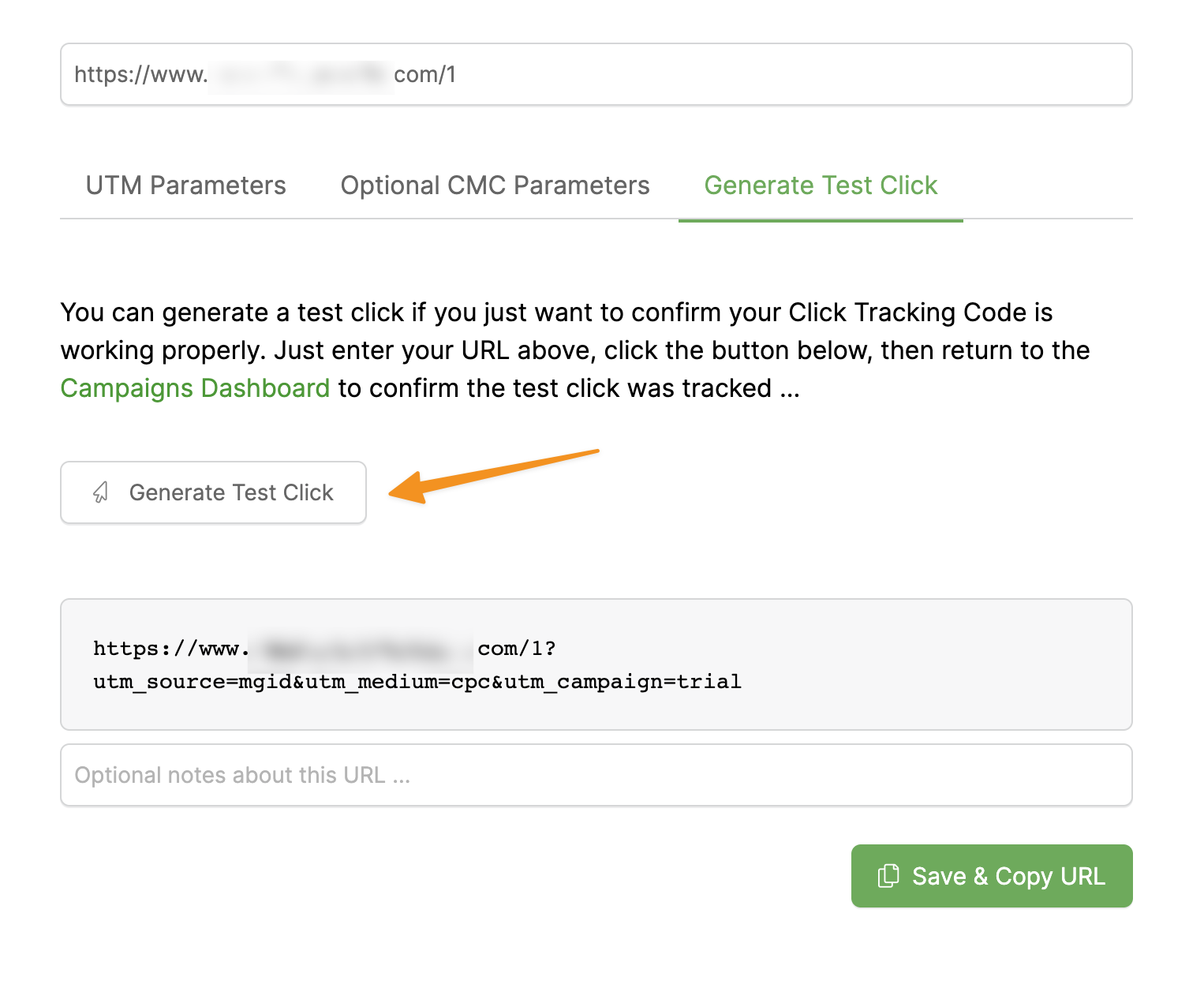
Fill the source, medium and campaigns fields and then click on Generate Test Click.
You can use the parameters you see in the image below:
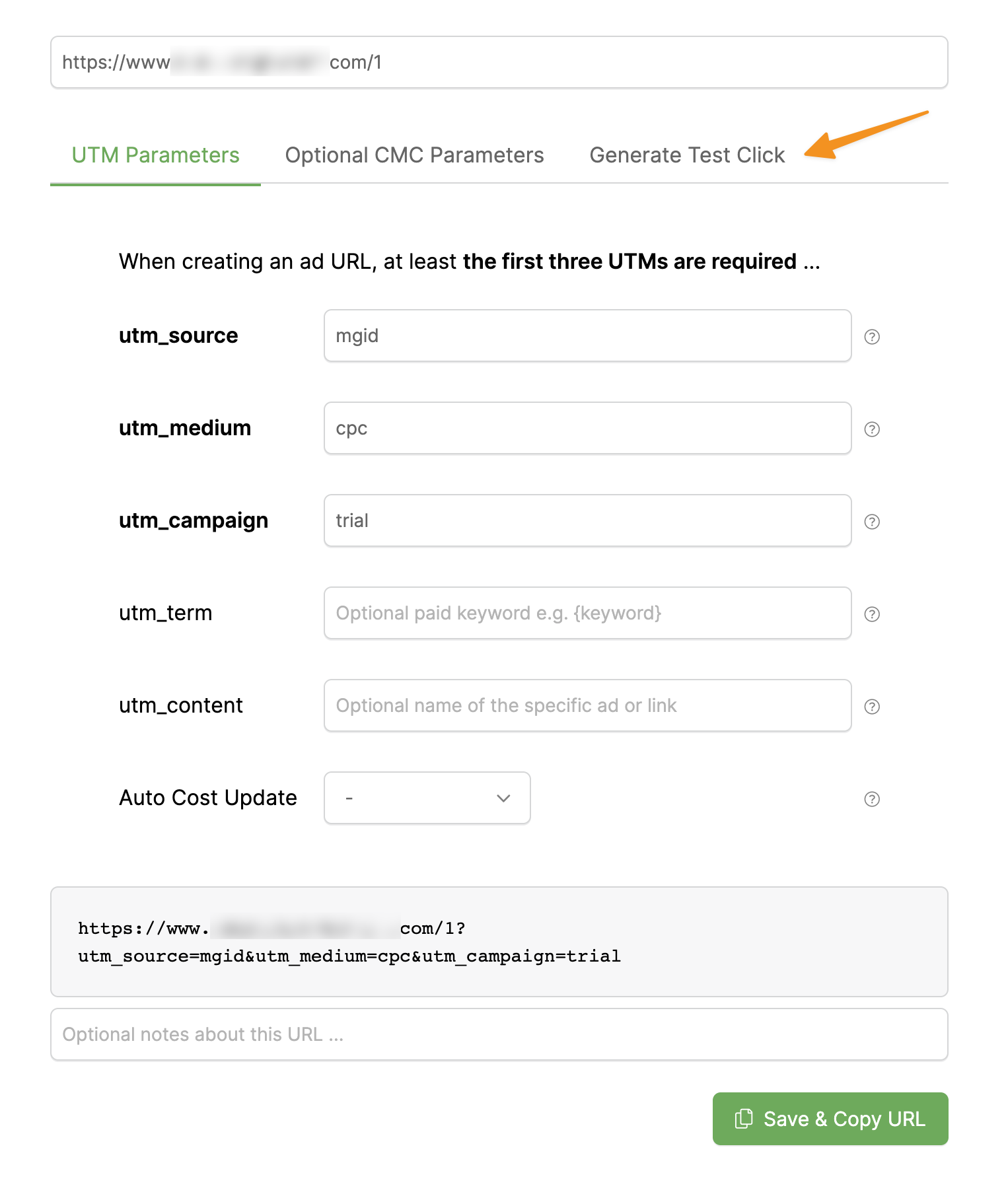
Click on Generate Test Click again.
That’s it. Move to the next step.
Step 3 – Set up your Webhook
Open the Webhooks tool by clicking on “Webhooks” in your Project Tools menu.
Click “Add Endpoint" to create a new webhook.
Choose the project that you're working on, update the utm_source and utm_campaign values from the drop-down menu, then set the Conversion Type to Sales.
Set the Endpoint URL to:
https://a.mgid.com/postback?c=[cmc_tid]&r=[cmc_amt]&e=youreventnameBe sure to replace
youreventname with the “Event name” you created a moment ago in MGID. For example, if you used “golfclubs82573”, your link would look like this:https://a.mgid.com/postback?c=[cmc_tid]&r=[cmc_amt]&e=golfclubs82573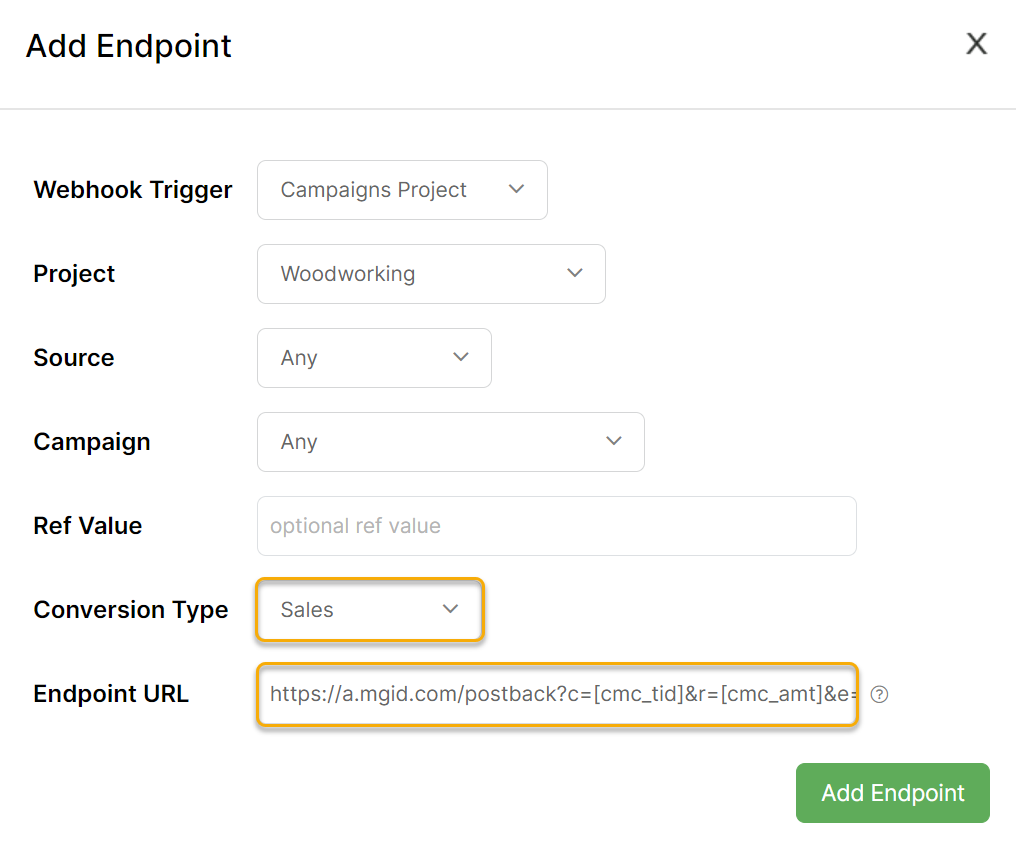
Step 4 – Click on Add Endpoint.
With this setup, whenever anybody clicks on an MGID ad and a sale is made, the sale will be recorded and then ClickMagick will report the sale back to MGID.
Outbrain supports webhooks, so you can send back conversion data to Outbrain.
Here’s how to set it up:
Step 1 – Use the URL Builder Tool to set up your UTM powered URL.
Then set it as the URL to send traffic to
You can use Outbrains tracking tokens in your UTM powered URL shown below:
{{ad_title}} |
Returns the headline of your ad |
{{section_name}} |
Returns the referrer's section name |
{publisher_name}} |
Returns the referrer's publisher name |
{{campaign_id}} |
Returns the ID of the campaign |
{{section_id}} |
Returns the section ID of the referrer |
{{publisher_id}} |
Returns the referrer's publisher ID |
{{ob_click_id}} |
Returns the unique click ID |
{{cpc}} |
Returns the cost-per-click in USD |
{{local_cpc}} |
Returns the cost per click of the Campaign's currency |
| Others | Click here for Outbrain's full set of parameters |
Step 2 – Generate a test click
After you create your UTM powered url, you’ll need to generate a test click.
Without it, you won’t be able to select the correct
utm_source and utm_campaign in step 5 when setting up your Webhook.Be aware that dynamic tokens won’t work for the test click.
Fill the source, medium and campaigns fields and then click on Generate Test Click.
You can use the parameters you see in the image below:
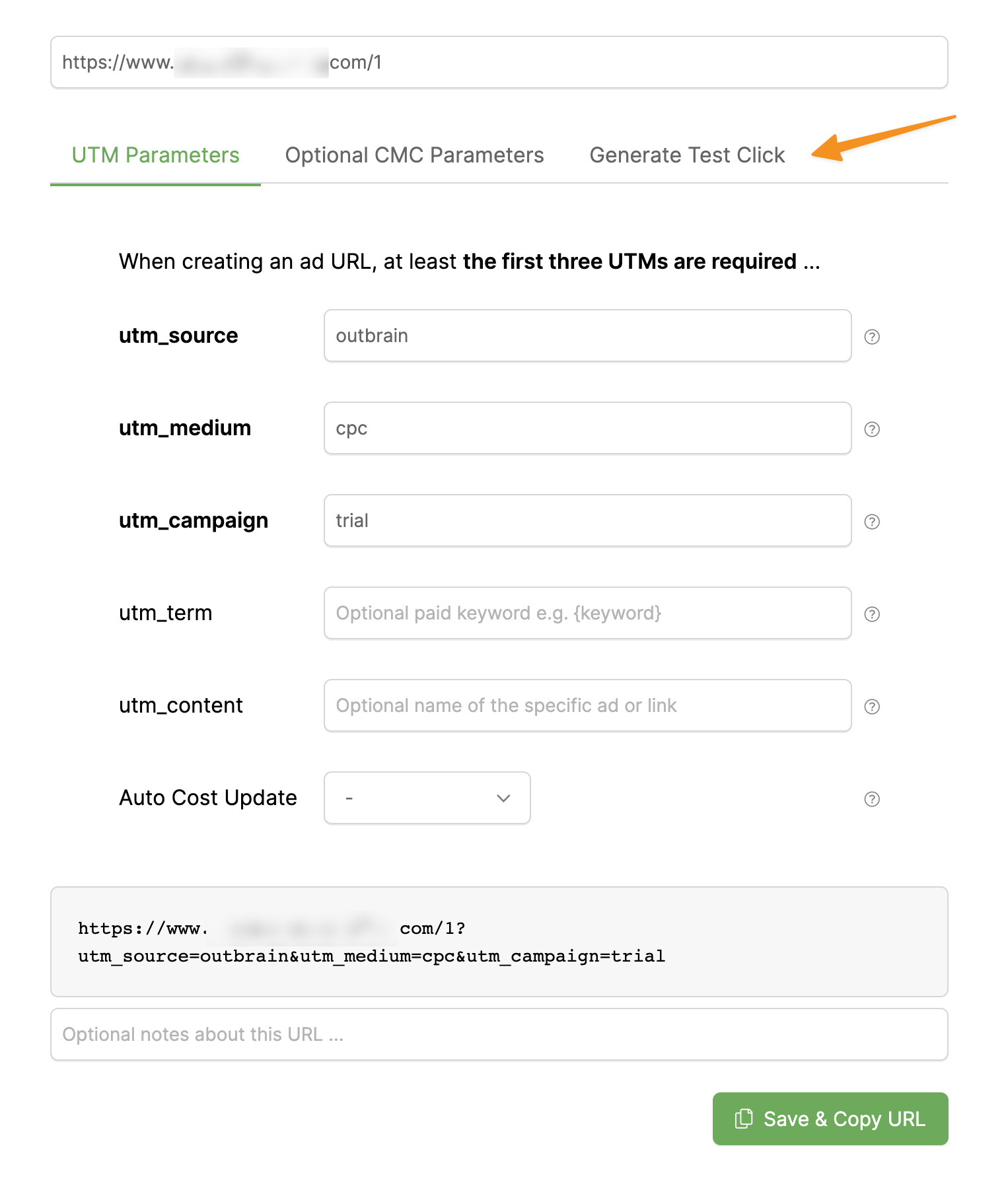
Click on Generate Test Click again.
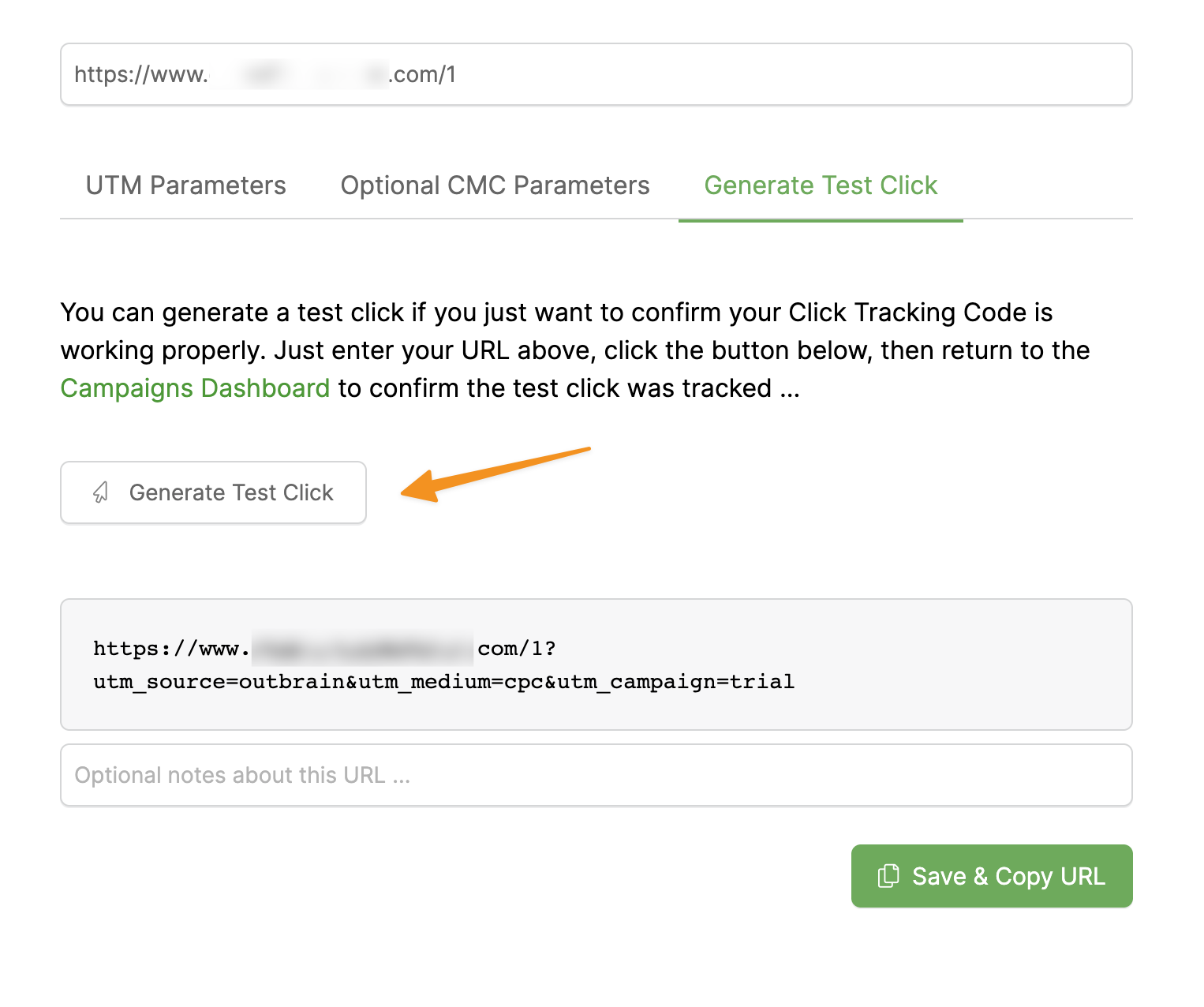
That’s it. Move to the next step.
Step 3 – Add your UTM Powered URL to Outbrain
Set up your campaign and ad in Outbrain then add your UTM Powered URL to the URL section of your campaign. You can find this setting by clicking on the Content link right next to the Settings link of the Create Campaign settings:
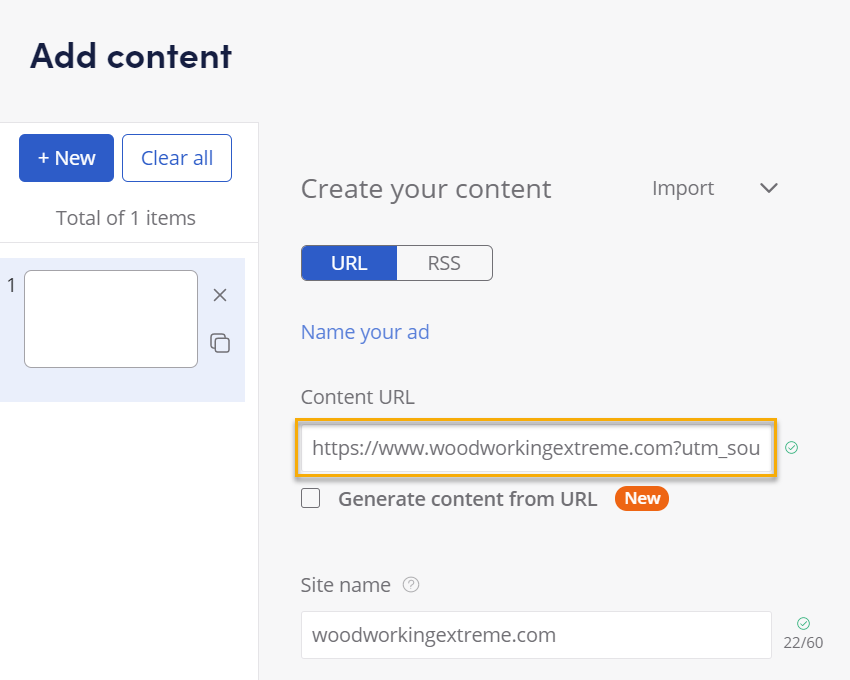
You can add as many different URLs to an Outbrain campaign as you’d like.
Step 4 – Add your Click ID to Outbrain
Edit your Campaign settings, and scroll down to the Tracking section. In the Tracking Code entry, add the unique Click ID token for Outbrain as shown below:
cmc_tid={{ob_click_id}}
| Returns the cost-per-click of the Campaign’s currency |
Outbrain will automatically add the actual Click ID and send it to ClickMagick.
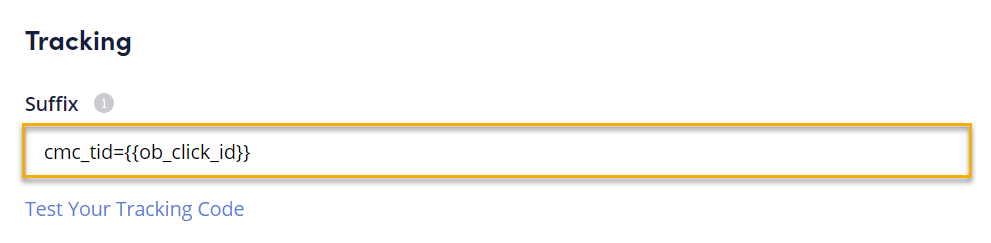
Now you need to create a custom conversion within Outbrain.
Step 5 – Create a new conversion in Outbrain
Within Outbrain, click on the “Conversions” tab on the left, and then create a new conversion.
For the Type select Event Based Conversion.
Give your Conversion a name such as Action, Engagement or Sale and select the Category that best describes your conversion.
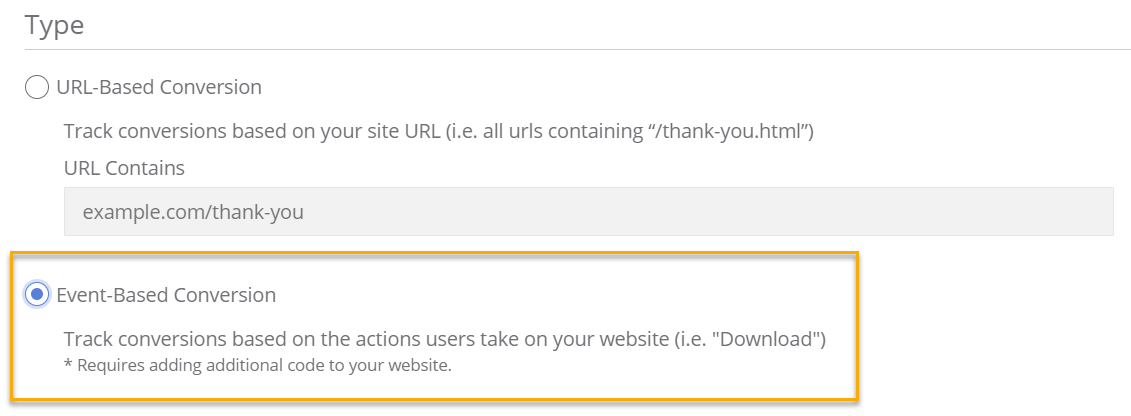
Step 6 – Set up your Webhook
Open the Webhooks tool by clicking on “Webhooks” in your Project Tools menu.
Click “Add Endpoint" to create a new webhook.
Choose the project that you're working on, update the utm_source and utm_campaign values from the drop-down menu, then set the Conversion Type to Sales.
Set the Endpoint URL to:
For Actions:
https://tr.outbrain.com/unifiedPixel?ob_click_id=[cmc_tid]&name=your_conversion_nameFor Engagements:
https://tr.outbrain.com/unifiedPixel?ob_click_id=[cmc_tid]&name=your_conversion_nameFor Sales:
https://tr.outbrain.com/unifiedPixel?ob_click_id=[cmc_tid]&name=your_conversion_name&orderValue=[cmc_amt]Be sure to replace
your_conversion_name with the name of the Conversion you created in Outbrain earlier.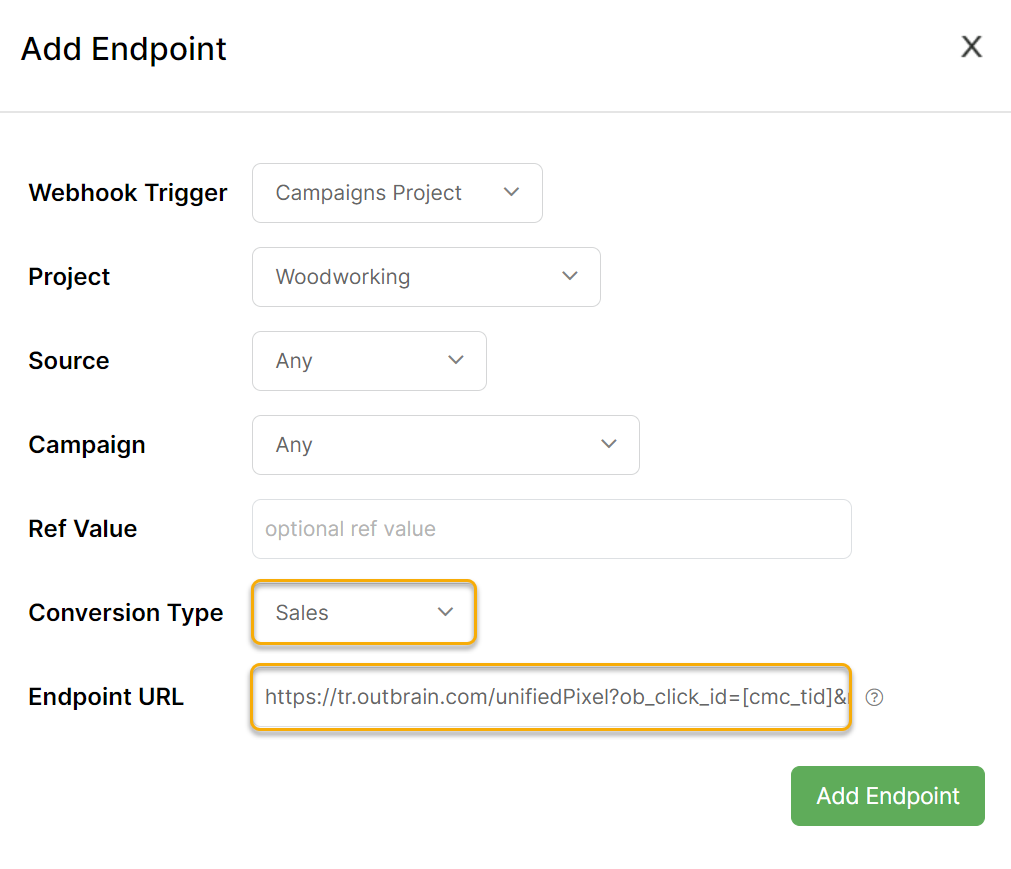
Step 7 – Click on Add Endpoint.
RTX supports webhooks, so you can send conversion data back to them.
Here's how to set it up:
Step 1 – Create your RTX Endpoint URL
When creating or editing a campaign, scroll down until you see "Revenue Tracking". Where it says "Pixel Assignment", create a new pixel.
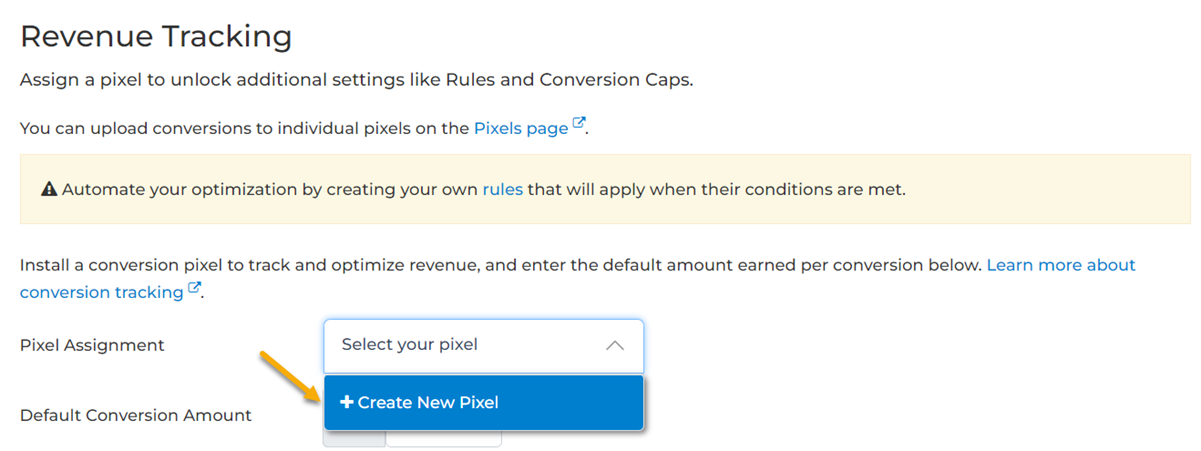
Select an Event Type and save the pixel.
Now you should see a new button that says "Install Your Pixel"

Click on the button and select "Server to Server" and copy your Endpoint URL to the clipboard:
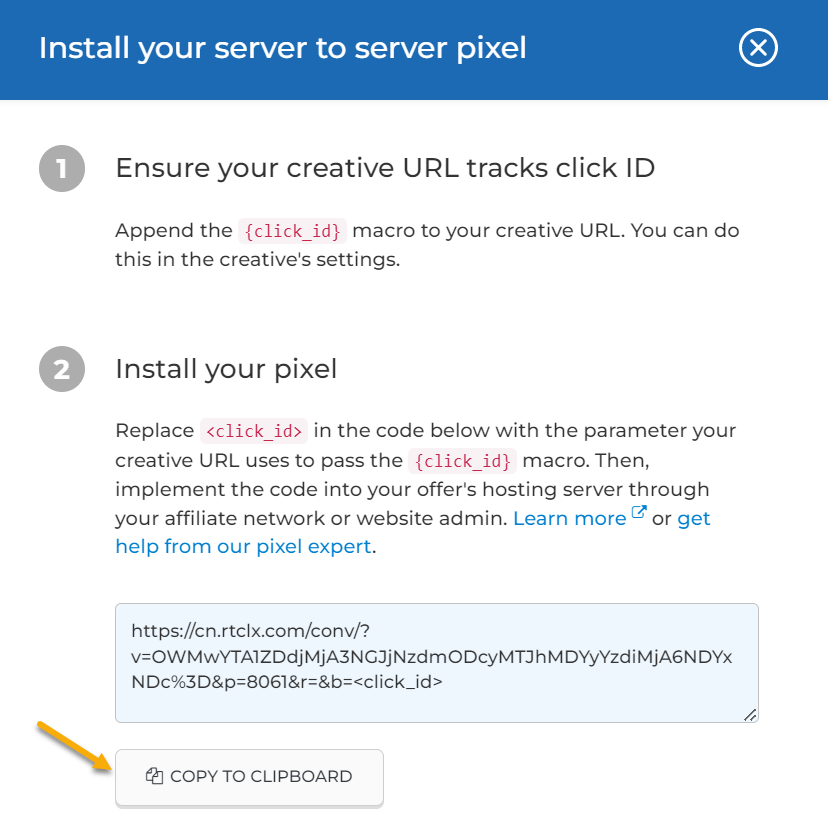
It should look something like this:
https://cn.rtclx.com/conv/?v=NDU1MzBjOTUxODI2OGUyNTRiOTNjM2ViZTE1M2QyZmY6NDM3ODM%3D&p=6899&r=&b=<click_id>Step 2 – Create your UTM Powered Link
You want the
cmc_tid to be {click_id}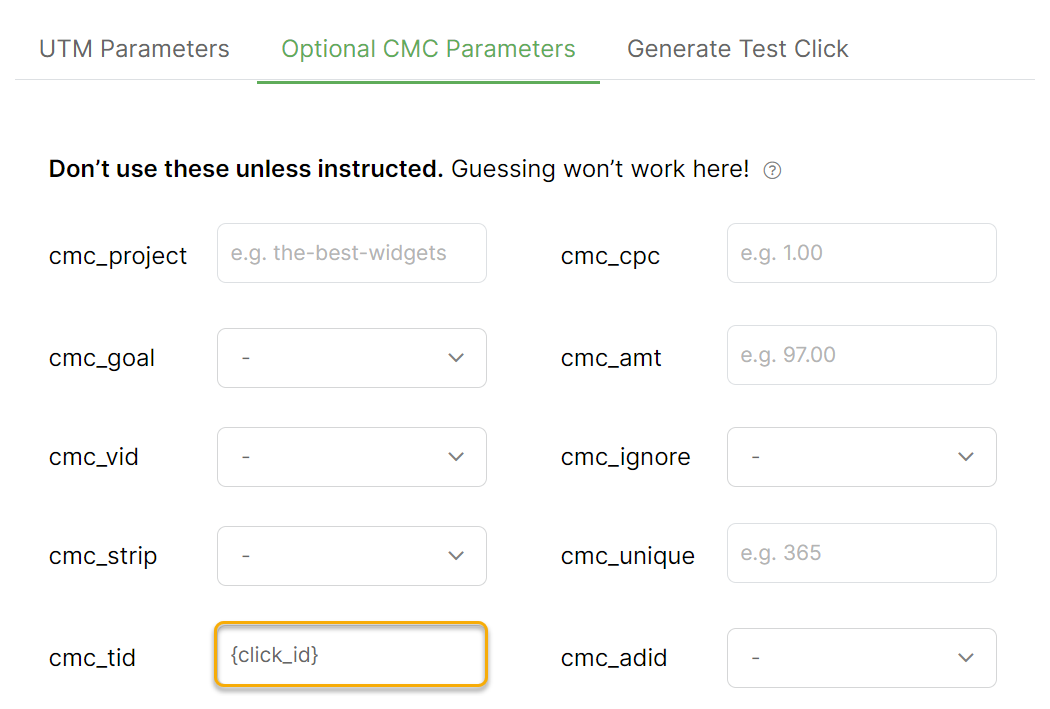
It should be something like this:
https://example.com?utm_source=rtx&utm_medium=push&utm_campaign=example&cmc_tid={click_id}Step 3 – Generate a test click
After you create your UTM powered url, you’ll need to generate a test click.
Without it, you won’t be able to select the correct
utm_source and utm_campaign in step 5 when setting up your Webhook.Be aware that dynamic tokens won’t work for the test click.
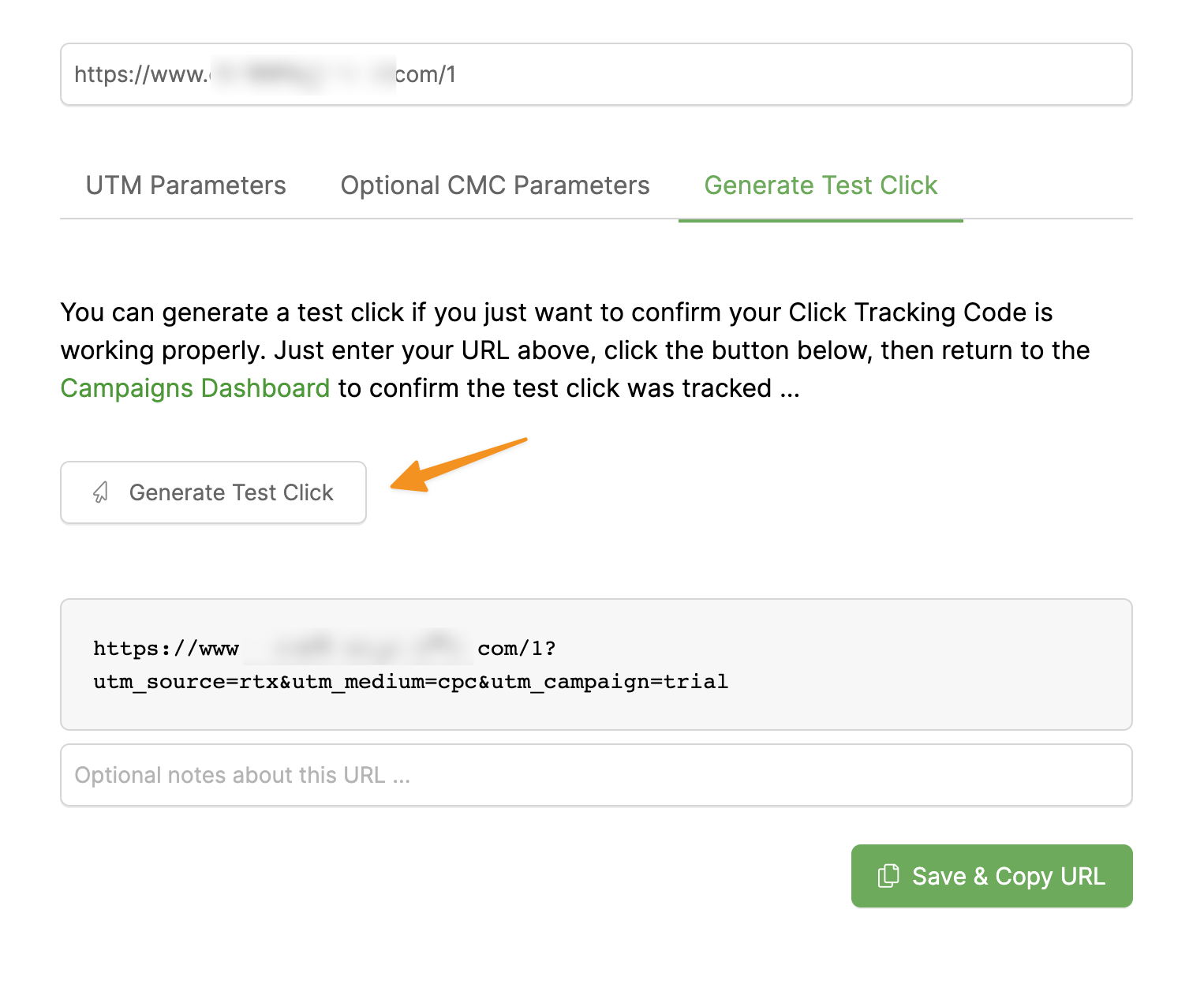
Fill the source, medium and campaigns fields and then click on Generate Test Click.
You can use the parameters you see in the image below:
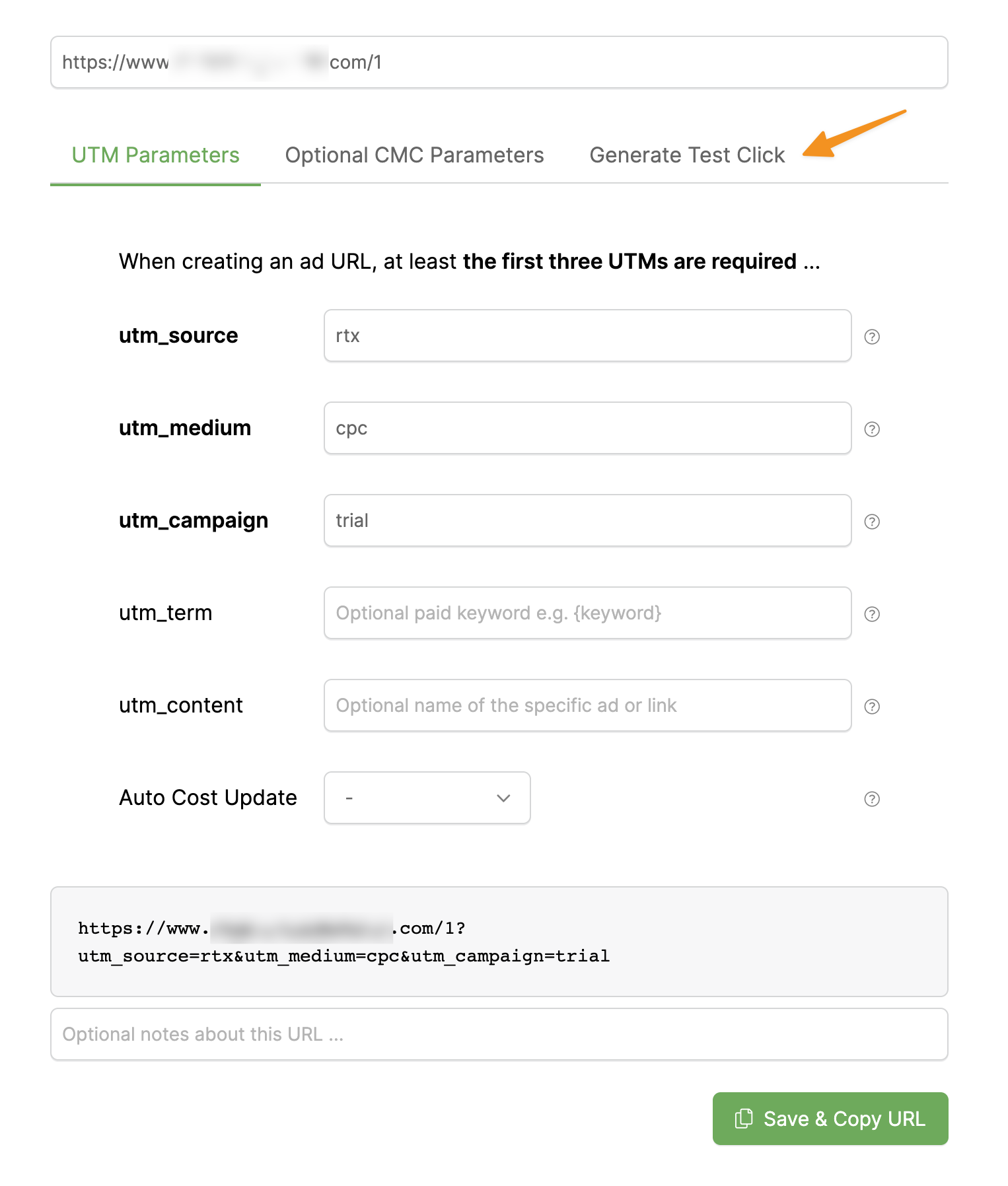
Click on Generate Test Click again.
That’s it. Move to the next step.
Step 4 – Set up your Webhook
Add the Endpoint URL as a Webhook
Edit the Endpoint URL, so that it passes the
[cmc_amt] as well as the {click_id} that you will use in the optional cmc_tid parameter.Will look something like this:
https://cn.rtclx.com/conv/?v=NDU1MzBjOTUxODI2OGUyNTRiOTNjM2ViZTE1M2QyZmY6NDM3ODM%3D&p=6899&r=[cmc_amt]&b=[cmc_tid]Note: In the above case, the
{click_id} from RTX is going to be passed in the cmc_tid parameter.Open the Webhooks tool by clicking on “Webhooks” in your Project Tools menu.
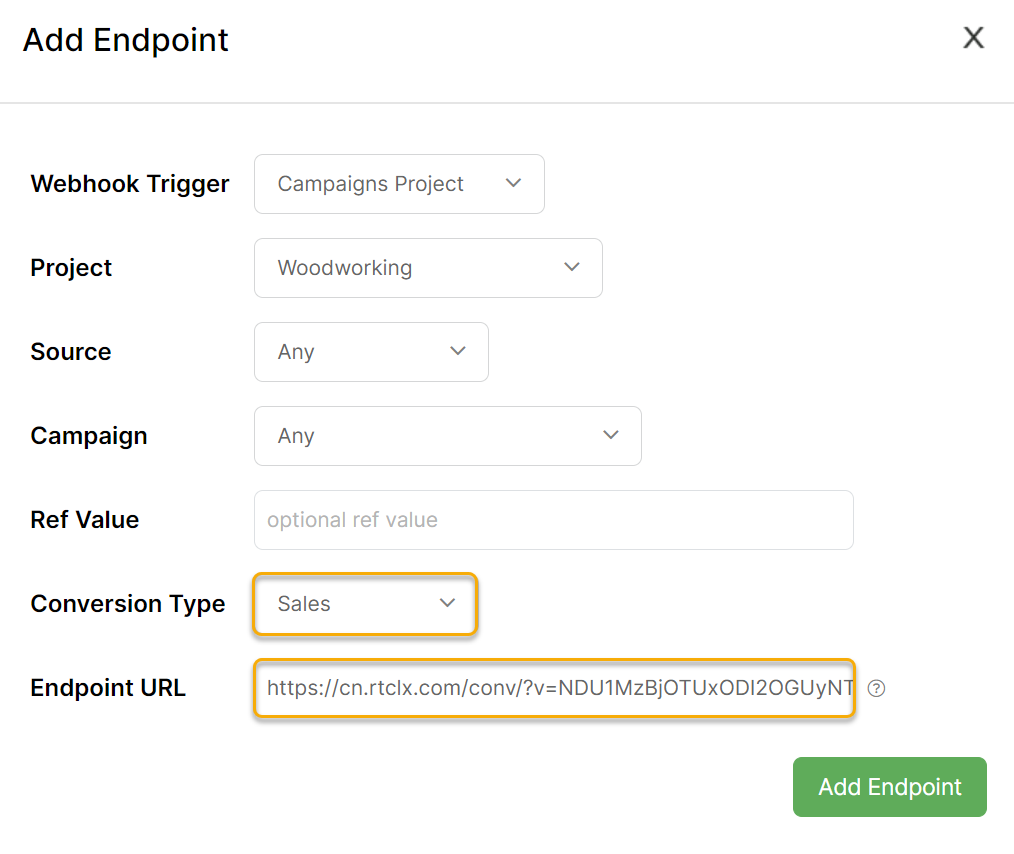
Click “Add Endpoint" to create a new webhook.
Choose the project that you're working on, update the utm_source and utm_campaign values from the drop-down menu, then set the Conversion Type to Sales.
Add the URL above to the Endpoint URL box:
Ad.Style supports a handful of different tracking methods, so you can send conversion data back to them.
In this article we walk you through sending conversion data to them using a webhook.
Here's how to set it up:
Step 1 – Create Your Ad.Style Endpoint URL
To do this, you'll click on the "Campaign Settings" next to your Campaign:
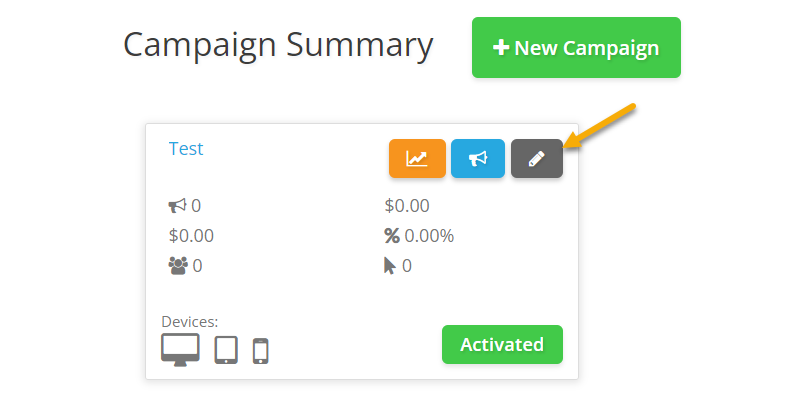
At the end of the page you'll see Conversion Pixel, click on the Create conversion pixel text:
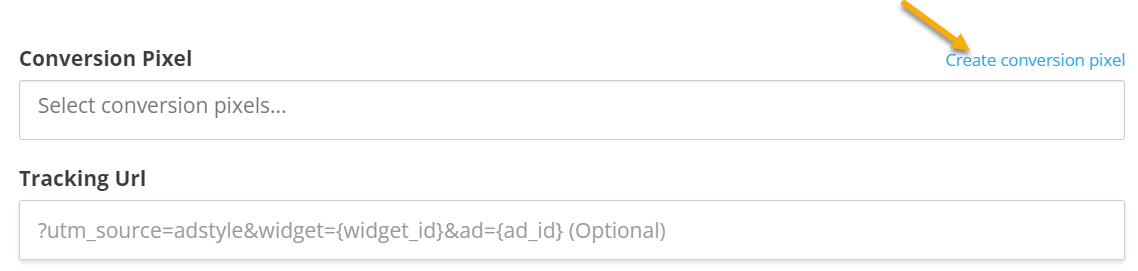
Just give your pixel a name, then click on the "Create Conversion Pixel" button.
Now click on Server To Server to get your Endpoint URL:
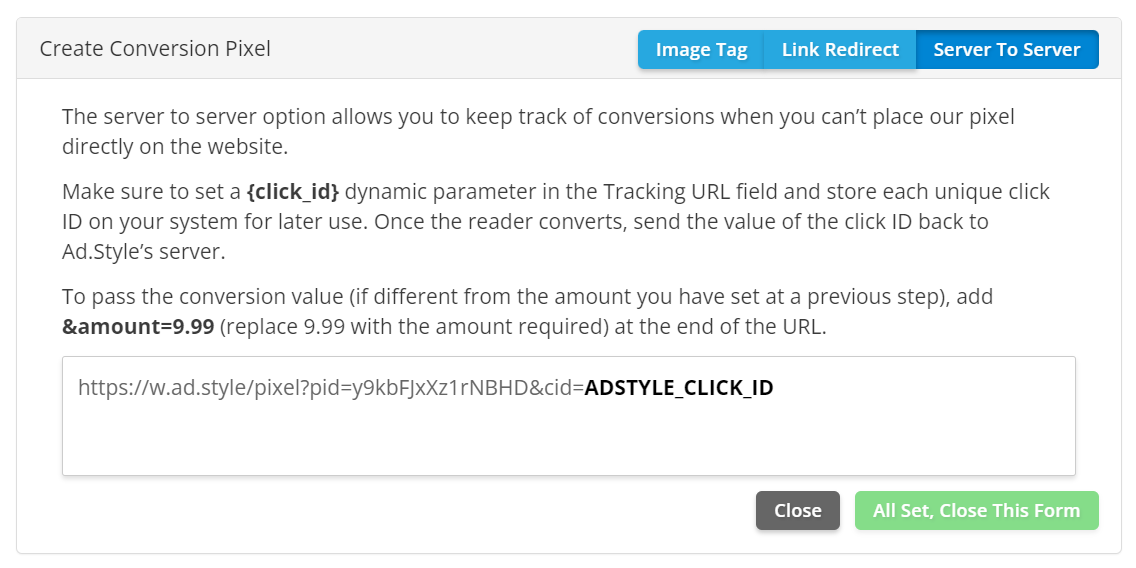
It should look something like this:
https://w.ad.style/pixel?pid=YaFcpEhFjMM&cid=ADSTYLE_CLICK_IDStep 2 – Use the URL Builder Tool to set up your UTM powered URL.
Then set it as the URL to send traffic to.
You can use Ad.Style's tracking tokens in your UTM URL below:
{widget_id} |
A unique Ad.Style widget ID, for specific widget appearing on publisher website. |
{ad_id} |
Returns the unique Ad ID |
{city} |
Returns the city the user is viewing/clicking the ad from. |
{campaign_id} |
Returns the ID of the campaign |
{country} |
Returns the country the user is viewing/clicking the ad from. |
{state} |
Returns the state the user is viewing/clicking the ad from. |
{os} |
Returns the operating system on which your ad was presented or clicked. |
{browser} |
Returns the browser type on which your ad was presented or clicked |
{click_id} |
Returns the unique Click ID on Ad.Style network, is needed when you track conversions and pass those back to Ad.Style using server-to-server tracking |
| Others | Click here for Ad.Style network's full set of parameters |
You'll want to add the
{click_id} to the cmc_tid parameter in the URL Builder:
It should look something like this:
https://example.com?utm_source=adstyle&utm_medium=name&utm_campaign=example&cmc_tid={click_id}Step 3 – Generate a test click
After you create your UTM powered url, you’ll need to generate a test click.
Without it, you won’t be able to select the correct
utm_source and utm_campaign in step 5 when setting up your Webhook.Be aware that dynamic tokens won’t work for the test click.
Fill the source, medium and campaigns fields and then click on Generate Test Click.
You can use the parameters you see in the image below:
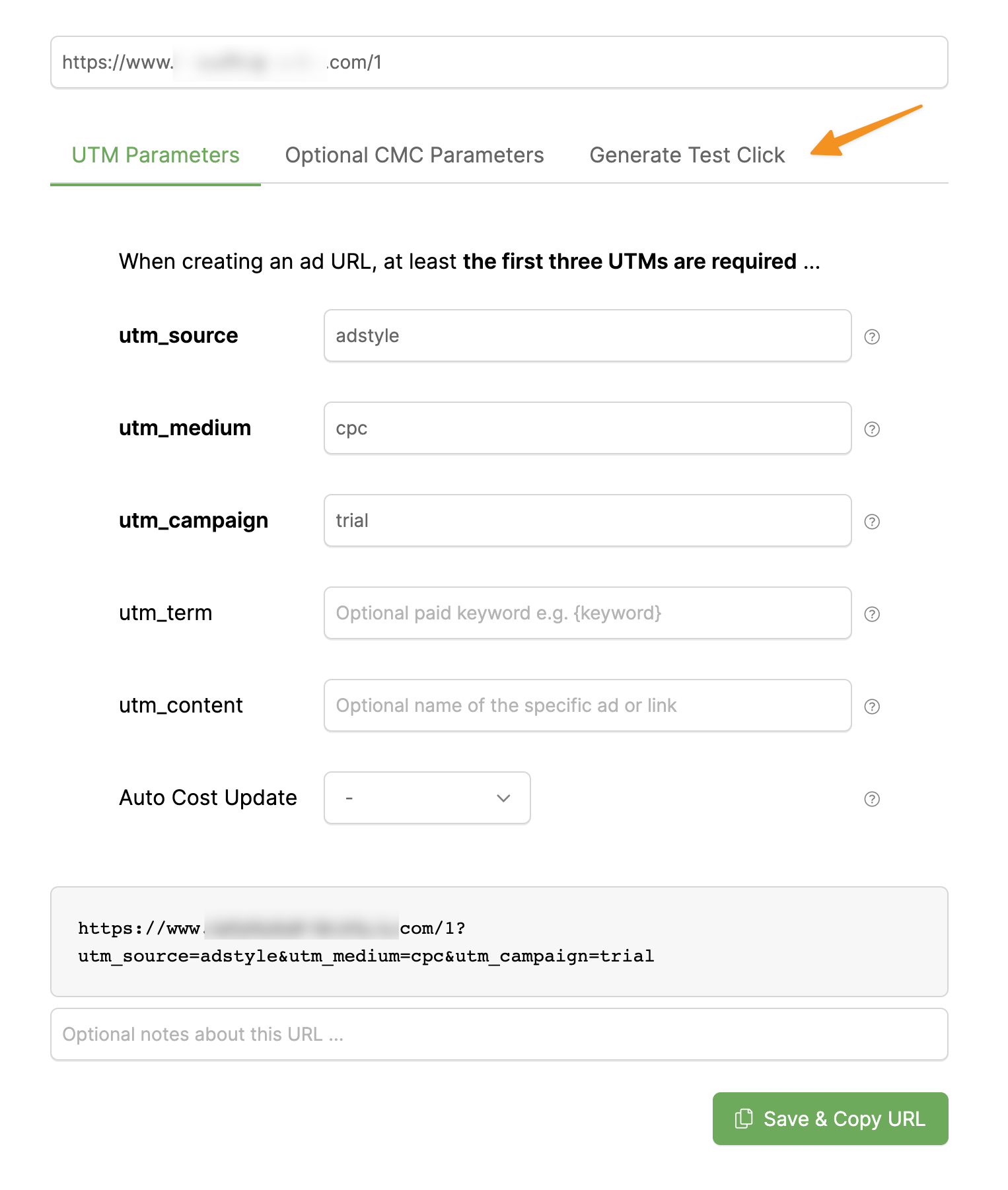
Click on Generate Test Click again.
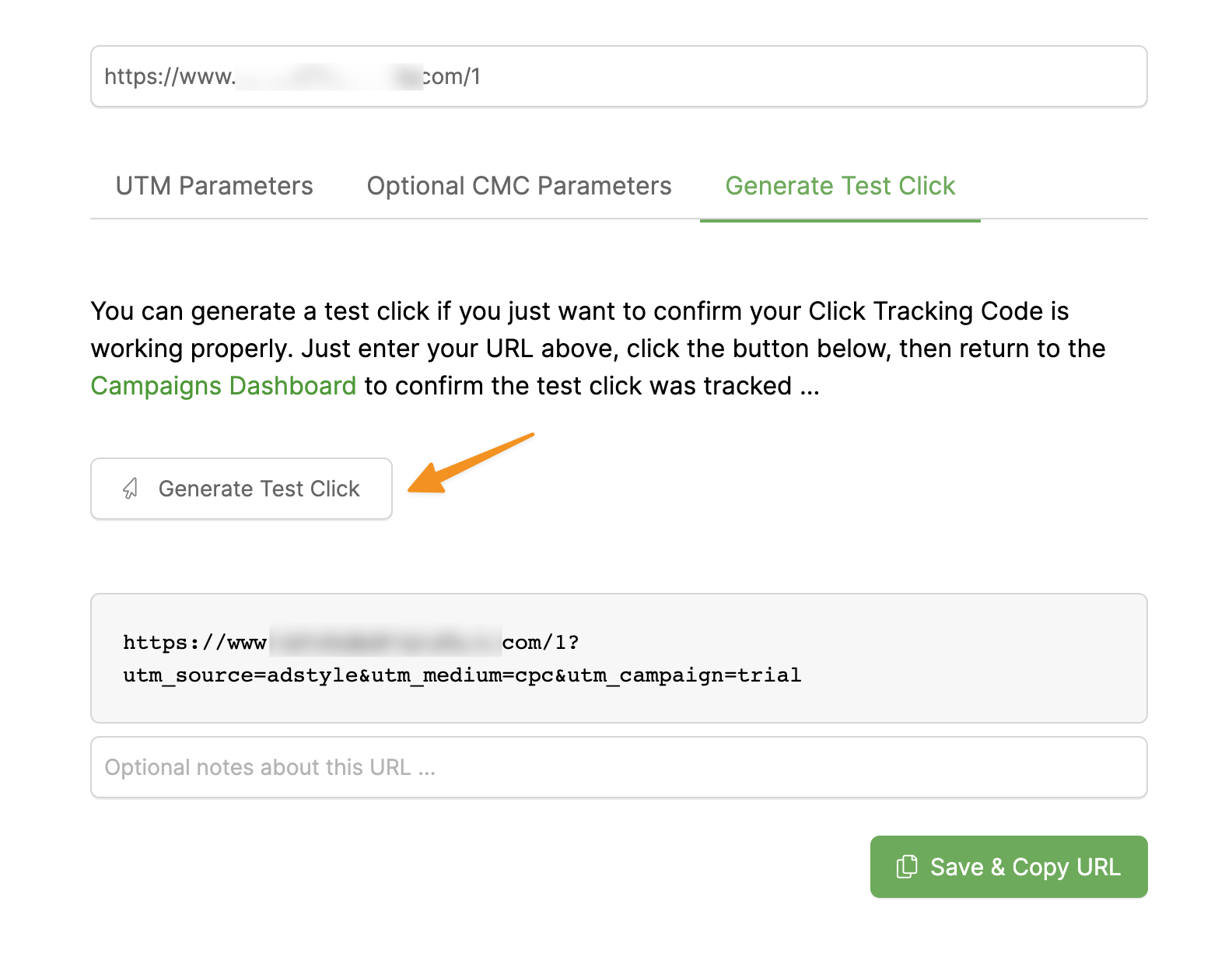
That’s it. Move to the next step.
Step 4 – Set up your Webhook
Add the Endpoint URL as a Webhook
Edit the Endpoint URL, so that it passes the
[cmc_amt] as well as the {click_id} that you will use in the cmc_tid parameter.It will look something like this:
For Actions and Engagements:
https://w.ad.style/pixel?pid=YaFcpEhFjMM&cid=[cmc_tid]For Sales:
https://w.ad.style/pixel?pid=YaFcpEhFjMM&cid=[cmc_tid]&amount=[cmc_amt]Note: In the above case, the
click_id from Ad.Style is going to be passed in the cmc_tid parameter.Open the Webhooks tool by clicking on “Webhooks” in your Project Tools menu.
Click “Add Endpoint" to create a new webhook.
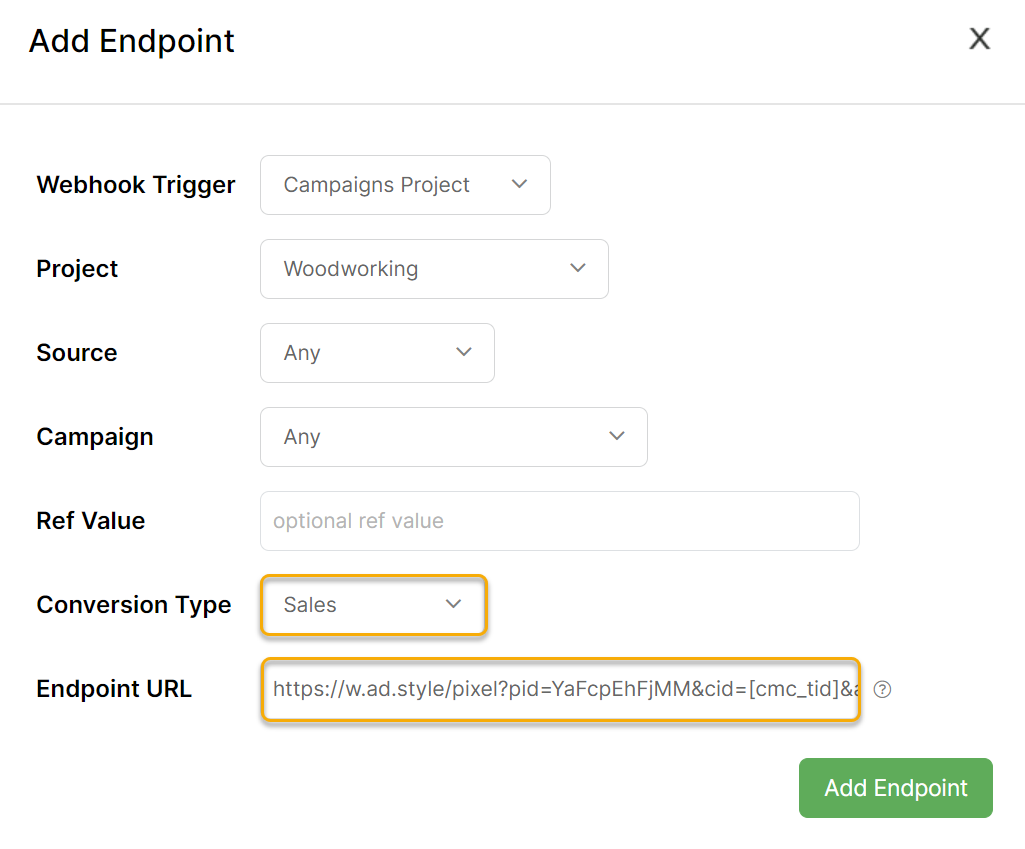
Choose the project that you're working on, update the utm_source and utm_campaign values from the drop-down menu, then set the Conversion Type to Sales.
Set the Endpoint URL to one of the URLs above:
Newsbreak supports webhooks, so you can send conversion data back to them.
Here's how to set it up:
Step 1 – Create Your Newsbreak Conversion Event
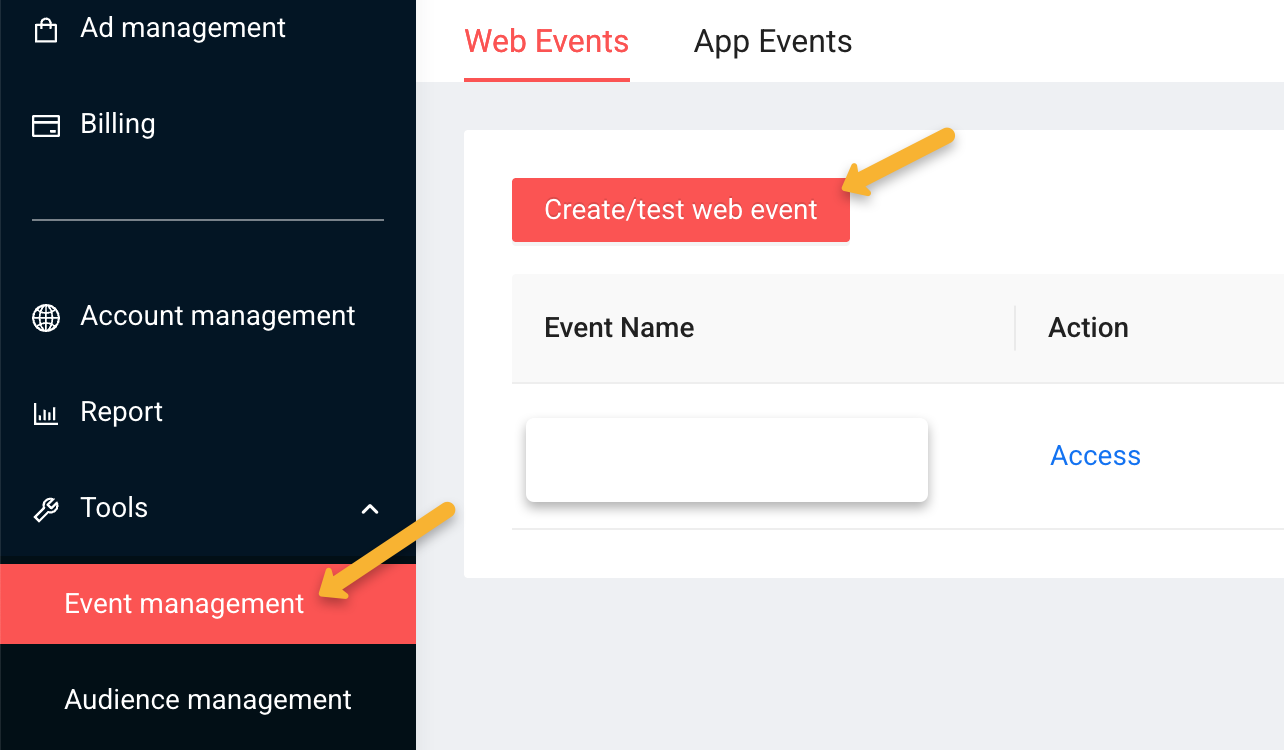
In Newsbreak, go to “Tools”, then “Event Management” and click on “Create/test web event”.
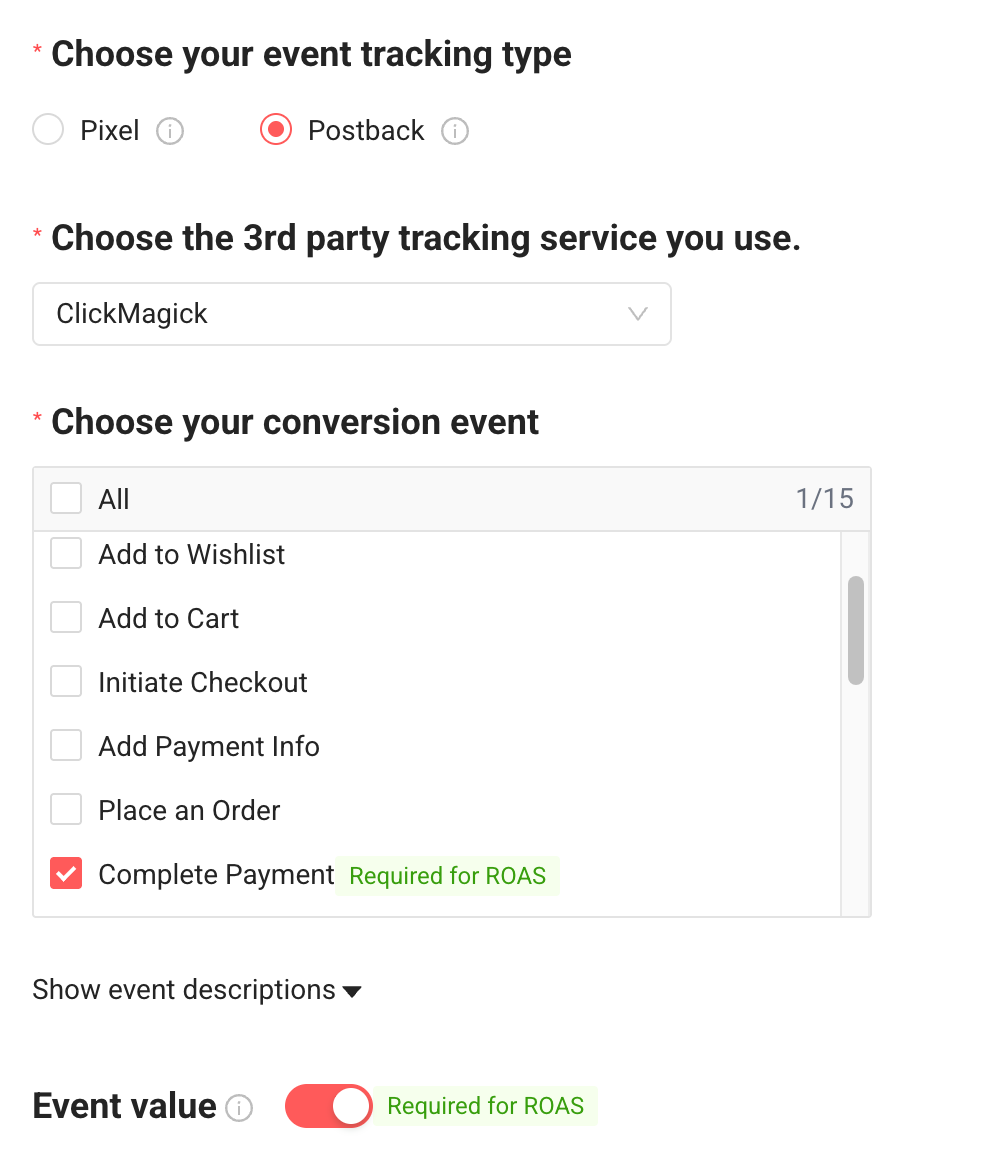
Select the following settings, and change the conversion event to match whatever event you’re sending.
Step 2 – Use the URL Builder Tool to set up your UTM powered URL.
Then set it as the URL to send traffic to.
You can use Newsbrakes tracking tokens in your UTM powered URL shown below:
__CAMPAIGN_NAME__ |
Returns the Newsbreak campaign name. |
__FLIGHT_NAME__ |
Returns the Newsbreak ad set name. |
__CREATIVE_NAME__ |
Returns the Newsbreak ad name. |
__CAMPAIGN_ID__ |
Returns the Newsbreak campaign ID. |
__FLIGHT_ID__ |
Returns the Newsbreak ad set ID. |
__CREATIVE_ID__ |
Returns the Newsbreak ad ID. |
__OS__ |
Returns the operating system on which your ad was presented or clicked. |
__CALLBACK_PARAM__ |
Returns the Unique Click ID from Newsbreak, this is needed when you track conversions and pass those back to Newsbreak using server-to-server tracking. See instructions here. |
| Others | Click here for Newsbreak's network's full set of parameters |
You'll want to add the __CALLBACK_PARAM__ to the
cmc_tid parameter in the URL Builder. You can use the “Add Token” text to do this.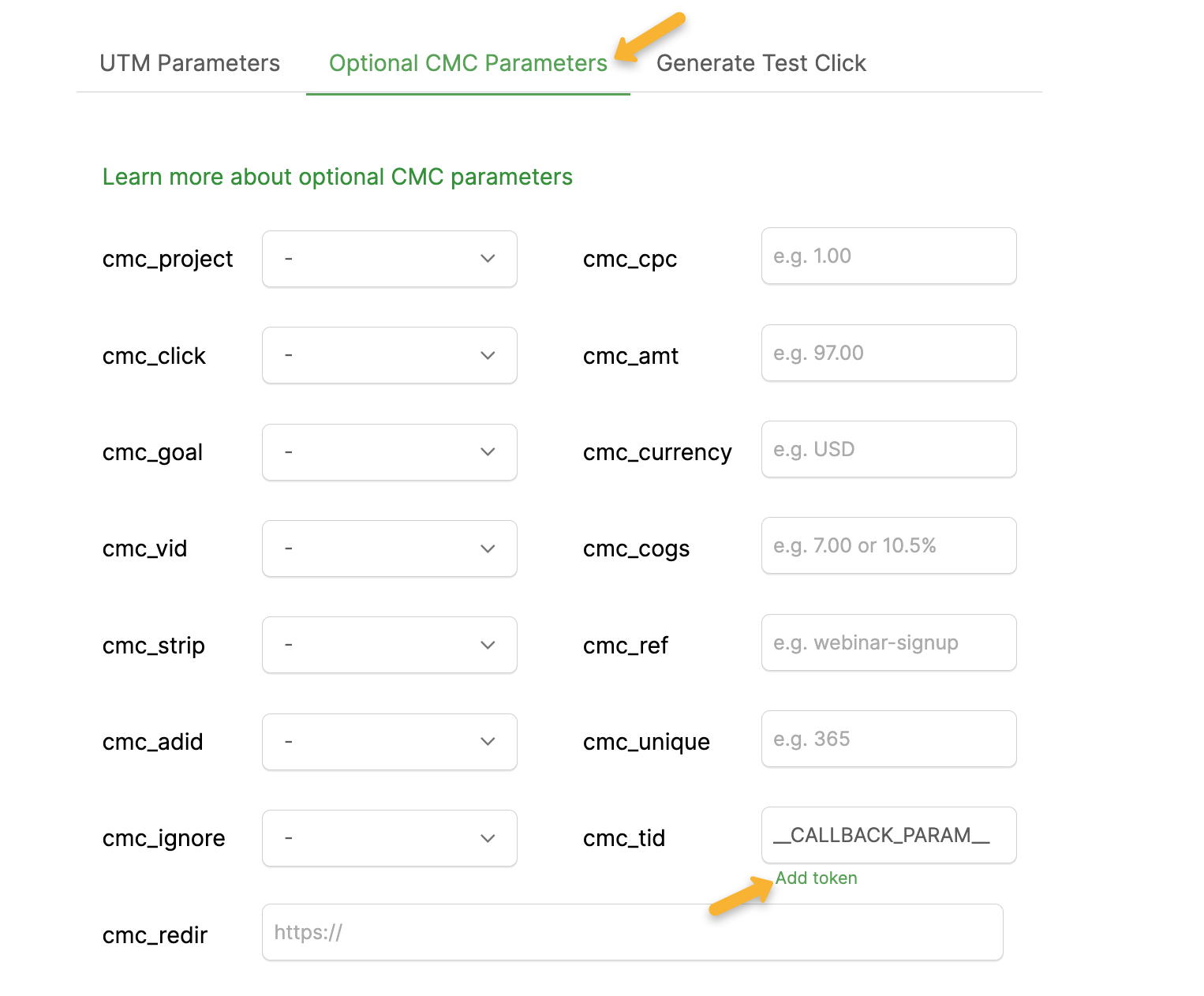
It should look something like this:
https://example.com?utm_source=newsbreak&utm_medium=native&utm_campaign=__CAMPAIGN_NAME__&utm_term=__FLIGHT_NAME__&utm_content=__CREATIVE_NAME__&cmc_tid=__CALLBACK_PARAM__With this setup, whenever anybody clicks on your Newsbreak ads and a conversion is tracked we'll automatically send the conversion back to the Newsbreak platform.
Step 3 – Generate a test click
After you create your UTM powered url, you’ll need to generate a test click.
Without it, you won’t be able to select the correct
utm_source and utm_campaign in step 4 when setting up your Webhook.Be aware that dynamic tokens won’t work for the test click.
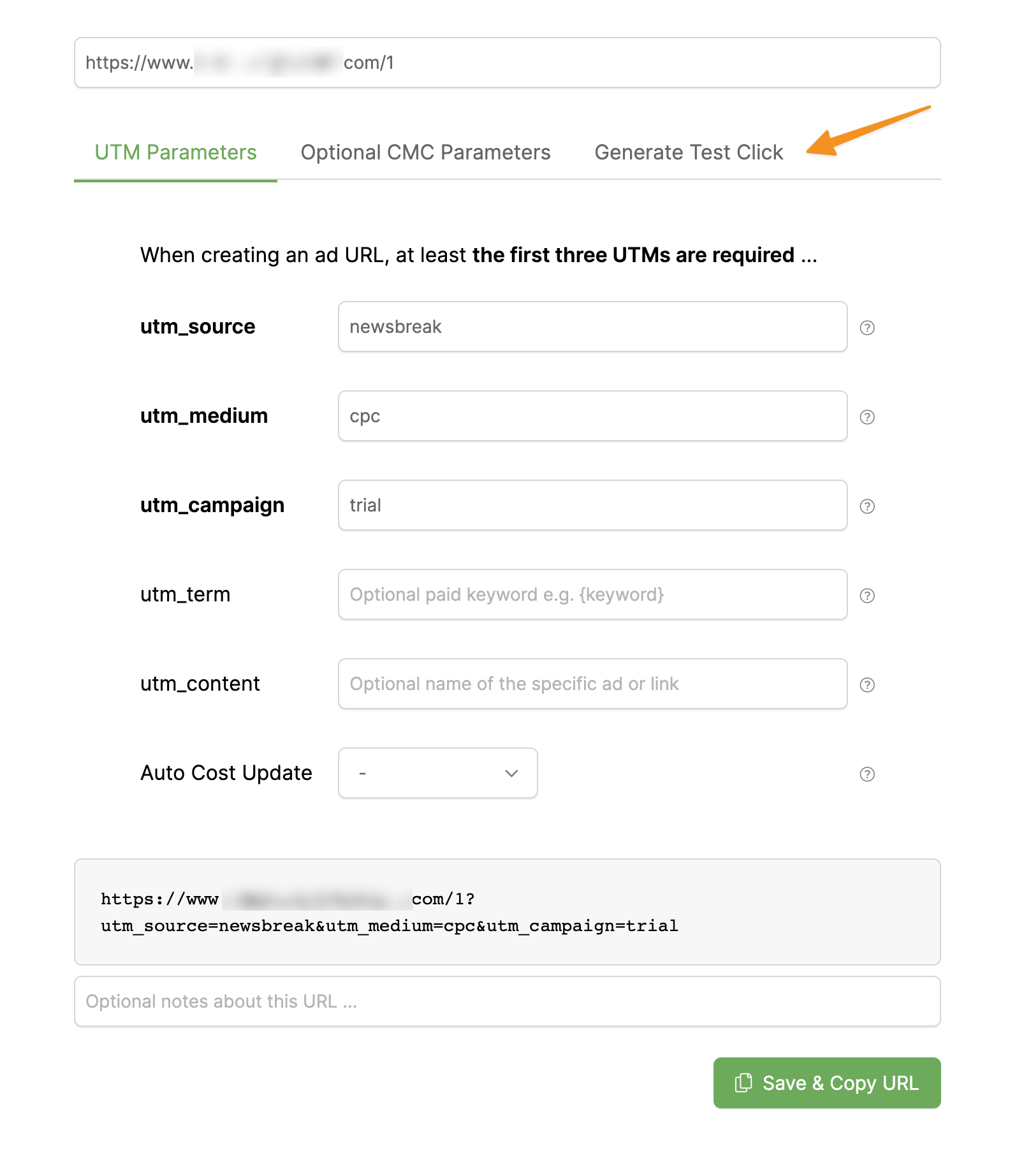
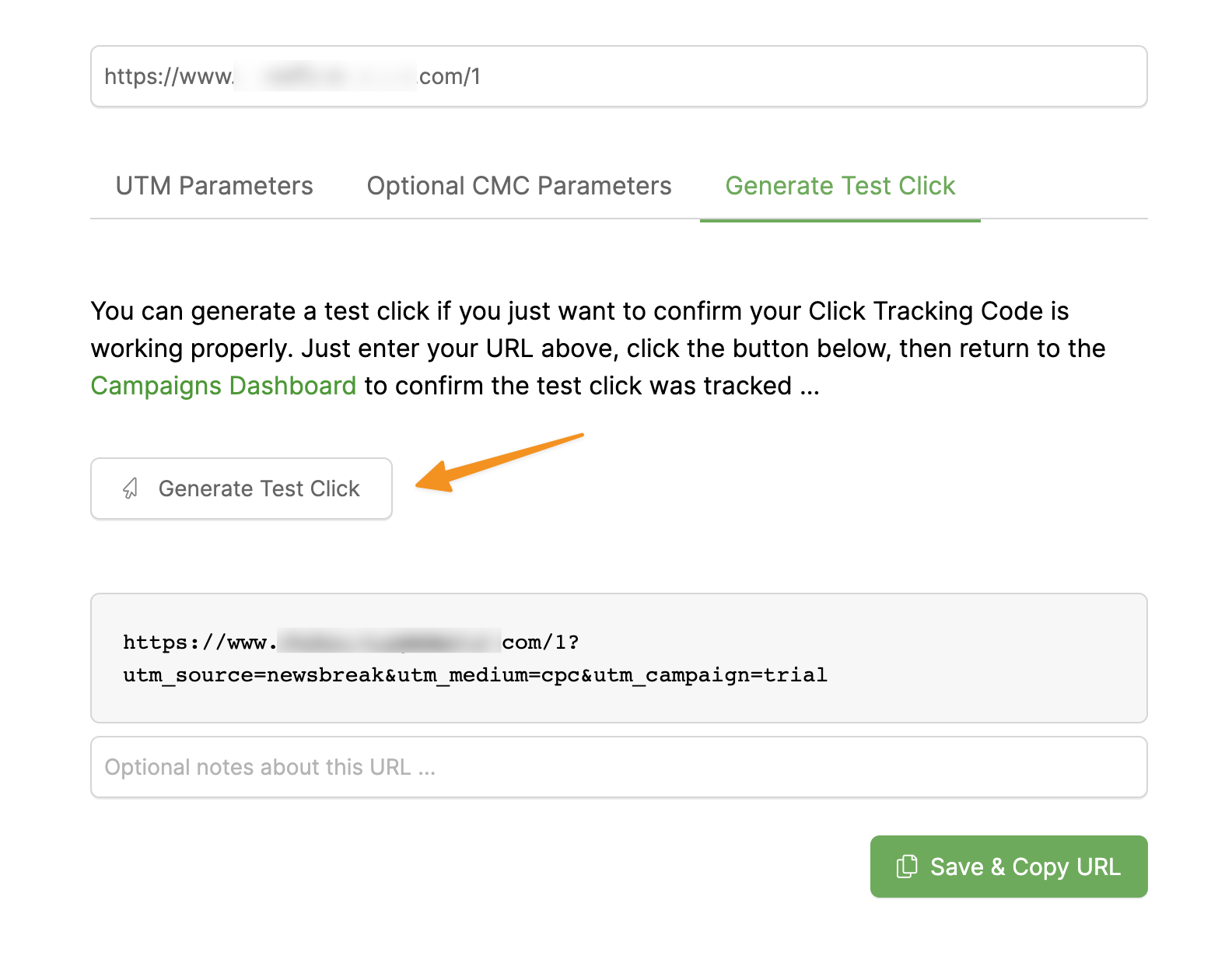
Fill the source, medium and campaigns fields and then click on Generate Test Click.
You can use the parameters you see in the image below:
Click on Generate Test Click again.
That’s it. Move to the next step.
Step 4 – Add the Endpoint URL as a Webhook
Open the Outgoing Webhooks tool by clicking on “Webhooks”, then “Outgoing Webhooks” in your Project Tools menu.
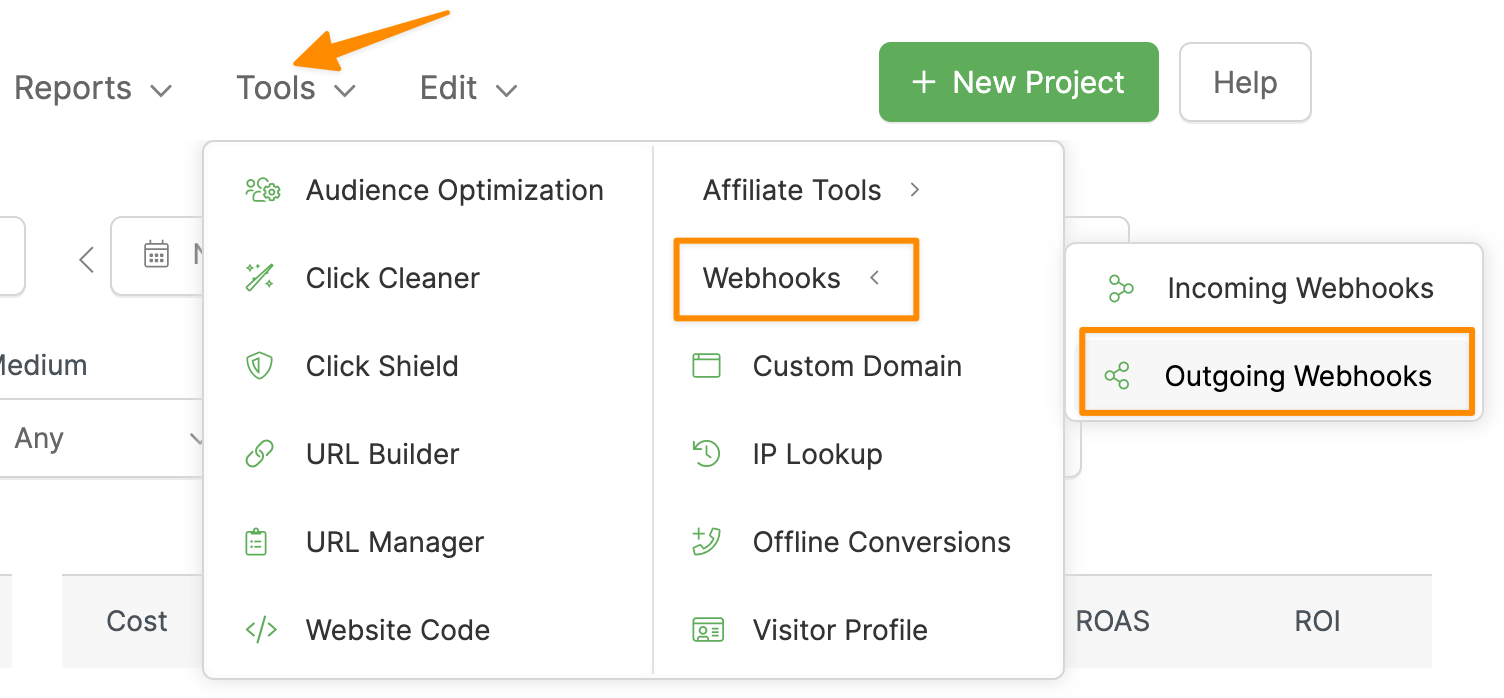
Click “Add Endpoint" to create a new webhook.
Choose the project that you're working on, update the utm_source and utm_campaign values from the drop-down menu, then set the Conversion Type to Sales.
Set the Endpoint URL to the following:
https://business.newsbreak.com/tracking/attribute?callback=[cmc_tid]&event_type=complete_payment&nb_value=[cmc_amt]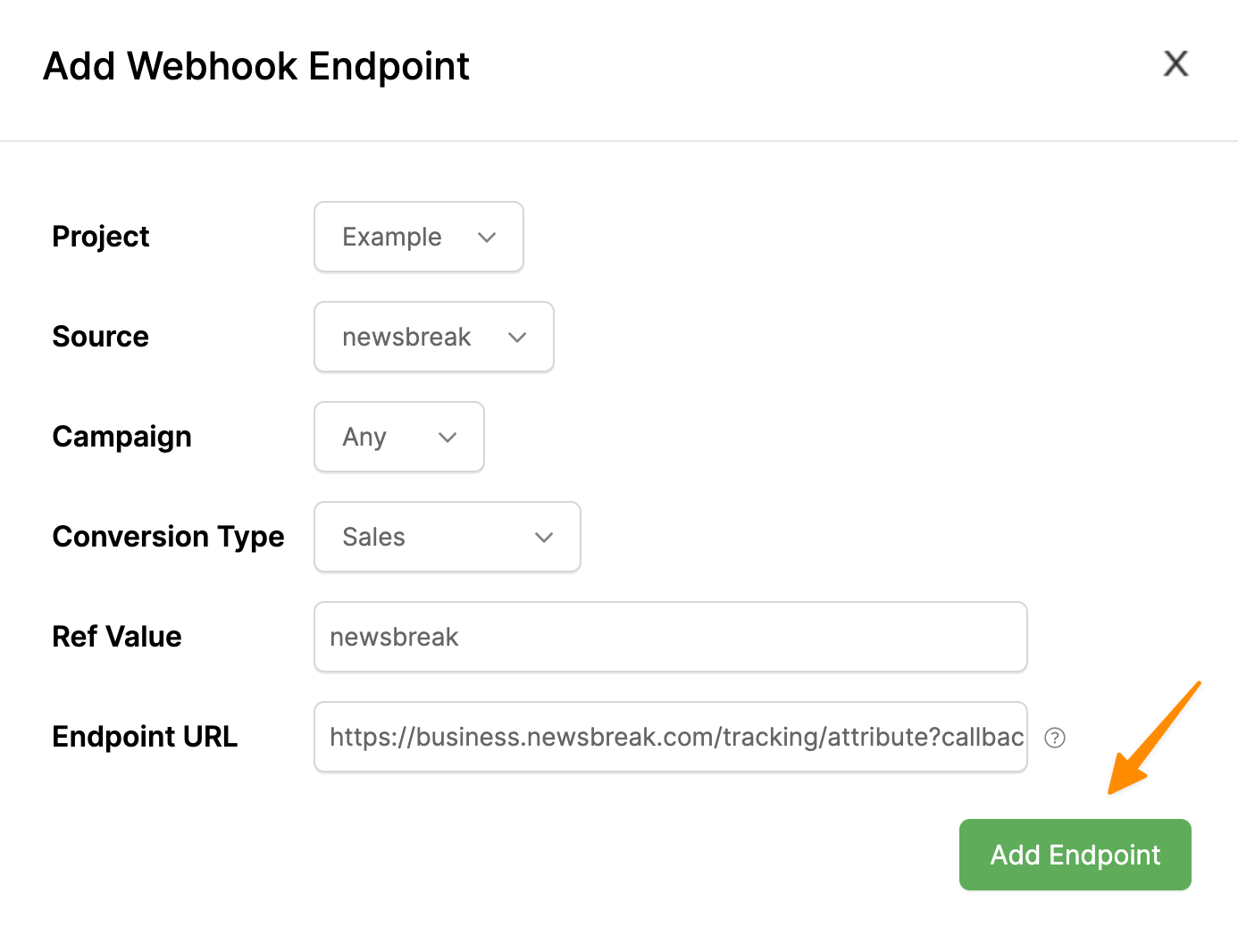
Note: If you’re using a different conversion event other than
complete_payment, you will need to change the Endpoint URL to use that instead. For example, you may be using submit_form in Newsbreak, so your URL would contain &event_type=submit_form instead.Step 5 – Generate a test conversion
Start by deleting your test data first.
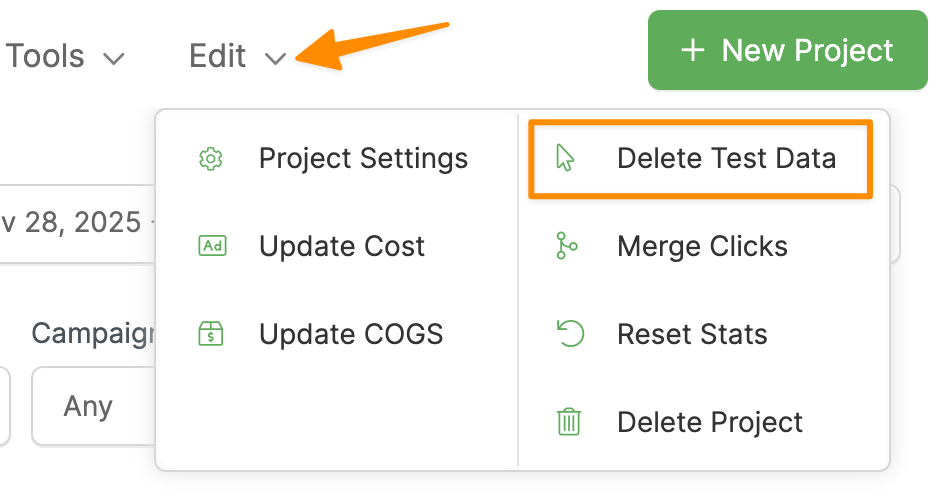
Go back to Newsbreak, paste your link in the “Test URL” field and click on the “Go test” button.
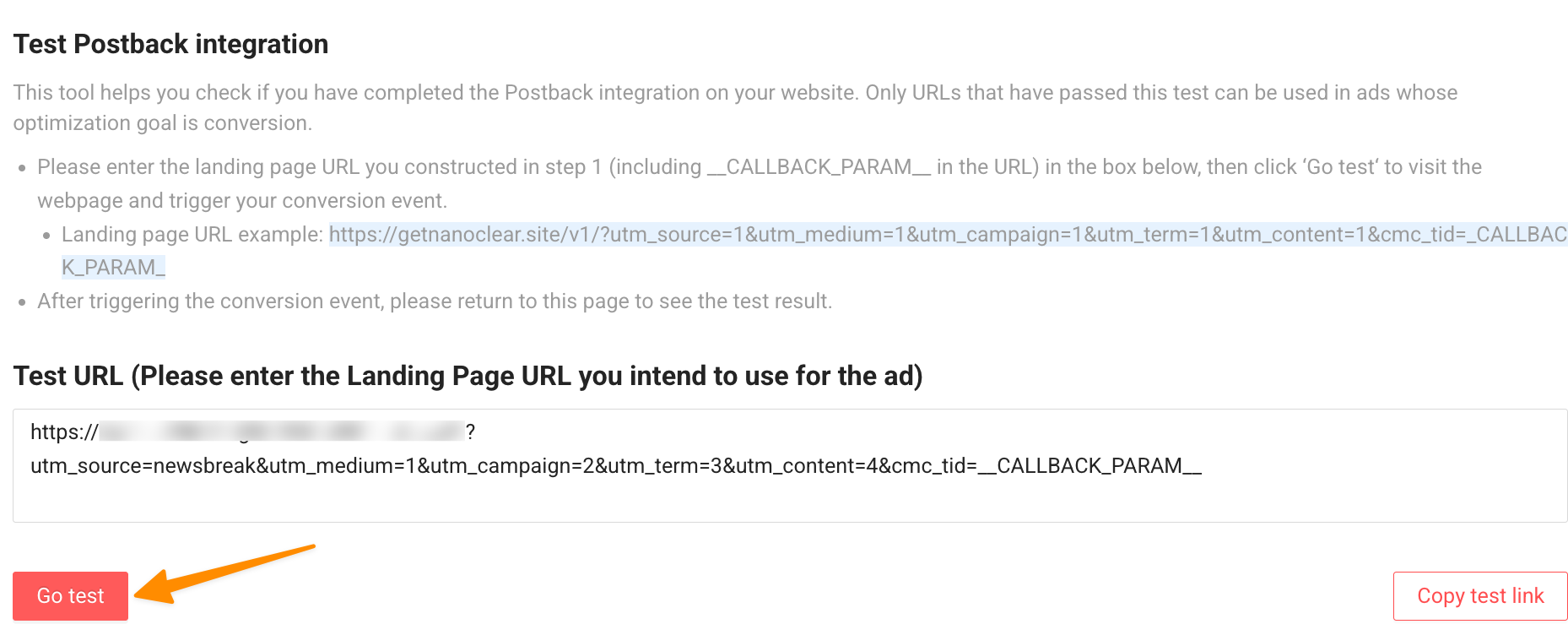
Newsbreak is now waiting for the conversion to be generated. If you followed all the steps so far, you must have exactly one click to the test page.
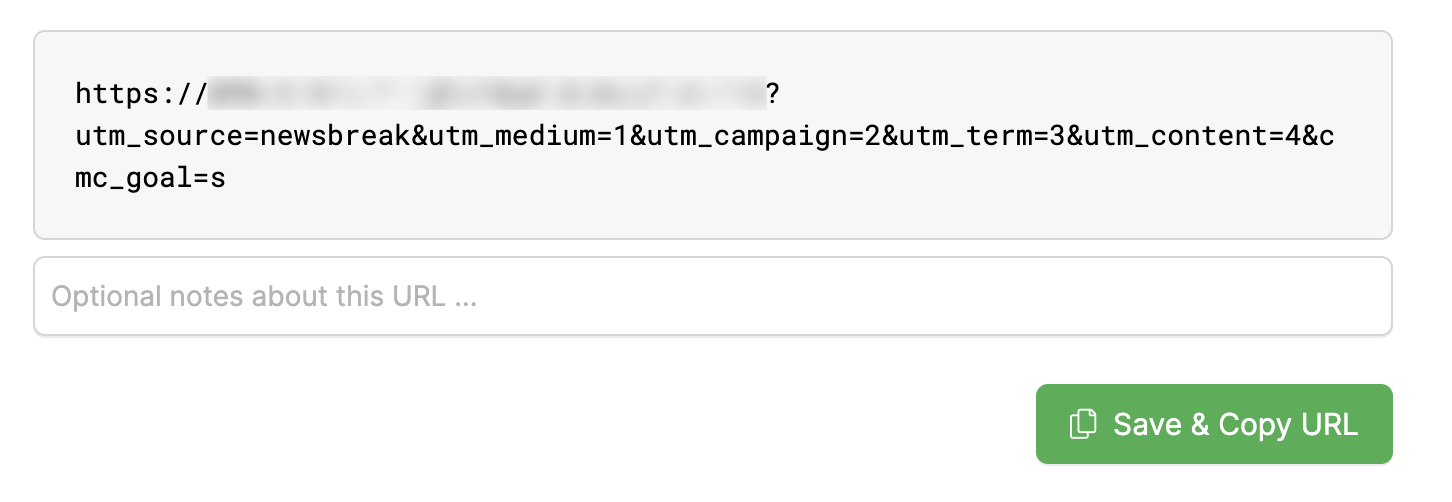
Go back to the URL Builder and enter the same URL like the one in the image above but add &cmc_goal=s at the end, like in the image below. Click on “Generate test click”.
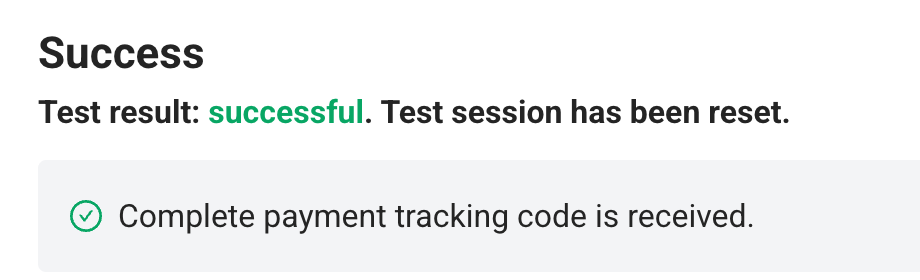
You should see a success message in Newsbreak.
Click on the “Save” button at the bottom right in Newsbreak and follow the process to finish the setup.

Article 643 Last updated: 11/28/2025 5:24:20 AM
https://www.clickmagick.com/kb/?article=643