
|
How do I set up affiliate tracking using an opt-in but no thank you page?
This article explains how to get started with ClickMagick as an affiliate with an opt-in page that redirects to an affiliate offer after opt-in. It also explains how to track emails you send to your list.
Step 1 – Add your Click Tracking Code to your Opt-In Page
From your Project Dashboard, select Tools, then Website Code.
Choose Custom Code and copy the code without making any changes, then add this code to your opt-in page.
If you’re not sure how to do this, we have tutorials for all popular page builders here:
How do I add tracking code or JavaScript to my page builder?
Step 2 – Use
cmc_redir to fire an Action conversion and redirect to your affiliate linkSince you don’t have a thank you page, you can use this to track your opt-ins and redirect to your affiliate offer.
To set this up, follow the steps below:
How do I track link or button clicks?
Step 3 – Add Your Postback URL to Your Affiliate Account
To make sure that your affiliate sales get tracked inside of ClickMagick, you’ll need to add your Postback URL to your Affiliate Account.
To do this, just go to the Postback URL Tool which you can find in the Tools menu under Affiliate Tools. Type in the name of your network and click on the copy button next to the network that you’re using:
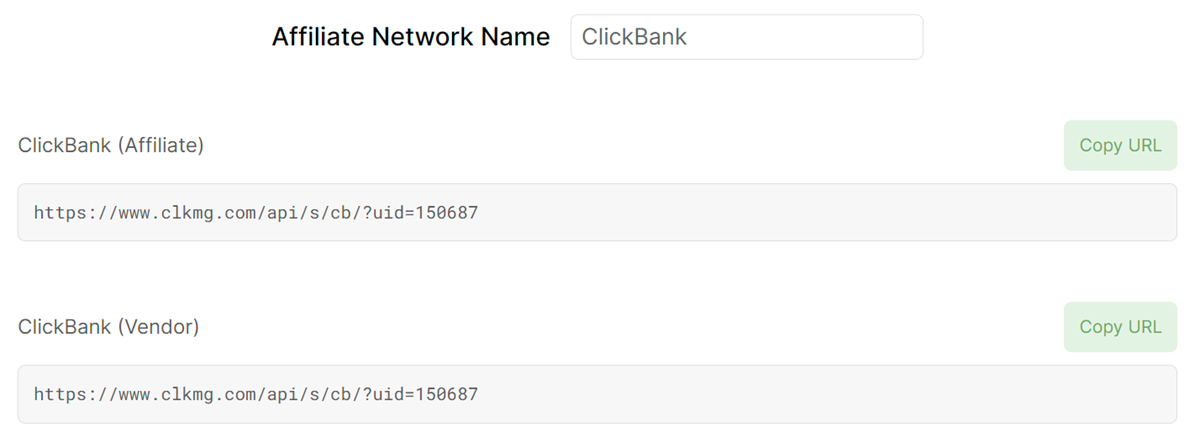
The Postback URLs in your account will be different from what you see in the screenshot above, so copy the URL that you see listed in your account for the network you are using.
For more information on how to do do this, follow the article below:
How do I track affiliate sales using Postback URLs?
Step 4 – Create a UTM-Powered link for your opt-in page using the URL Builder
For detailed articles on how how to do this for each ad network, follow the guide below:
How do I track my ads on the major ad networks?
If you have lots of ads, you may want to use a single “Tracking Template” at the campaign or ad set level instead. If you want to go this route, follow the guide below instead:
What is the best way to track lots of ads?
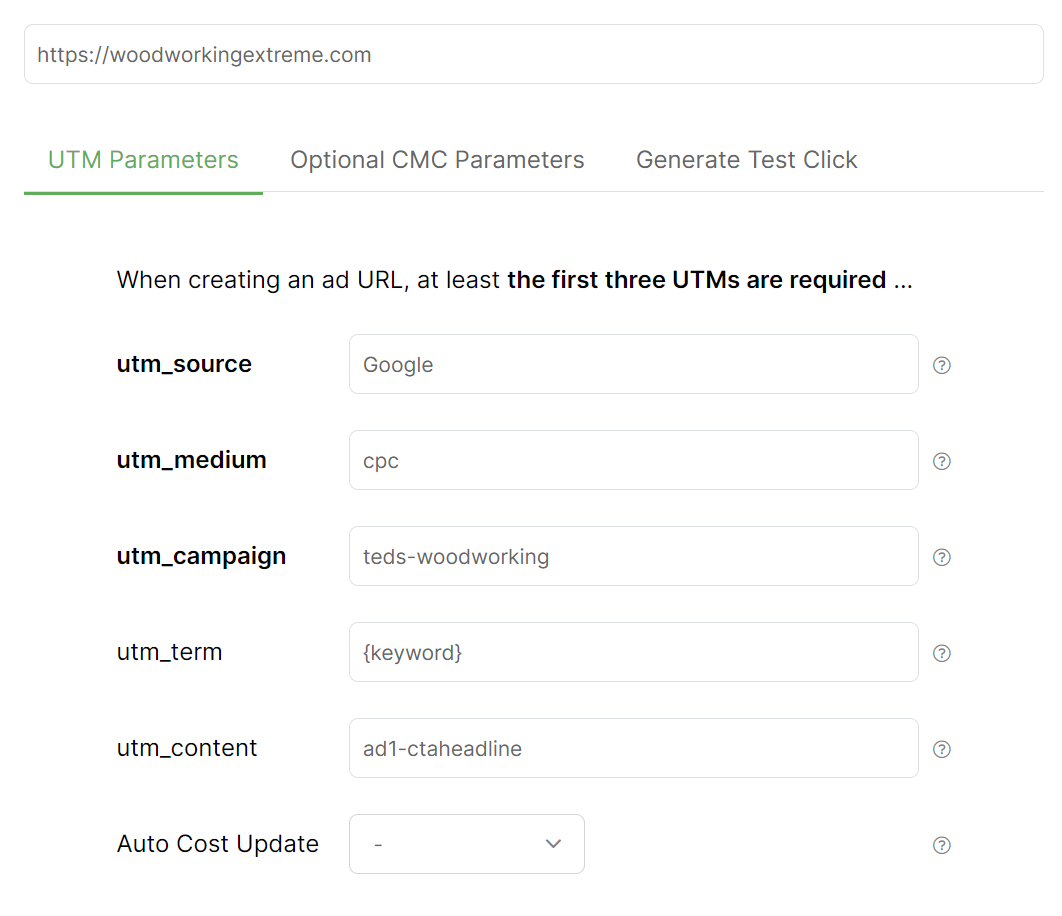
Step 5 – Create UTM-Powered links for your emails using the URL Builder
If you’re linking to your own pages from emails, follow the article below:
How do I track the performance of emails I send to my list?
If you’re linking directly to affiliate offers from your emails, follow the article below:
How do I track link or button clicks?
Step 6 – Set up Auto Cost tracking for Google Ads, Facebook Ads, TikTok Ads or Microsoft Ads (Optional)
If you’re running on any of these ad networks, follow this article to set up Auto Cost tracking:
How do I set up Auto Cost Update?
Step 7 – Set up Audience Optimization for Google Ads, Facebook Ads, TikTok Ads or Microsoft Ads (Optional)
If you’re running on any of these ad networks, follow this article to start sending conversions back to those networks:
What is Audience Optimization and how do I use it?
That’s it! All you need to do now is send traffic to your UTM-powered link and everything will be tracked with extreme accuracy. You’ll see all your conversions and other key stats for every traffic source so you can optimize and scale.
Note: You do have the option to create a short link. It is optional and is not required in order to track your affiliate sales.
Article 886 Last updated: 10/16/2025 5:08:07 AM
https://www.clickmagick.com/kb/?article=886