
|
How do I track Google Performance Max Ads?
Before completing the steps below, make sure you've completed your TrueTracking set up by adding click and conversion tracking codes to your website or online store.
If you're new to using UTM parameters you’ll also want to review the article below before getting started:
What are UTM Parameters and how do I use them?
Step 1 – Build UTM Parameters for your Performance Max Campaign
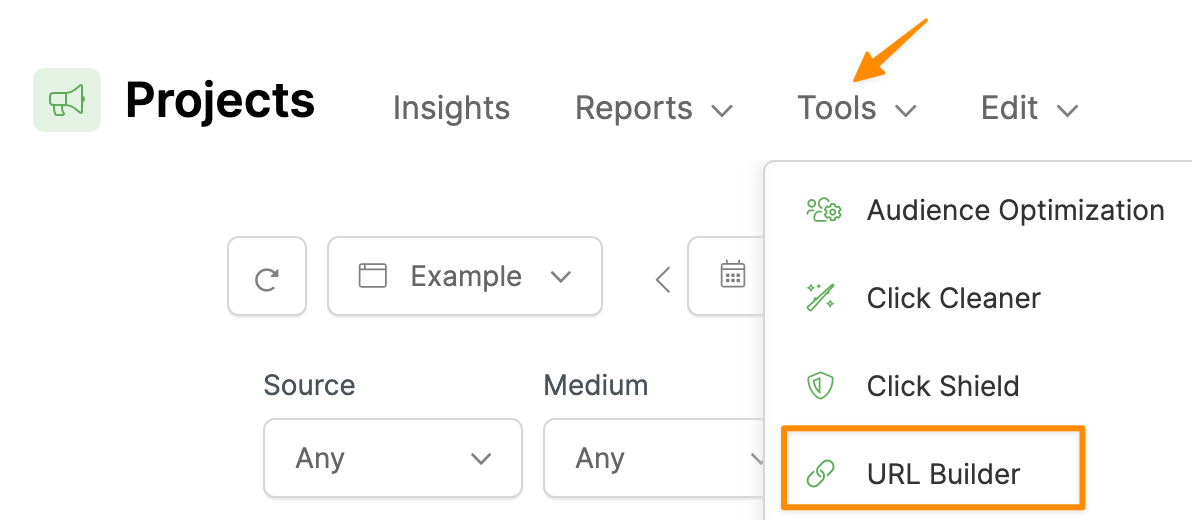
From your Project Dashboard, select Tools, then URL Builder:
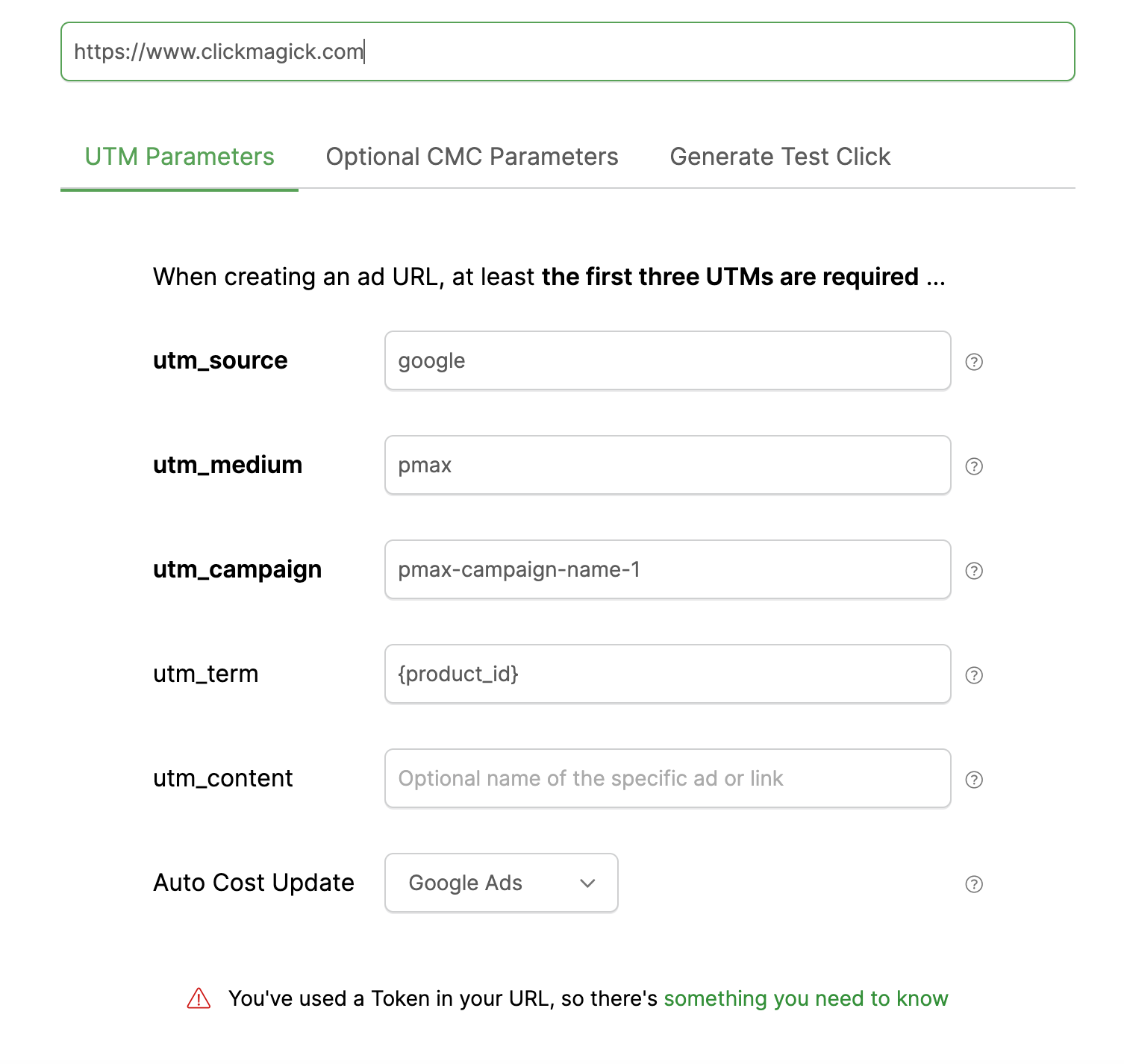
Enter the URL of your landing page, then simply enter the UTM values you want to use to track this campaign. You must always enter values for at least
utm_source, utm_medium, and utm_campaign.For Performance Max campaigns you’ll generally want to set
utm_term={product_id}. This will track the product ID from your merchant center data feed.If you want to track costs, select Google Ads under Auto Cost Update.
Step 2 - Add UTM Parameters to your Performance Max Campaign
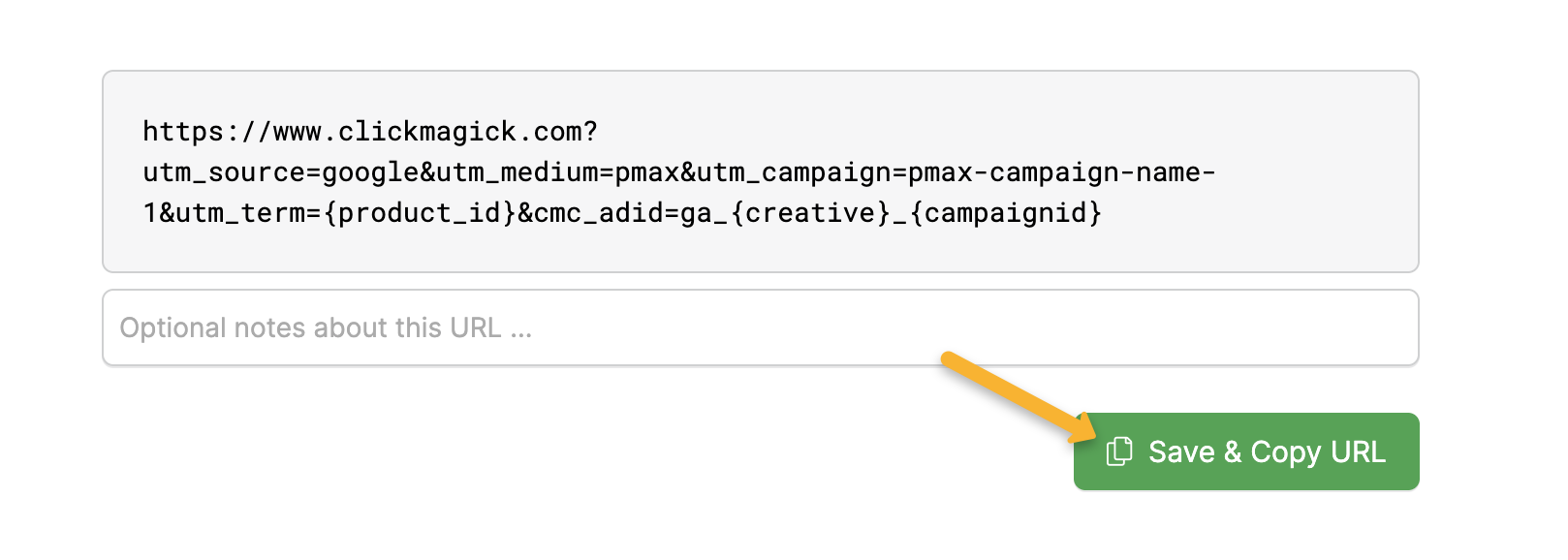
Click on the “Save & Copy URL” button to save your UTM parameters to the URL Manager.
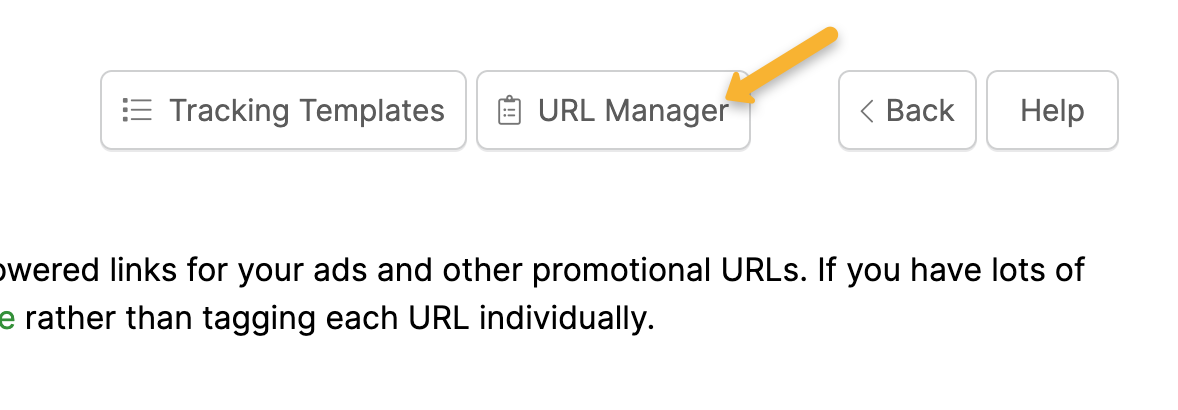
Once you’ve done that, click the “URL Manager” button at the top of the page.
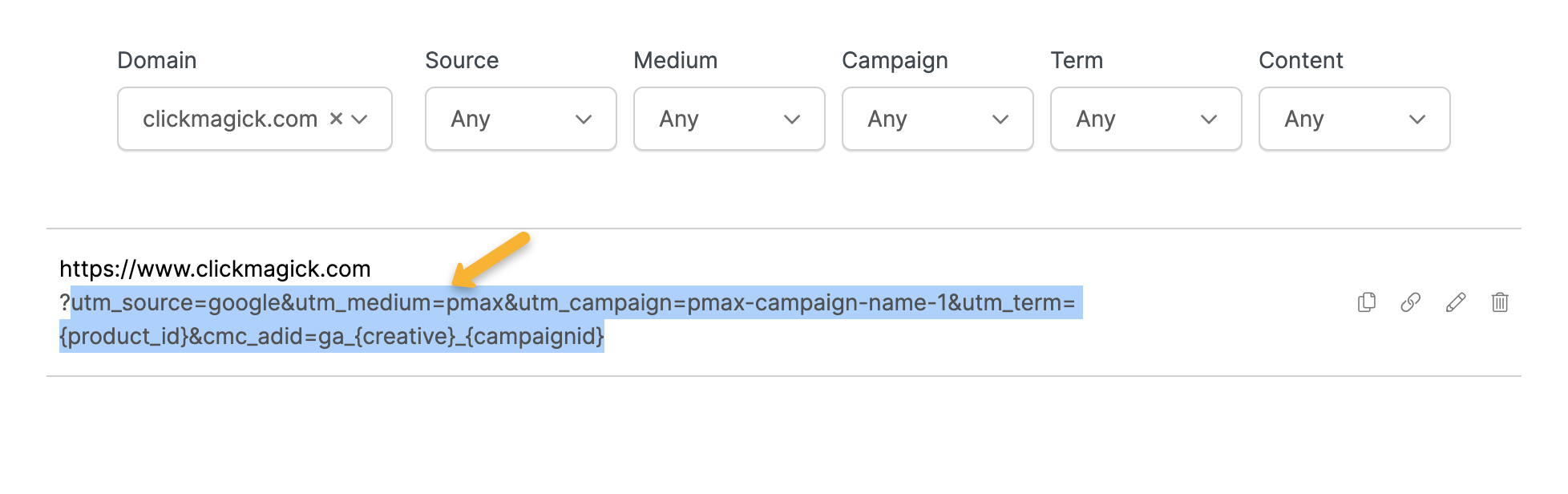
Next, copy everything after the question mark from your URL. This is what we’re going to add to Google.
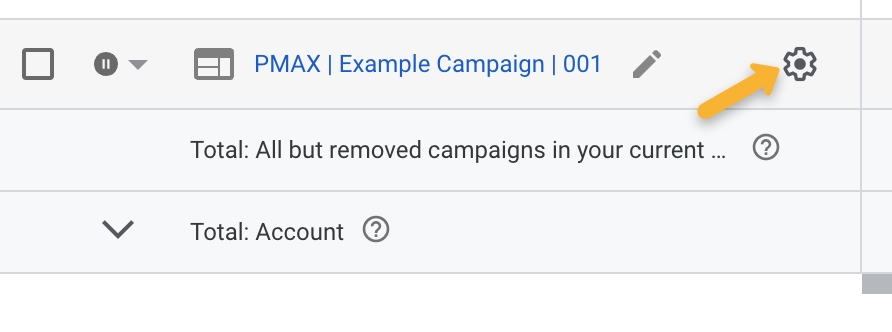
In Google, click the settings icon next to your campaign name.
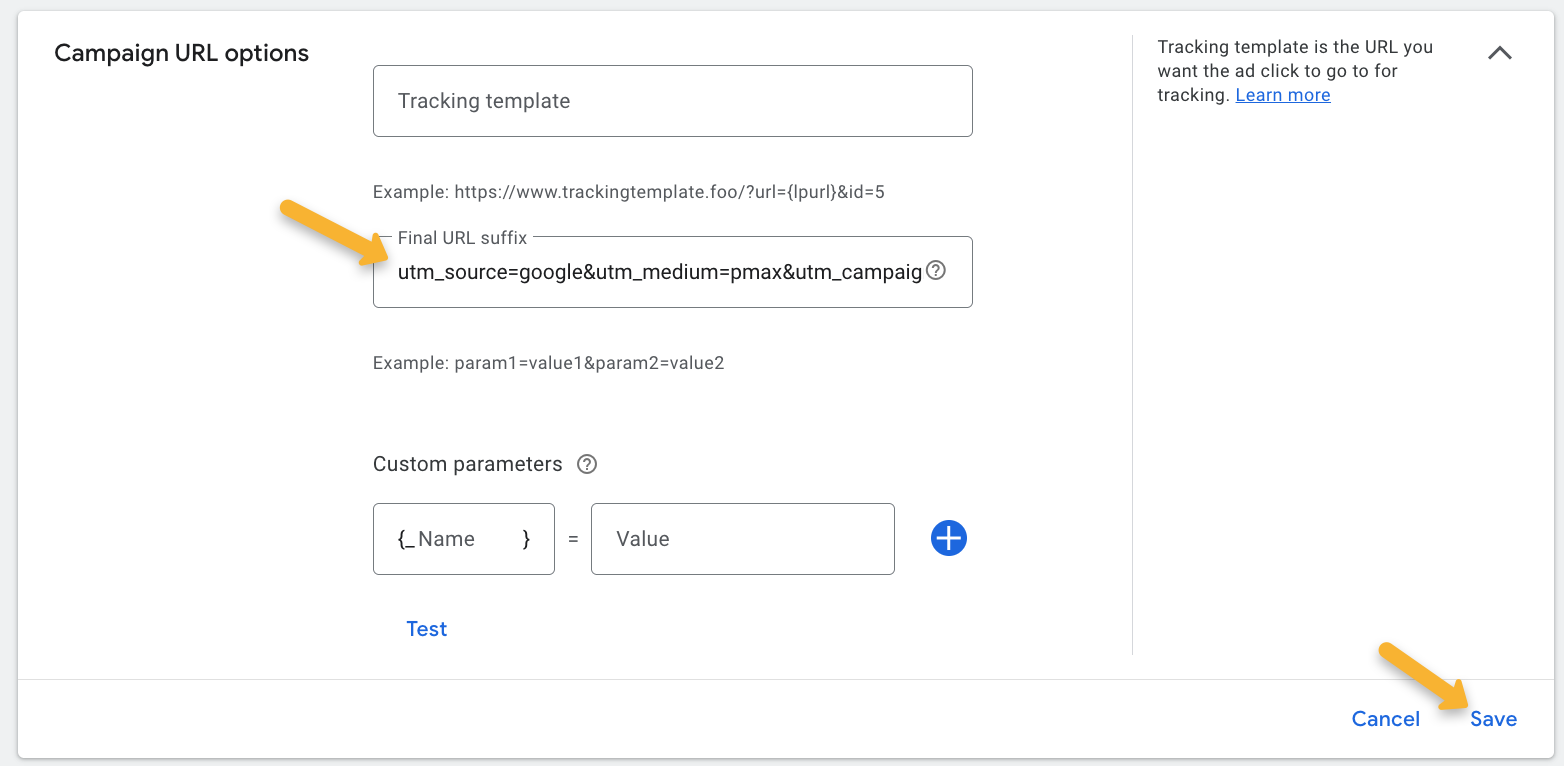
Go to “Additional Settings”, select “Campaign URL Options” then paste the UTM parameters into the “Final URL Suffix” section and hit “Save”.
That’s it! Your Performance Max campaign will now be tracked in ClickMagick using the UTM parameters you chose.
Article 965 Last updated: 10/22/2025 1:47:12 AM
https://www.clickmagick.com/kb/?article=965