
|
How do I set custom “ref” values when using a sales tracking integration?
If you sell multiple products or have upsells, you’ll want to set up custom “ref” values for each product you sell e.g. your front-end sale, upsell, backend offer, etc.
What is a “Ref” value?
This will make things like the Funnel Steps report more useful, and it will also allow you to specifically include or exclude certain types of sales when analyzing your stats.
This functionality is generally only going to be useful if you sell individual products or product “bundles,” one at a time. You shouldn’t need to do this if you have an ecommerce store using Shopify or WooCommerce for example.
For this reason, the ability to set up custom “ref” values by product is currently available in these integrations:
ClickFunnels
HighLevel
Kajabi
Kartra
SamCart
Systeme.io
ThriveCart
Here’s how to set it up ...
Step 1 – Open your Account Menu in the top right and select Integrations
Step 2 – Select the integration you want to edit
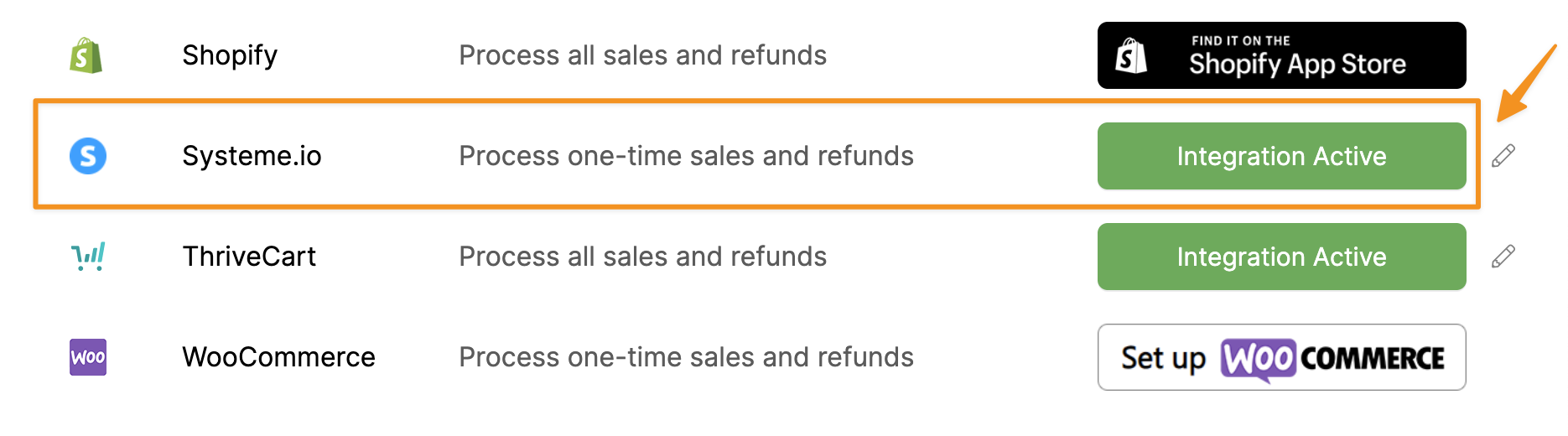
Step 3 – Enter your product names and custom ref values
For each product you sell, select the appropriate Project, then enter the product name exactly as it appears in your other platform, then enter a custom “ref” value that makes sense e.g. front-end or upsell.
Simply enter the required details and hit the Add button to add each product, upsell or backend offer.
And if you have upsells, or customers can purchase multiple products at the same time, be sure to read the additional explanation below about how custom ref values are applied.
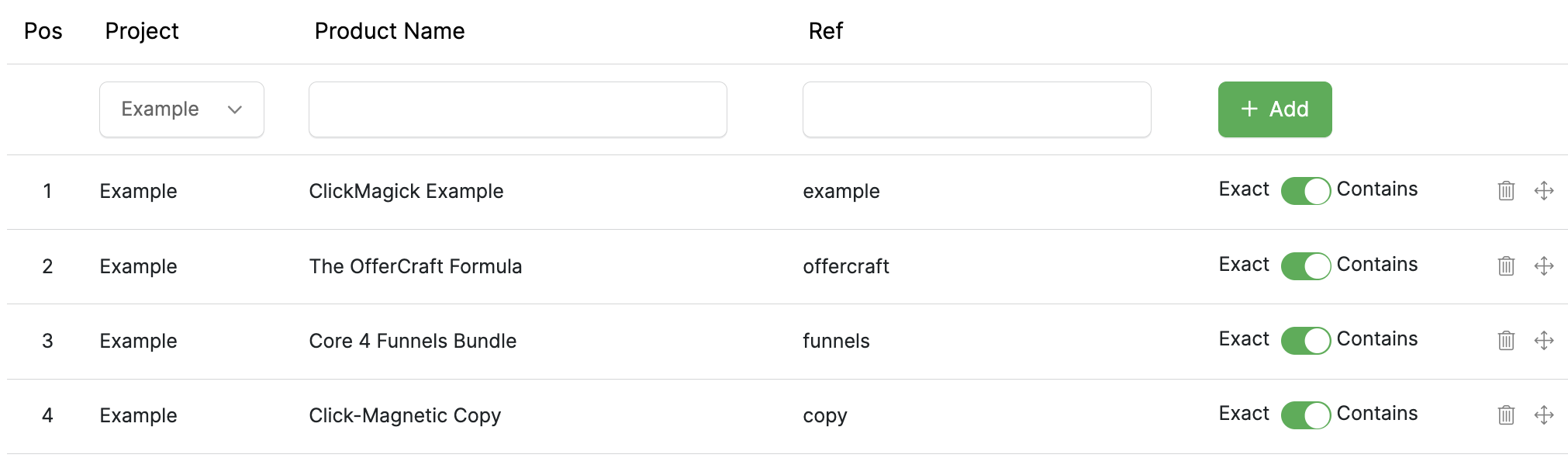
Note: In some platforms, like System.io for example, you might need to use the Price Plan name instead of the product name.
How are custom ref values applied?
Most other platforms treat an upsell the same as a regular sale, internally. Which means when they send your sales data to ClickMagick, we don’t immediately know if something is an upsell or not.
To handle this correctly, you can choose how the product name should be matched:
If you want a custom ref value applied only when the exact product name you entered is purchased by itself, you’ll want to leave the toggle on the default “Exact” setting. This means “match this one product exactly.”
On the other hand, if a specific product you’ve entered may be part of a multi-product purchase – for example, it’s a primary product that has an upsell, or it’s the upsell after the primary product – you’ll want to use the “Contains” setting. This means “match any purchase that contains this product.”
To keep things simple, if you only ever sell one product at a time you can leave everything on “Exact”.
And if you ever have any upsells in your funnel, you can generally leave everything on “Contains”.
If you need to tweak further based on your setup you can use a combination of settings for different products as necessary, and you can also re-order the custom ref rules.
The rules are applied from top to bottom, and the first custom ref rule that matches will be applied. For this reason, it often makes sense to place your final upsell at the top of the list.
Article 1024 Last updated: 12/04/2025 6:45:10 AM
https://www.clickmagick.com/kb/?article=1024