
|
How do I use the Funnel Steps Report?
The Funnel Steps report shows you the different paths visitors take through your sales funnel, and the conversion rates from page to page – for any traffic source, ad campaign or even individual ads.
Using the available filters you can see, for example, how your traffic from Facebook compares to your Google traffic.
Or how one ad campaign compares to another, or even compare individual ads against one another.
How do I use the Funnel Steps Report?
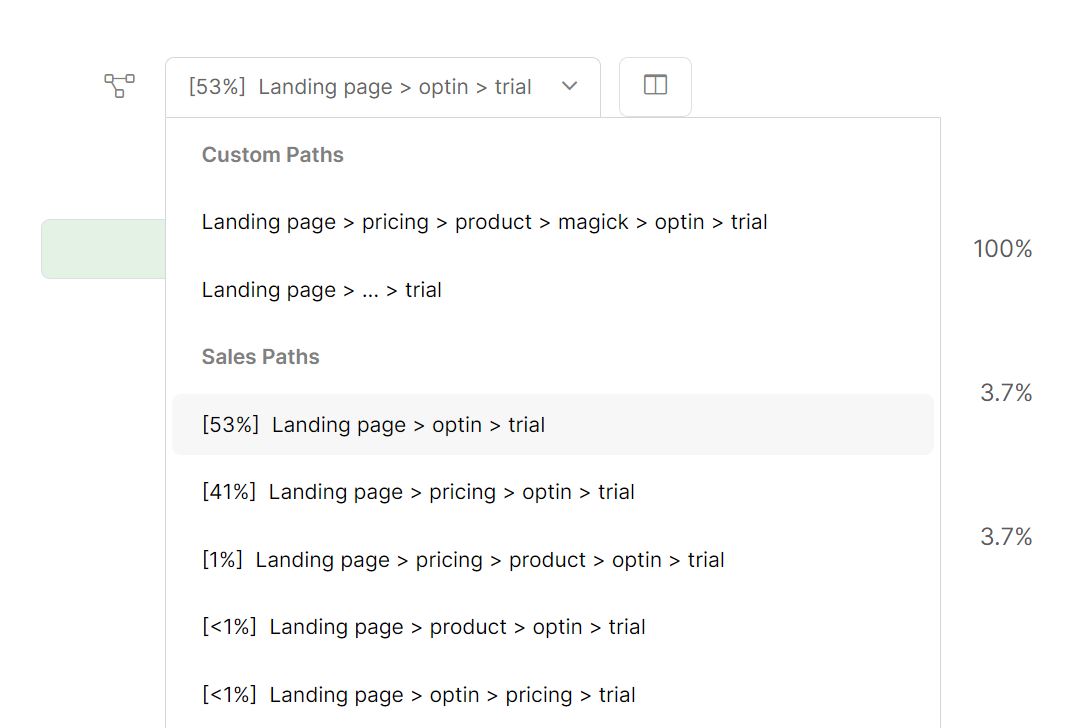
You’ll automatically see the common paths visitors take through your funnel, sorted from most to least profitable. The percentage in front of each sales path tells you the percentage of visitors who took that path.
By default you’ll see all paths that end in a Sale, which have also received at least 1% of your traffic. This allows you to focus on what are probably the most important paths in your funnel.
But there’s also an option to “Show All Paths”, and you can switch between the two different views at any time.

Once you know what your most profitable path is, you can test and optimize your funnel to try to get more visitors to follow that path – which will ultimately lead to more conversions.
Or maybe you’ve got a step in your funnel where the conversion rate from one page to the next just isn’t what it should be, and you can focus on improving that to increase the overall effectiveness of your funnel.
You can also create your own custom paths by selecting “Manage Custom Paths” from the Edit menu. These will show up in the path list at the top, in the Custom Paths section.
Custom paths allow you to see the flow from any page in your funnel to any other page, if you’re trying to optimize that.
And you can easily compare two paths side-by-side by clicking the compare icon to the right of the path list.
Why am I not seeing any data?
The Funnel Steps report relies on the “Ref” values associated with your conversions …
So if you aren’t currently using “Ref” values you won’t see the Funnel Steps report at all. And if you’re providing “Ref” values on some – but not all – of your conversion pages, then your Funnel Steps report won’t be accurate.
In the case of an inaccurate Funnel Steps report due to some missing or inaccurate “Ref” values, simply make the necessary changes and then select Reset All Paths and it will be accurate from that point on.
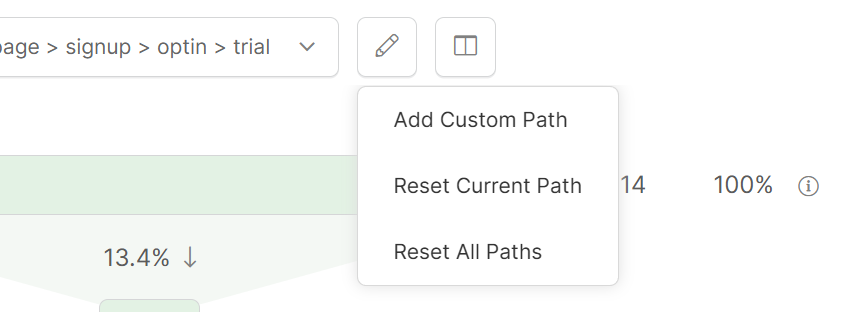
Note: When you reset a funnel path, all path data is deleted, but none of your click or conversion data is deleted. Path data is a completely different set of data and is used only in the Steps report.
Keep in mind that when you reset your path data, you’ll likely have visitors in the middle of your funnel. As they continue through your funnel after you’ve reset the path, they’re going to generate partial paths that may look “odd.”
This is completely normal and expected, but if you don’t want to look at them you can also select any path and then select “Reset Current Path” from the Edit menu at any time, which will delete that path from your report.
Keep in mind that when you reset your path data, you’ll likely have visitors in the middle of your funnel. As they continue through your funnel after you’ve reset the path, they’re going to generate partial paths that may look “odd.”
This is completely normal and expected, but if you don’t want to look at them you can also select any path and then select “Reset Current Path” from the Edit menu at any time, which will delete that path from your report.
Why do conversions on the Steps Report differ from other reports?
The Steps Report is a special report that’s meant to help you optimize your funnel. It’s not meant for “checking your stats,” and the number of conversions shown in the Steps Report won’t always match what you see elsewhere in ClickMagick.
When you view your stats anywhere other than the Steps Report, the number of clicks and conversions you see reported reflect the clicks and conversions that actually occurred during the date range you select.
In regards to the conversions, the clicks that generated those conversions may or may not have also occurred in the same time period. This is what you want from an analytics standpoint.
However, the Steps Report is different …
When the Steps Report is calculated, we first look at all the clicks that occurred during the date range you select.
Then we report all the conversions generated from those specific clicks. In this case, those conversions may or may not have actually occurred during the date range selected. But this is what you want on a report like the Steps Report.
Another example is if you manually delete a conversion in the ClickMagick interface …
If you manually delete any individual conversion, we have to remove all of that visitor’s data from the Steps Report because their “path” is now incomplete and doesn’t make sense in the context of the Steps Report.
However, if that same visitor generated other conversions that are not deleted, the other conversions will still be reported elsewhere in other reports.
So don’t worry if the number of conversions reported on the Steps Report is different. If we reported conversions the same on the Steps Report as we do elsewhere, the Steps Report would be much less useful to you.
Article 753 Last updated: 09/27/2025 7:15:42 AM
https://www.clickmagick.com/kb/?article=753