
|
How do I track webinar registrations in Everwebinar?
If you want to track webinar registrations, you can do so by using a custom post-registration page or when only using Everwebinar pages.
If you’re using a custom post-registration page, then you would just need to add your Conversion Tracking code to the page.
However, if you’re using Everwebinar pages, here are the steps to follow …
1 - Add your Click Tracking Code to the Registration Page.
Head to your Project Dashboard, click on the Tools menu and select "Website Code", then “Custom Website Code” to get your Click Tracking Code as shown below:
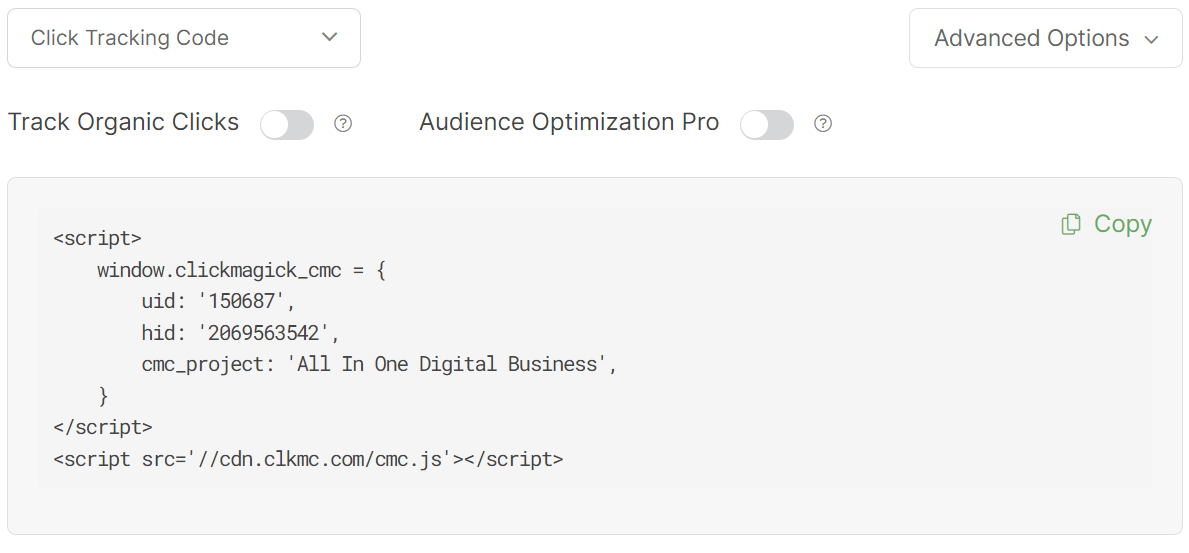
Grab your Click Tracking Code, then navigate to the "Integrations" tab in Everwebinar, and under "Registration page tracking" add your Click Tracking Code.
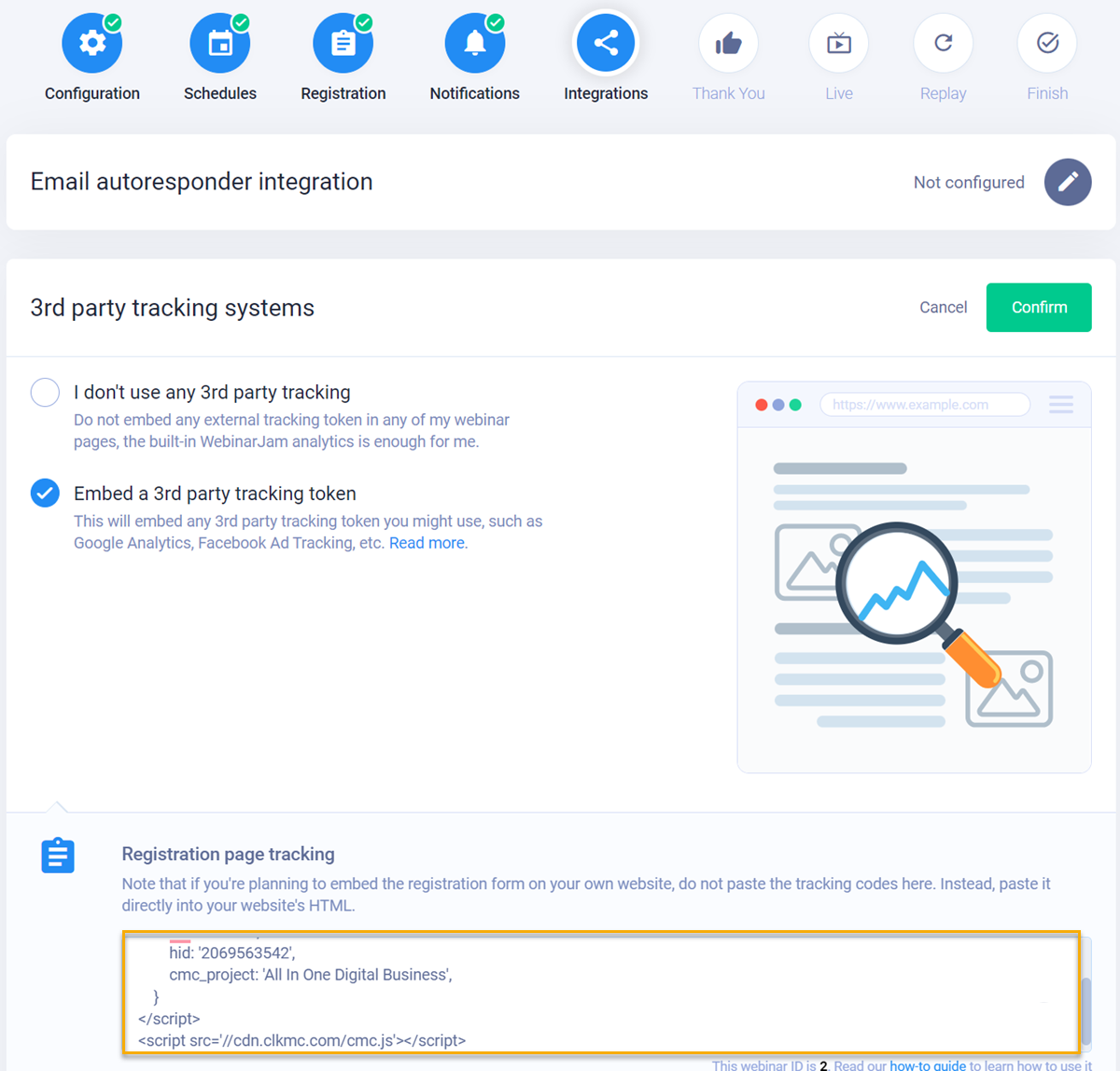
2 - Add your Conversion Code to the Post-registration Thank You page
From your Project Dashboard, click on the Tools menu and select "Website Code" and select Conversion Tracking Code:
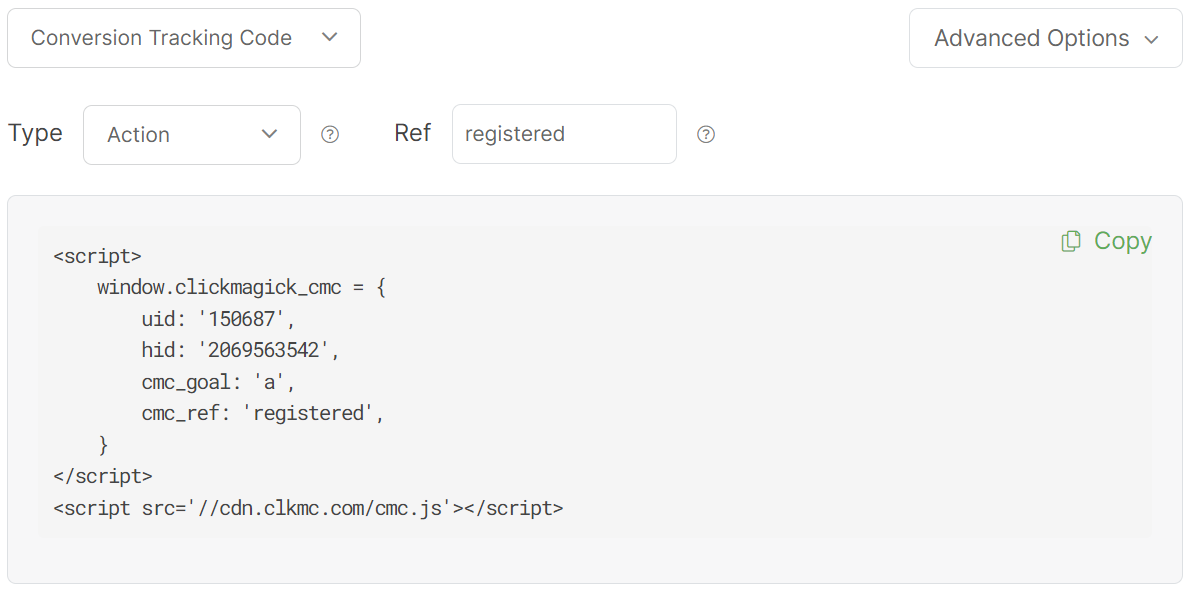
You could also get your Action Conversion Code below:
<script>

    window.clickmagick_cmc = {

        uid: '[USERID]',

        hid: '[HID]',

        cmc_goal: 'a',

        cmc_ref: 'registered',

    }

</script>

<script src='//[CODE-DOMAIN]/[CODE-FILENAME].js'></script>
Back in Everwebinar, you'll see a section called "Post-registration Thank You page tracking"
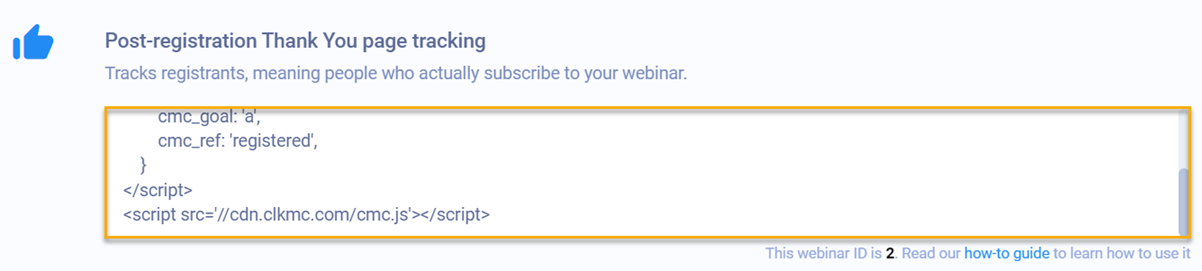
Add your Action Conversion Code here.
Finally, you will have to create a UTM link for your webinar registration page to begin tracking webinar registrations in your Project.
Note: Due to the limitations of Everwebinar, you will not be able to track webinar registrations using a Custom Registration Page and an Everwebinar Post Registration Page in ClickMagick, due to not being able to pass data from one domain to another.
Article 691 Last updated: 10/15/2025 2:05:37 PM
https://www.clickmagick.com/kb/?article=691