
|
How do I set up the WooCommerce sales tracking integration?
The WooCommerce sales tracking integration allows ClickMagick to track all of your WooCommerce sales, upsells and refunds without the need for traditional sales tracking code on your webpages.
If you’re following the step-by-step “getting started” guide you should have already set up your click tracking, but if not, please make sure you do that first. You can’t track sales without first tracking your visitors’ clicks.
Caution: This integration replaces, and is incompatible with, any existing sales tracking code you have added to your webpages or store.
If you’re currently tracking sales with the standard sales tracking code, be sure to remove it before setting up this integration or your sales won’t track properly.
If you’re currently tracking sales with the standard sales tracking code, be sure to remove it before setting up this integration or your sales won’t track properly.
Setting up the WooCommerce sales tracking integration
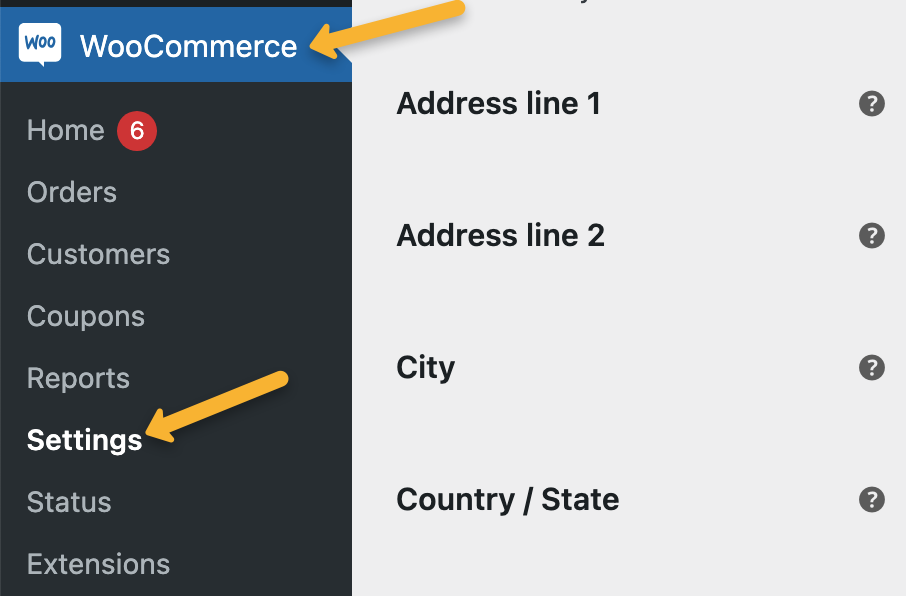
In Wordpress, go to WooCommerce and click on Settings.
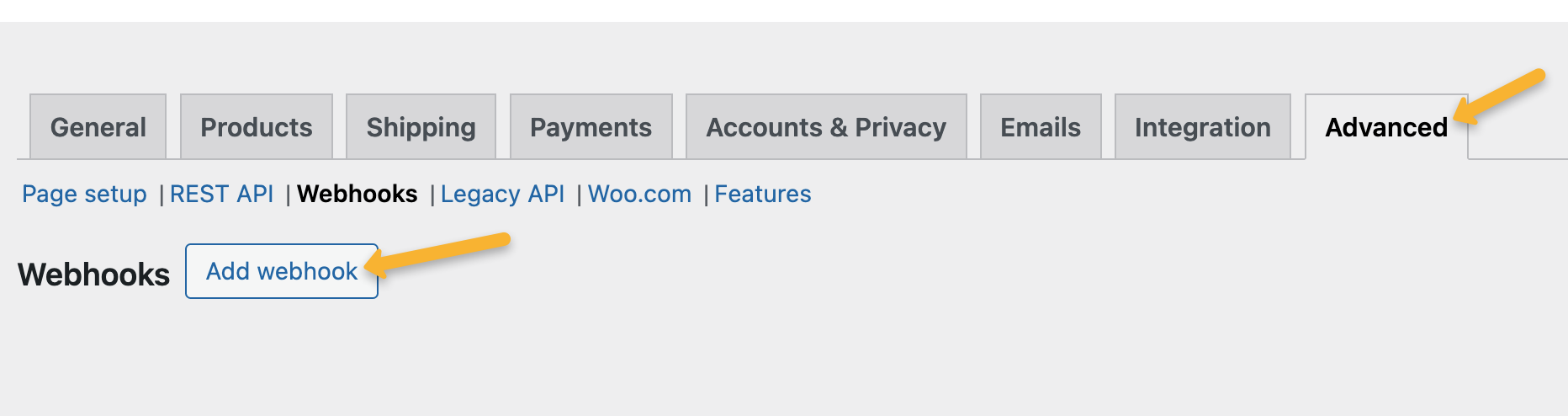
Then go to Advanced and click on “Add webhook”.
Enter the following details:
| Name: | ClickMagick Sales Webhook |
| Status: | Active |
| Topic: | Order updated |
| Delivery URL: | https://www.clickmagick.com/user/account/integrations/woocommerce/?uid=[USERID] |
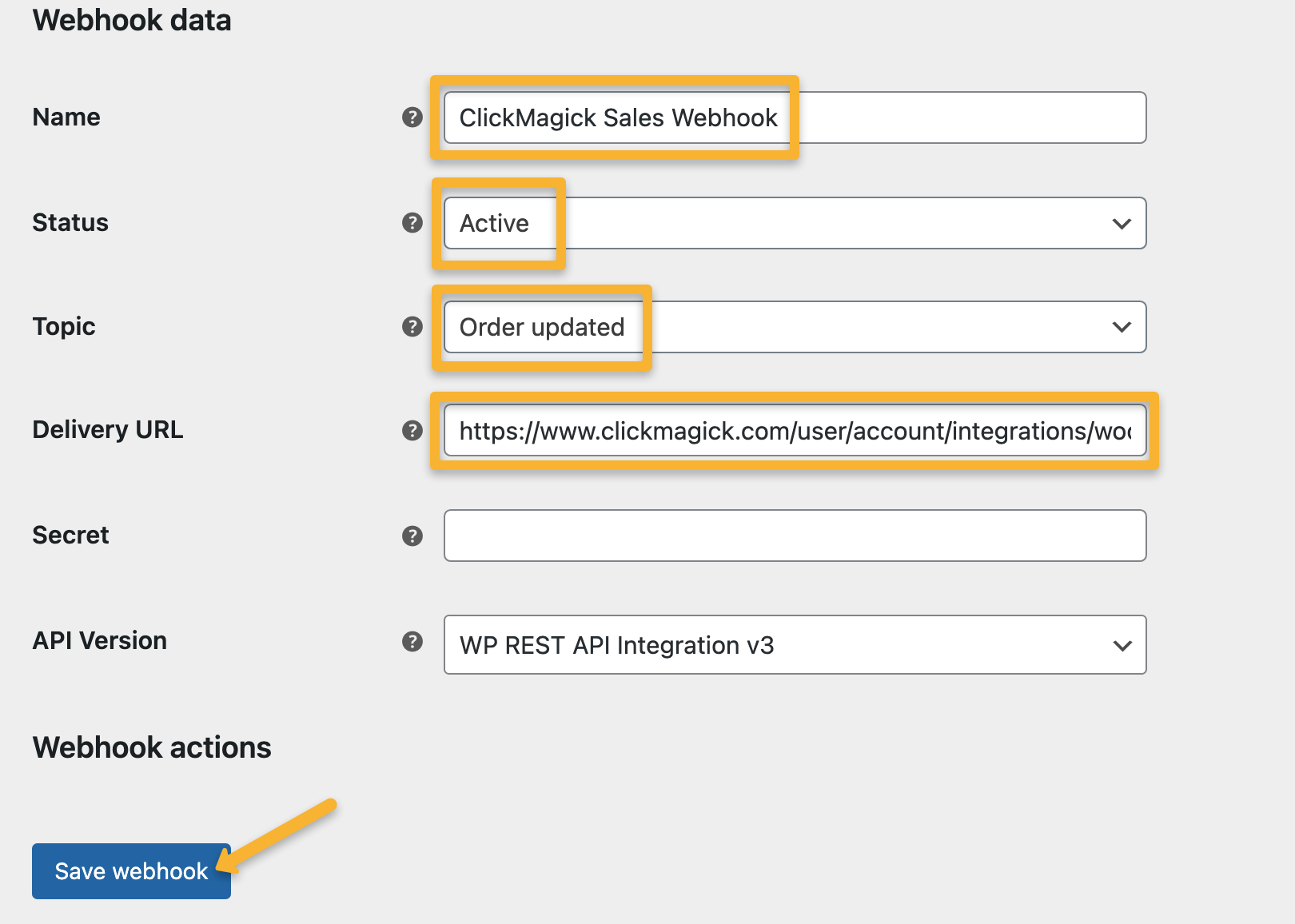
And that’s it. Once you set this up, ClickMagick will automatically track all of your sales from WooCommerce.
Just a few more little things ...
1. Any sales tracked via the webhook will have a default “ref” value of “purchase”. If you’d prefer, you can set these ref values to the actual order number by adding
&ref=number to the end of your Delivery URL like this:https://www.clickmagick.com/user/account/integrations/woocommerce/?uid=[USERID]&ref=number2. If you have multiple WooCommerce stores under different projects that may share the same customers, you’ll need to add
&cmc_project=yourprojectname to your webhook URL too. This makes sure the sale always gets attributed back to the correct project, even if that customer visited more than one of your stores. Like so:https://www.clickmagick.com/user/account/integrations/woocommerce/?uid=[USERID]&cmc_project=yourprojectnameJust replace
yourprojectname with the exact name of your Project.Note: We always process conversion data immediately, but please note there can be a delay between when a conversion occurs and when WooCommerce sends it to ClickMagick. It’s usually just a few minutes, but we have no control over it.
Article 685 Last updated: 10/15/2025 2:02:56 PM
https://www.clickmagick.com/kb/?article=685