How do I connect ClickMagick to other apps with Make.com?
You can send and receive data to and from ClickMagick using webhooks.
If the tool you are connecting to can’t send or receive webhooks natively, you can use a tool like Make.com.
Make.com is essentially a Zapier alternative. If you prefer Zapier, read the article below.
How do I track conversions using Zapier?
Make.com Example – Send email when you generate a sale in ClickMagick
Step 1 – Create Your Trigger
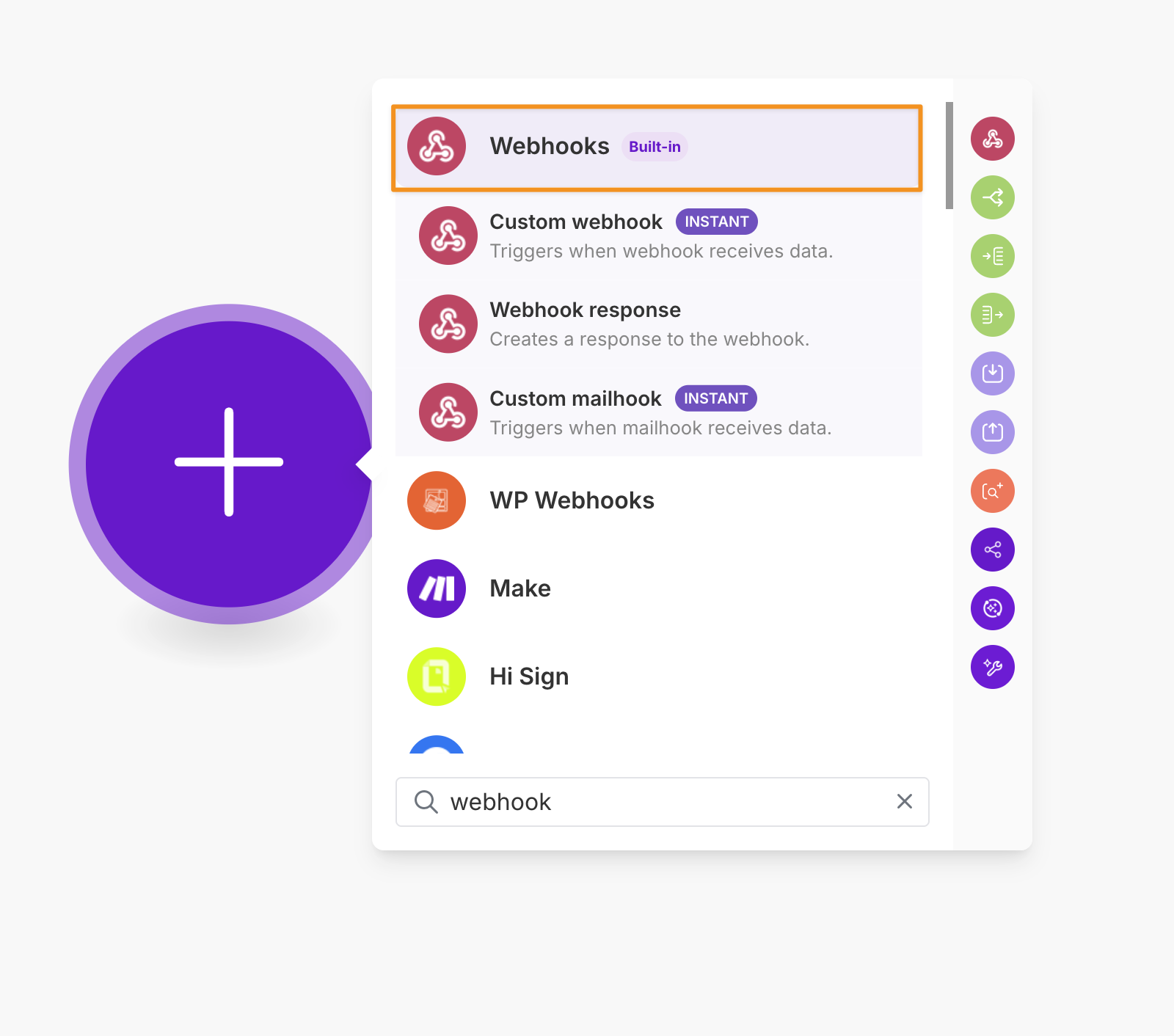
Click on the big plus icon and select webhooks as your trigger
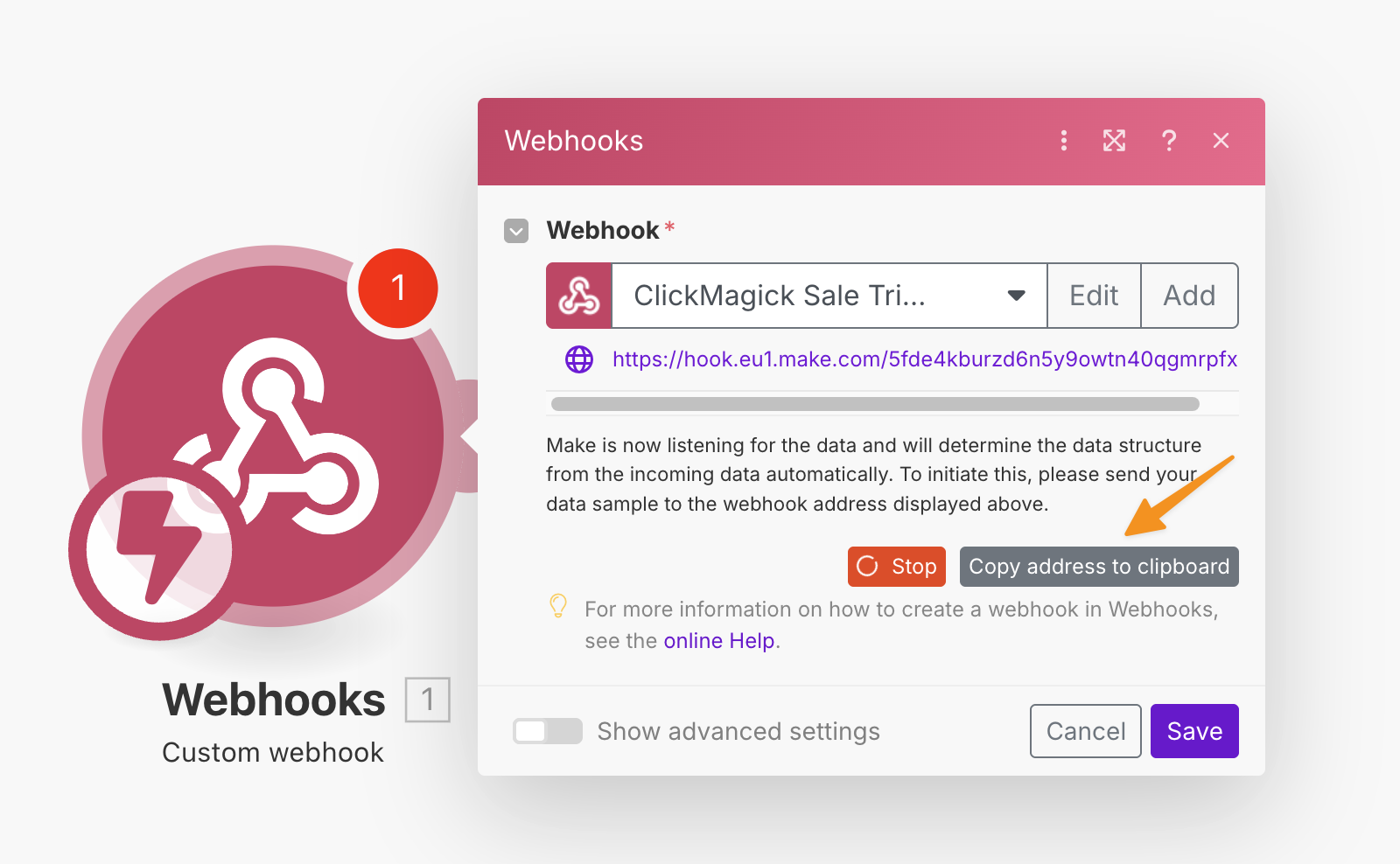
Then, click on the “Create a webhook” button, name the webhook however you like and copy the URL.
Step 2 – Set up Your Outgoing Webhook in ClickMagick
Follow the link below to set up a new Outgoing Webhook:
Click here to set up your Outgoing Webhook
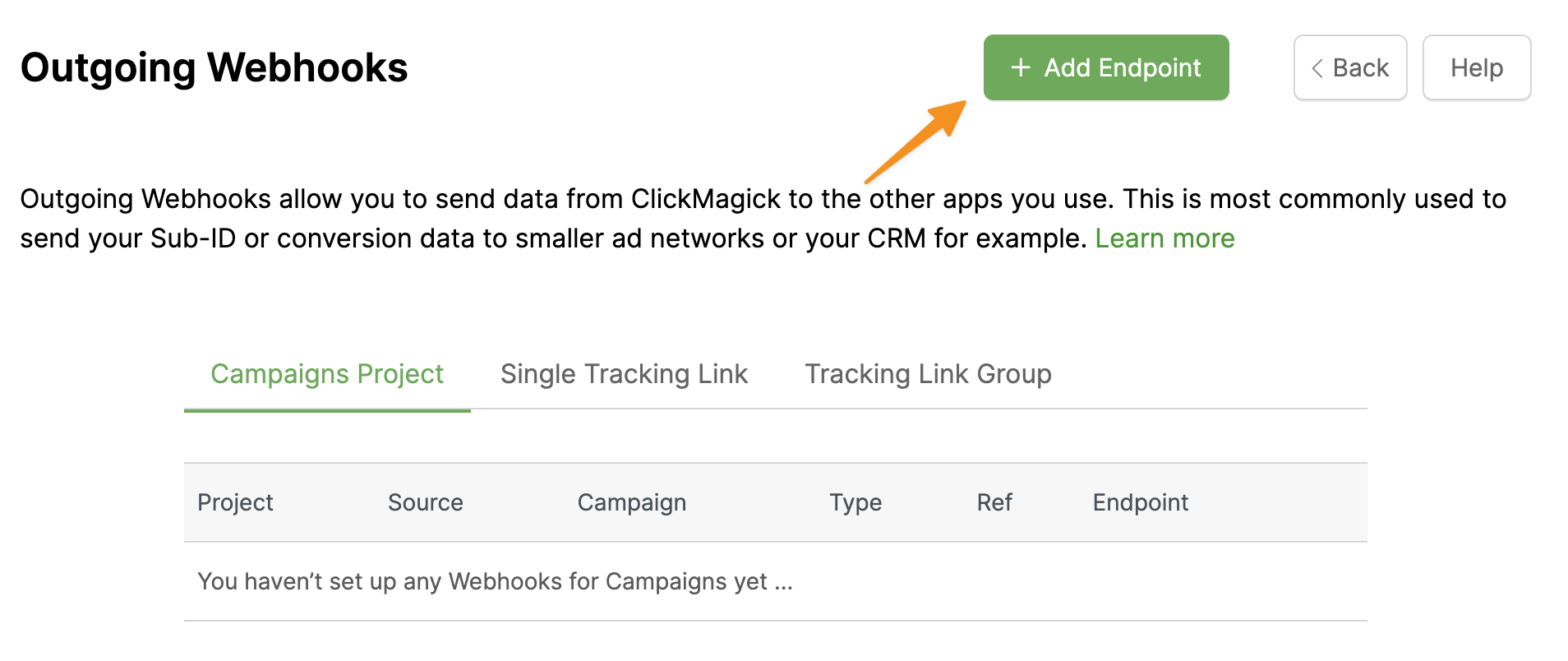
Once there, click the green “Add Endpoint” button.
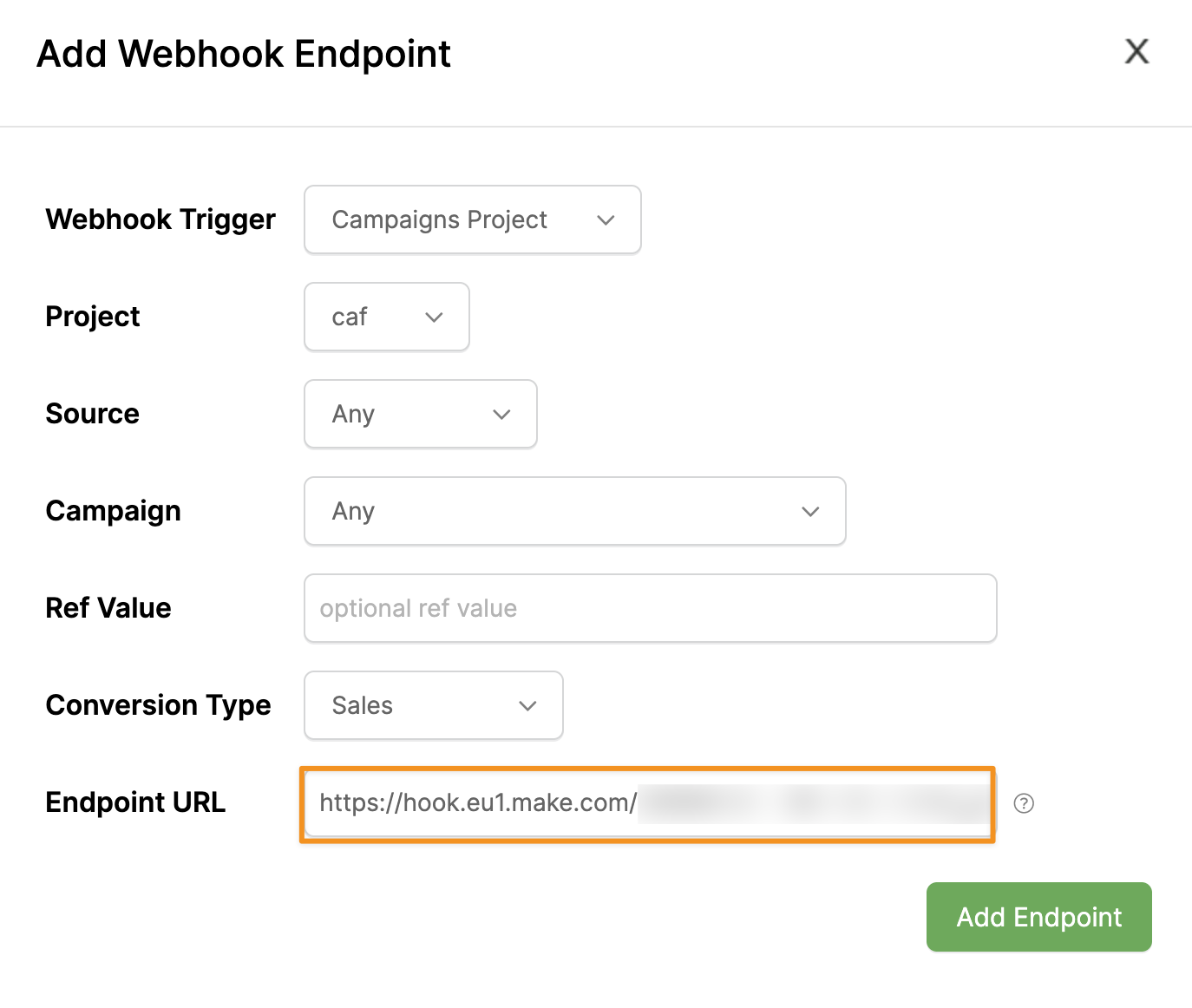
Paste the webhook URL from Make.com into the Endpoint URL at the bottom.
 Step 3 – Create Your Action
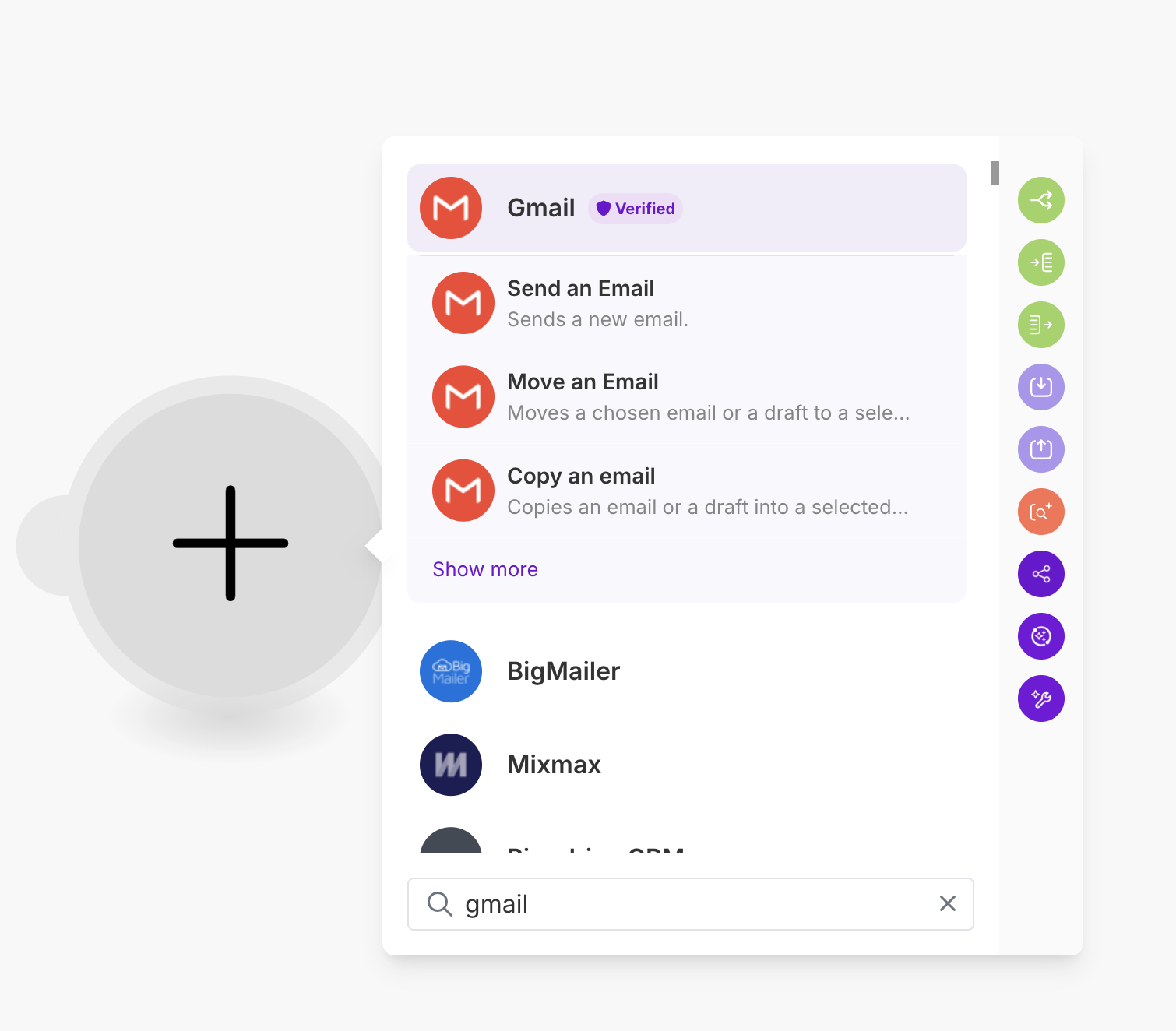
Click on the big plus button next to your trigger and select Gmail.
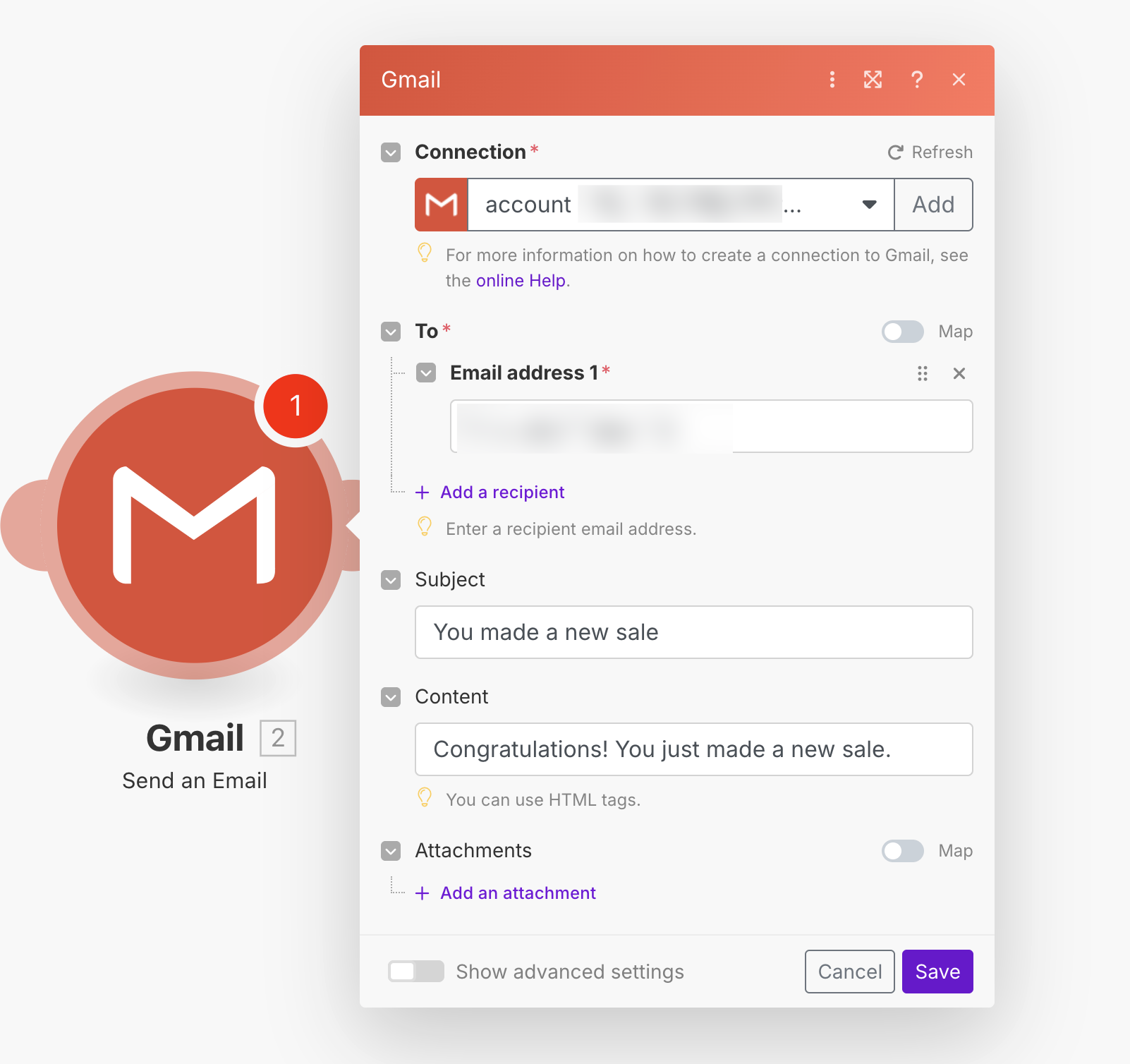
Next, connect your Google account, enter the recipient’s email address, the subject, and the body of the email.
Once all of that is complete, test and publish your Scenario.
That’s it. You’ll now receive an email every time you make a sale for the Project that you selected.
Article 1030 Last updated: 10/16/2025 5:33:56 AM
https://www.clickmagick.com/kb/?article=1030
