
|
How do I track GumRoad sales?
Once you have a product created inside of GumRoad, just follow the steps below to begin tracking your sales …
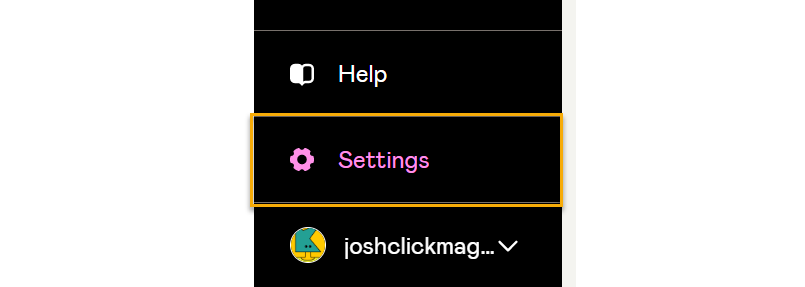
Step 1 – Click on your name in the bottom left corner then click on “Settings.”
Step 2 – Click on “Third-party analytics” in the Navigation Bar:

Step 3 – Click on the “Add snipped” button:

Step 4 – Give your snippet a name, choose “Receipt” as the location, set it to show on “All products”, and add the code below to the box:
<script>

var cmPixel = document.createElement('img');

cmPixel.src = "//www.clkmg.com/api/s/pixel/?uid=[USERID]&ref=$ORDER&amt=$VALUE";

</script>

<noscript><img height="1" width="1" style="display:none"
src="//www.clkmg.com/api/s/pixel/?uid=[USERID]&ref=$ORDER&amt=$VALUE"
/></noscript>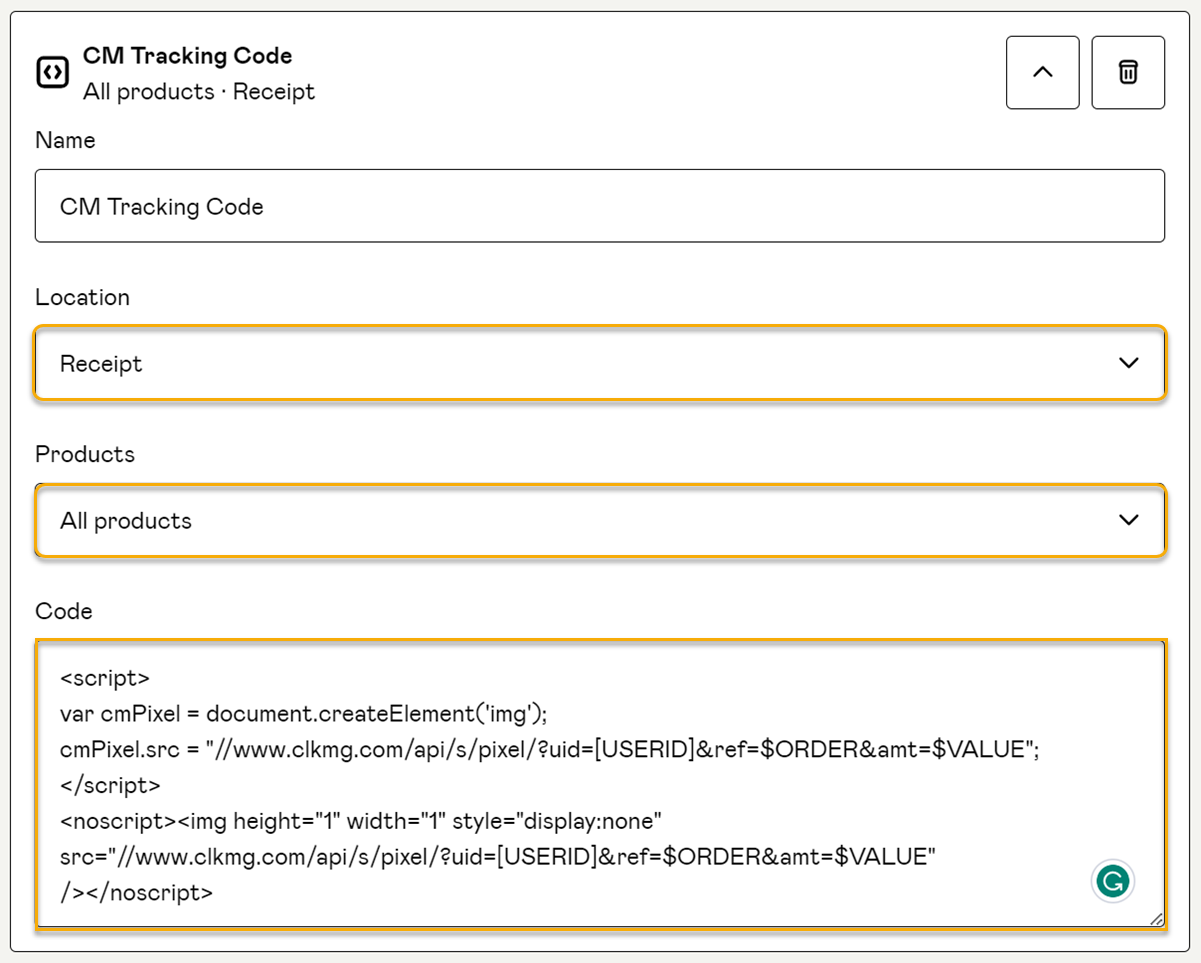
Remember to save your changes.
Using the code above will automatically apply the correct amount for the products you sell inside of GumRoad.
Article 678 Last updated: 01/06/2025 7:54:56 AM
https://www.clickmagick.com/kb/?article=678