
|
How do I add tracking code or JavaScript to ClickFunnels?
ClickFunnels now has two versions – their legacy version known as ClickFunnels Classic and their new version known as ClickFunnels 2.0. Be sure to select the tab for the version of ClickFunnels you’re using.
Here’s how to add your tracking code to a ClickFunnels page ...
1. Go into the editor for the page you want to add the JavaScript code to.
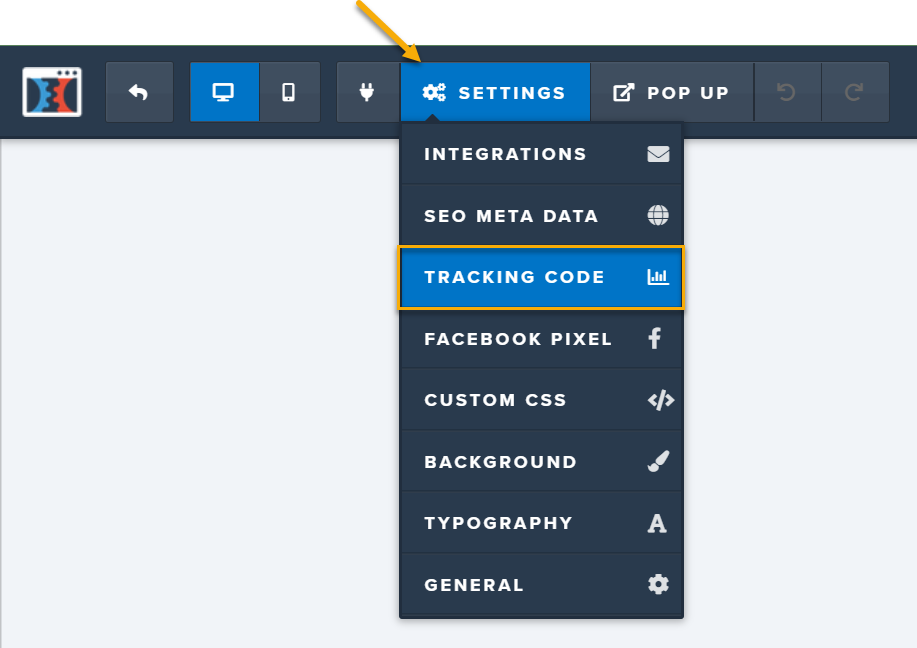
2. Select “Settings” at the top of the page editor.
3. Select “Tracking Code.”
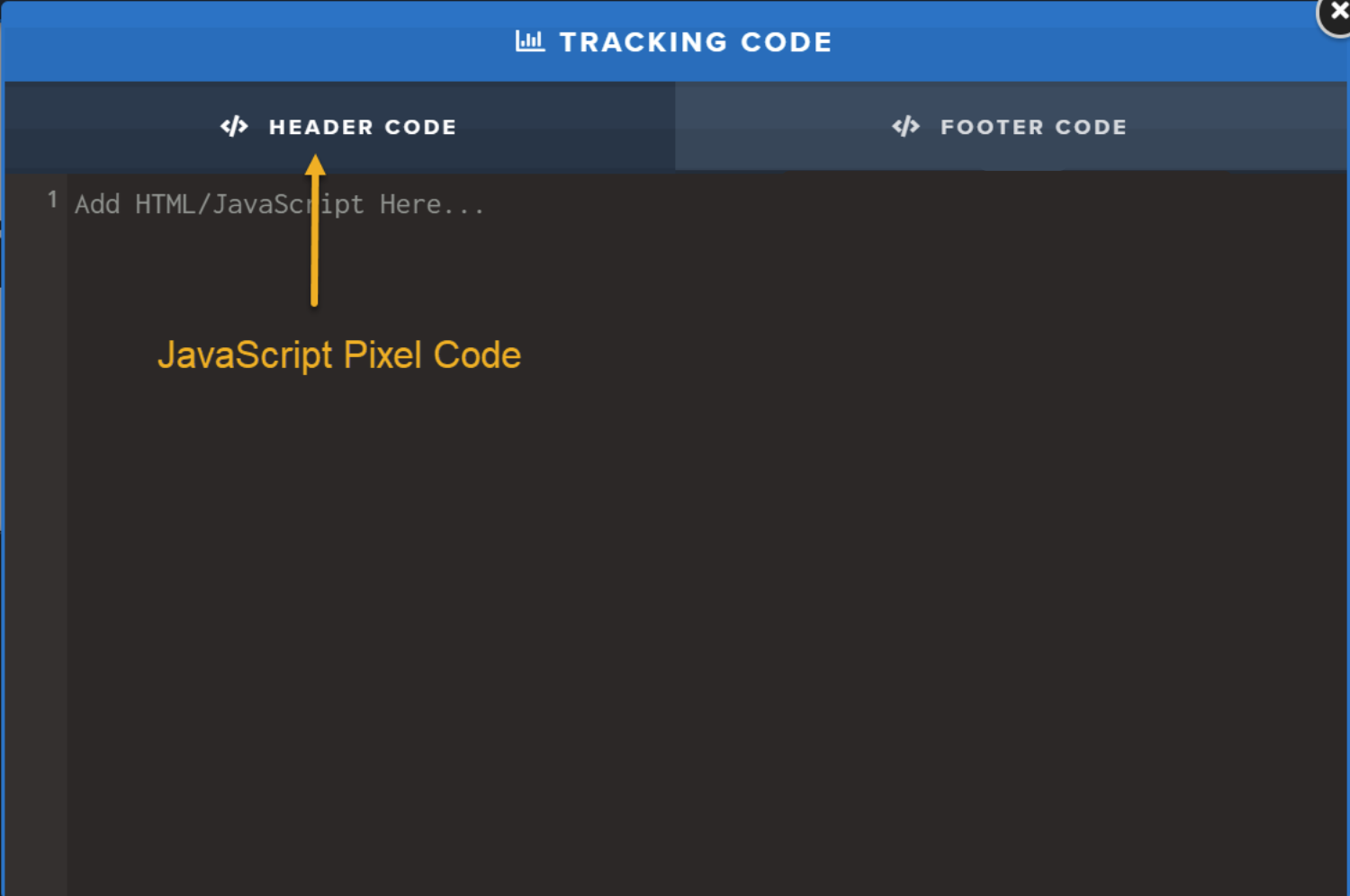
4. Paste your JavaScript code in the Header section.
Caution: The ClickFunnels editor has a block called “JS/HTML” but, ironically, the JS/HTML block does not work with JavaScript despite it’s name. In short, don’t use the JS/HTML block for JavaScript—it won’t work and you’ll just get frustrated. Follow the steps above instead.
(For the technically curious, the ClickFunnels editor HTML-encodes the JavaScript in a JS/HTML block causing it to be unrecognizable as JavaScript anymore...)
(For the technically curious, the ClickFunnels editor HTML-encodes the JavaScript in a JS/HTML block causing it to be unrecognizable as JavaScript anymore...)
Here’s how to add your tracking code to a ClickFunnels 2.0 page ...
1. Go into the editor for the page you want to add the tracking pixel or JavaScript code to.
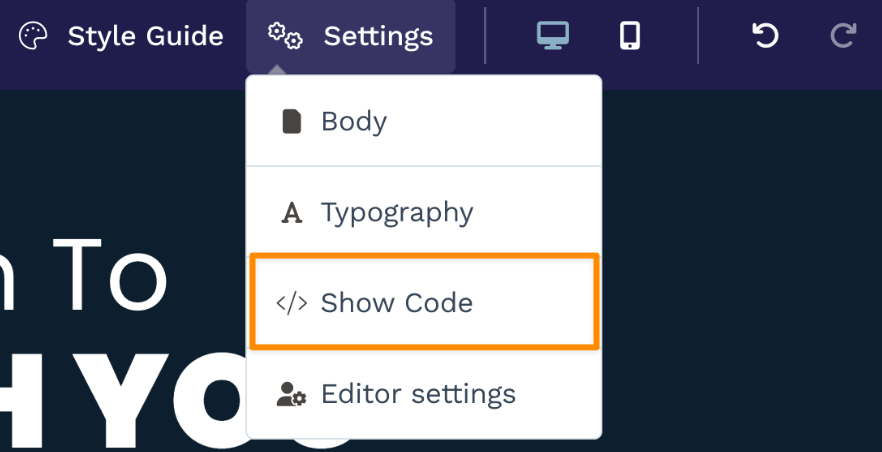
2. Select “Settings” and then “</> Show Code” at the top of the page editor.
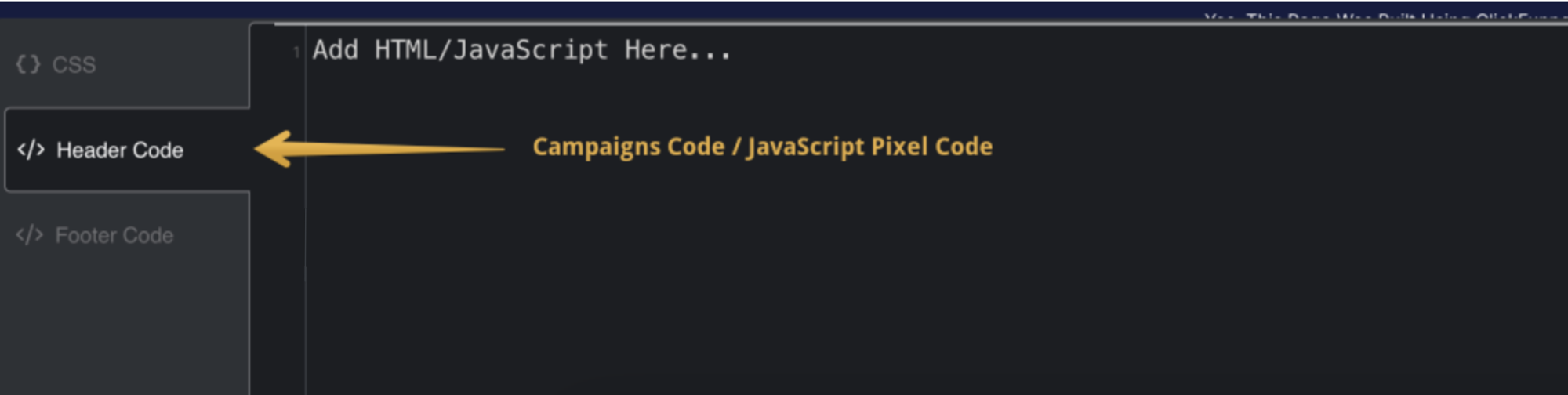
3. Paste your JavaScript code in the Header section.
Caution: The ClickFunnels editor has a block called “JS/HTML” but, ironically, the JS/HTML block does not work with JavaScript despite it’s name. In short, don’t use the JS/HTML block for JavaScript—it won’t work and you’ll just get frustrated. Follow the steps above instead.
(For the technically curious, the ClickFunnels editor HTML-encodes the JavaScript in a JS/HTML block causing it to be unrecognizable as JavaScript anymore...)
(For the technically curious, the ClickFunnels editor HTML-encodes the JavaScript in a JS/HTML block causing it to be unrecognizable as JavaScript anymore...)
Article 442 Last updated: 11/11/2025 12:46:05 AM
https://www.clickmagick.com/kb/?article=442