
|
How do I track conversions with a Funnelish landing page?
If you're using a Funnelish landing page for your Shopify store, there are a couple of steps to make sure your sales are tracked correctly.
Before you begin, make sure you've integrated the ClickMagick Shopify app with your Shopify store.
How do I use ClickMagick’s Shopify App to integrate my store?
Once you have done that, follow these steps:
Step 1 – Get your Click Tracking Code
From your Project Dashboard, go to the Tools menu, then click on "Website Code".
Click on "Custom Code", and copy the Click Tracking Code.
Step 2 – Paste the code in the header of your landing page
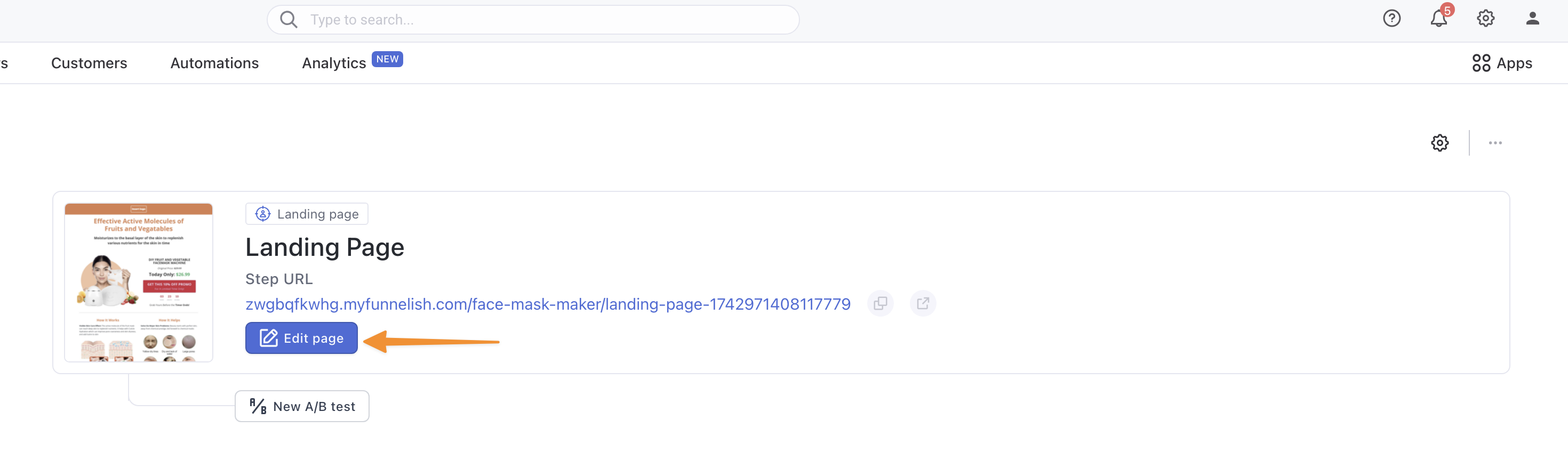
In your Funnelish account, select your funnel, and then click on "Edit page" to edit your landing page.
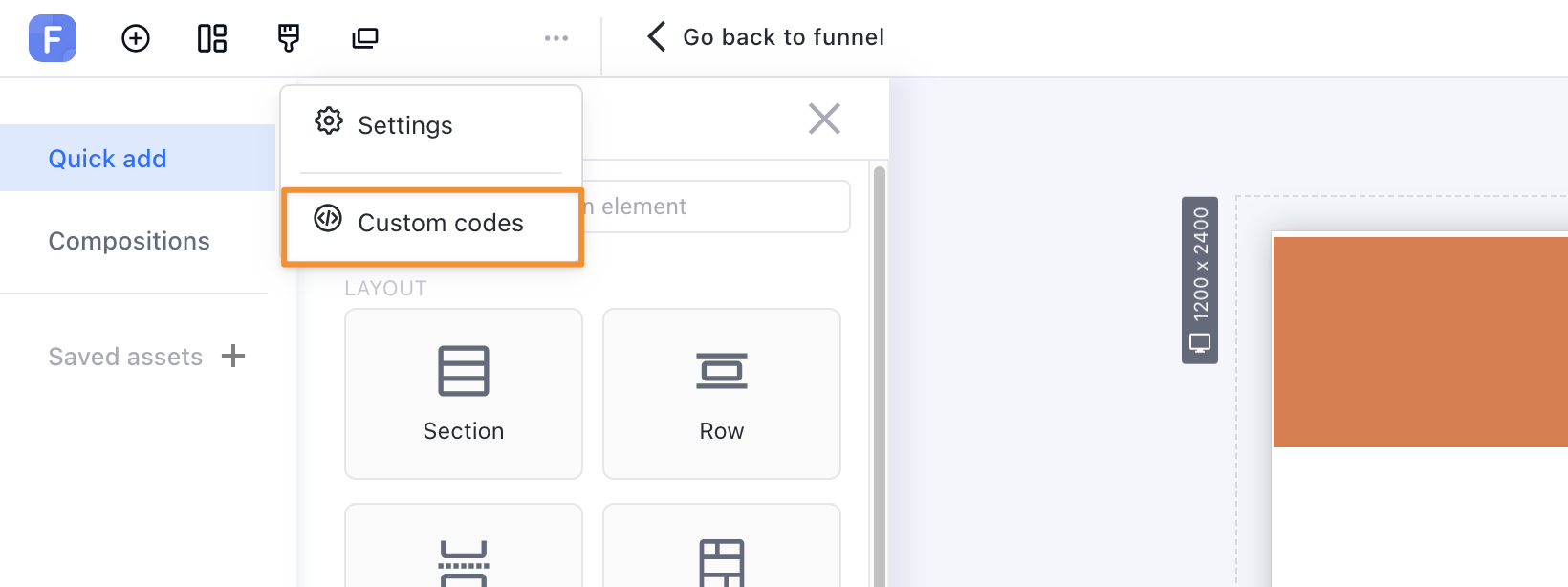
Then, click on the "3 dots" icon at the top-left, and choose "Custom codes"
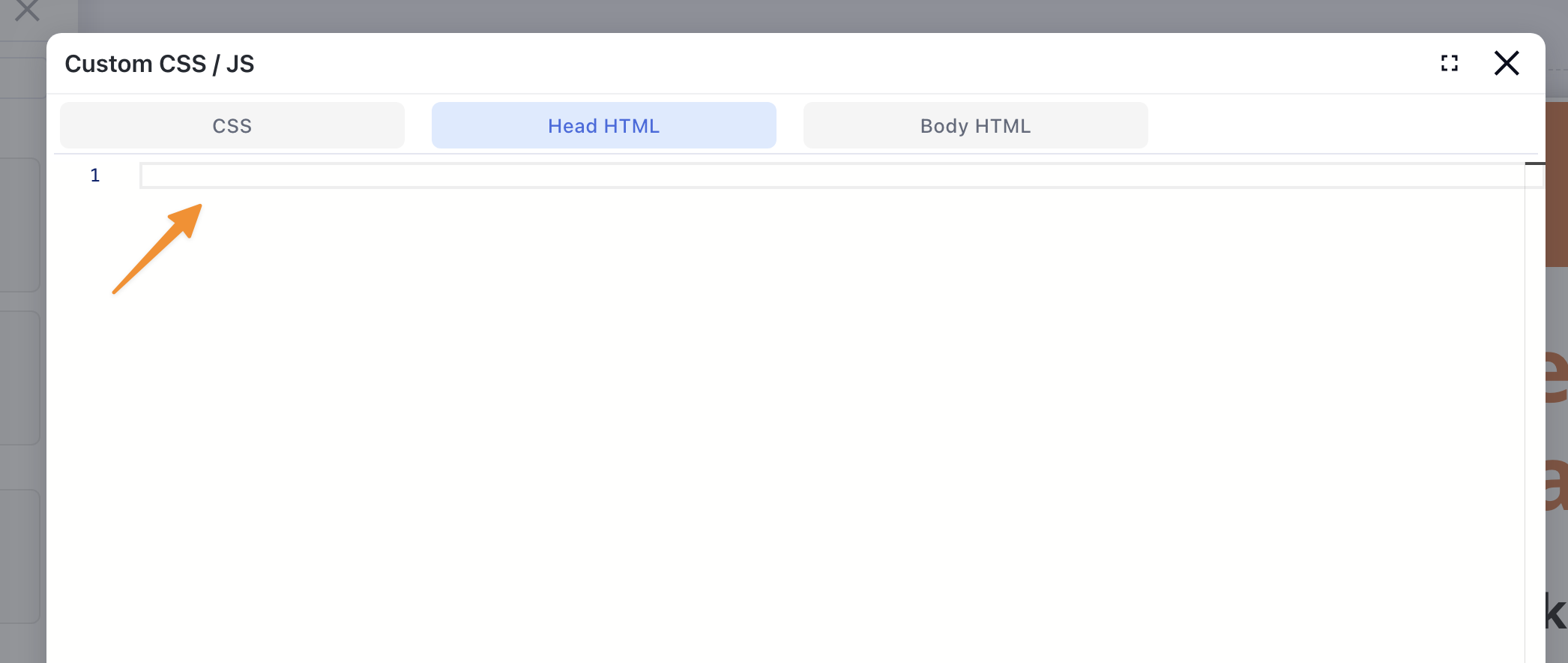
Next, in the Custom CSS / JS pop-up, click on the "Head HTML" tab. Paste your Click Tracking Code, and click "Save Changes".
Step 3 – Modify the CTA button on your landing page
In ClickMagick, click on Tools > URL Builder, and paste your Shopify store URL or your checkout URL in the Landing Page URL field.
Click on the "Optional CMC Parameters" tab, and select "[cmc_vid]" in the "cmc_vid" dropdown.
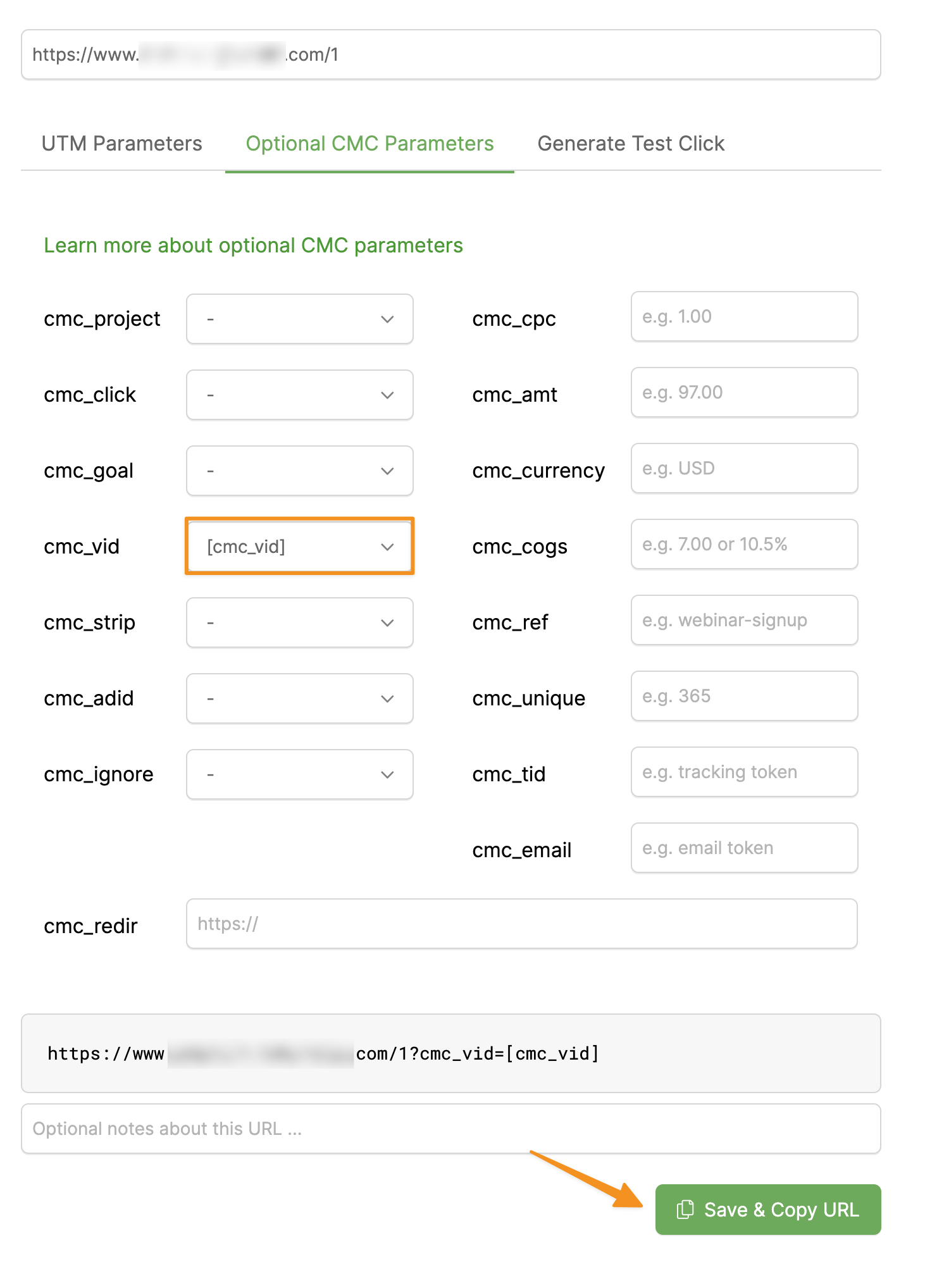
Copy the URL the builder generates.
Then, head back to Funnelish, and click on the button or link that sends people to your store.
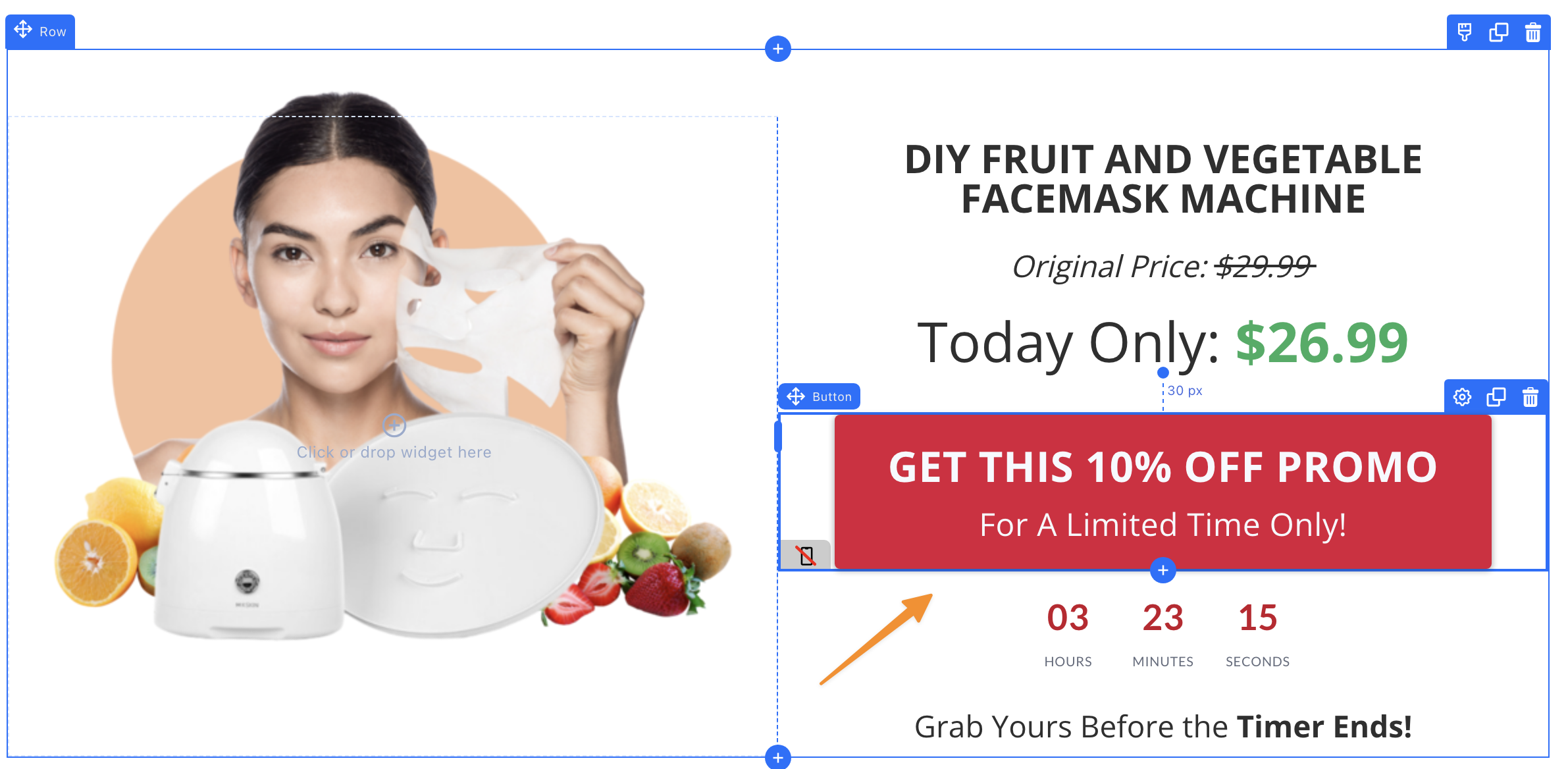
On the menu on the left, click on "Click action"
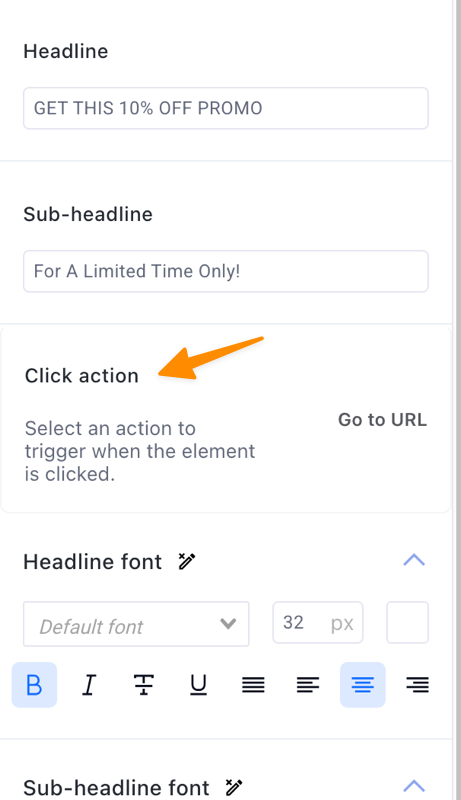
In the "Click action" pop-up, paste the updated URL with the Visitor ID (cmc_vid) parameter and token added in the "Go to URL" field, and click "Save changes".

That’s it.
You can now start tracking your conversions with Funnelish.
Article 1015 Last updated: 10/16/2025 5:31:34 AM
https://www.clickmagick.com/kb/?article=1015